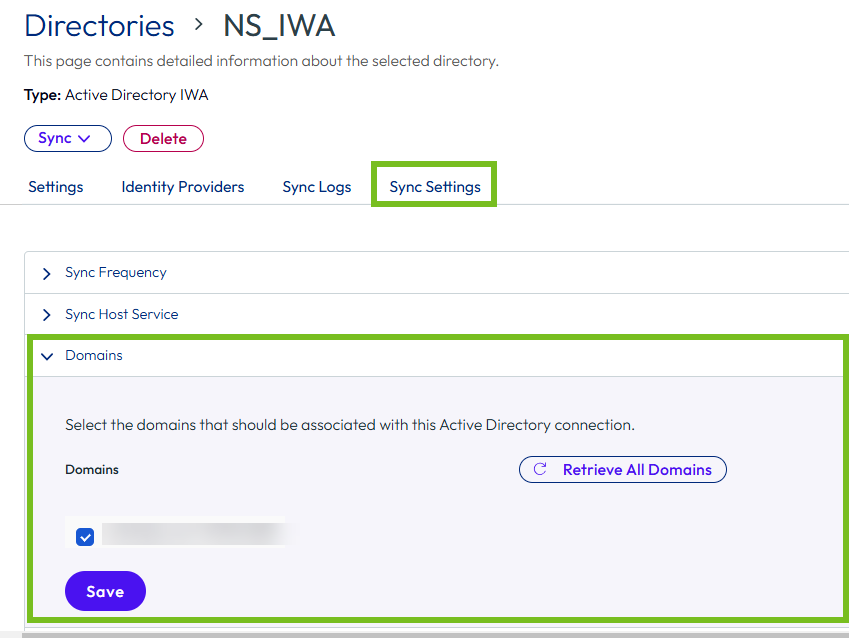
You can view and update the list of domains that sync from your enterprise directory to your Omnissa Access directory from the directory's Sync Settings > Domains tab. You can only update the list of domains for directories of type Active Directory over Integrated Windows Authentication. Selected domains for directories of type LDAP, or Active Directory over LDAP, cannot be changed.
Tip: Select trusted domains one by one instead of selecting all the domains at once. This ensures that domain save is not a long-running operation that can potentially time out. Selecting domains sequentially ensures that the Directory Sync service spends time trying to resolve a single domain only.
Note: For Active Directory over LDAP directories that have the Global Catalog option selected, the Domains tab does not appear.
Procedure
-
In the Omnissa Access console, select Integrations > Directories.
-
Click the directory that you want to update.
-
Select the Sync Settings > Domains tab.
The list of domains that are currently selected for the directory appears.
-
Click the Retrieve all domains button to see all available domains.
The Directory Sync service connects to the Active Directory server and retrieves the latest list of domains.
-
Select the domains that you want to sync to the Omnissa Access directory.
Make sure that at least one domain is selected.
-
Click Save.
Was this page helpful?