You can check the sync status for your Omnissa Access directories to see whether sync completed successfully, view alerts, and see the specific changes that were made during each sync run. Detailed sync logs help you troubleshoot errors in syncing users and groups to Omnissa Access.
Monitor sync status for all directories
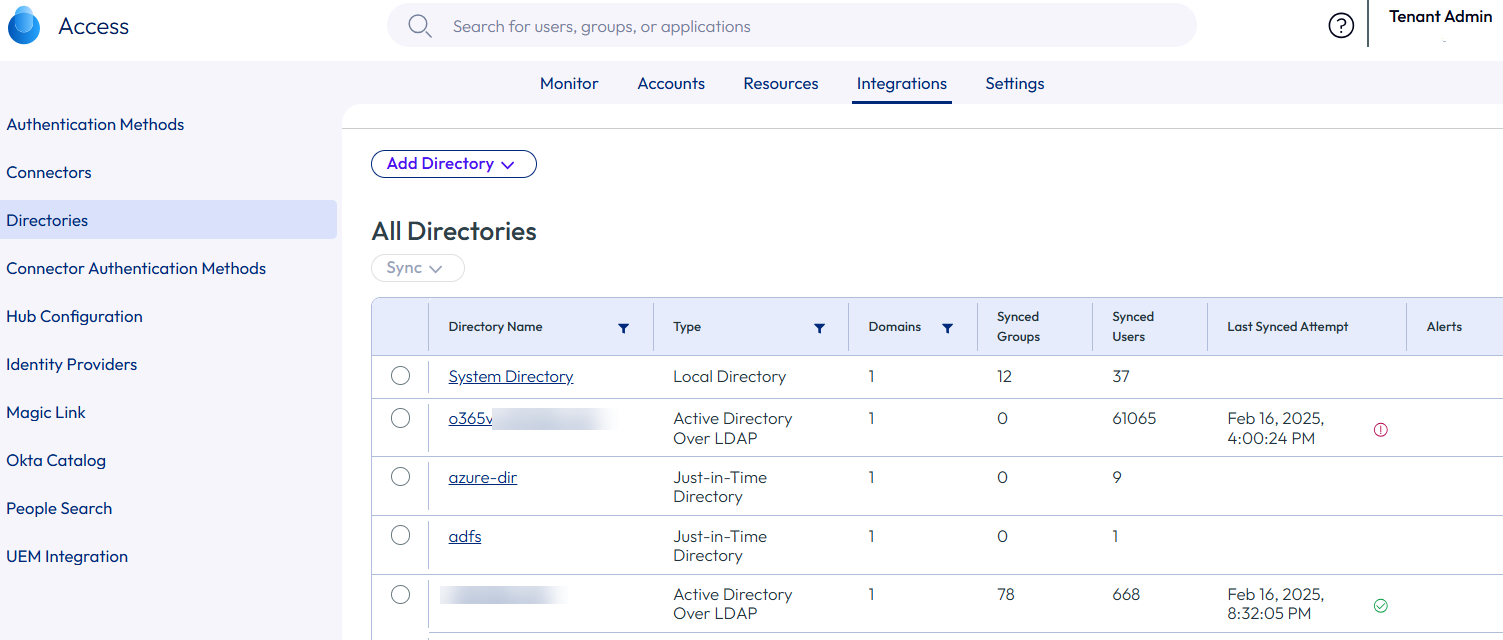
Monitor the sync status of all your Omnissa Access directories from the Directories page, which provides a high-level view of the directories. For example, you can see whether the last sync attempt was successful and whether any alerts were created that require your attention.
-
In the Omnissa Access console, select Integrations > Directories.
-
Review the sync status of the directories.
For each directory of type Active Directory over LDAP, Active Directory over IWA, or LDAP Directory, you can view the following information:
-
The number of synced domains
-
The number of synced users and groups
-
The time the last sync was attempted
-
The status of the last sync
-
Any alerts that occurred during the last sync
Click the number in the Alerts column to view the alerts.
For example:
-
View sync logs for a specific directory
Omnissa Access generates sync logs each time sync is attempted for a directory, regardless of whether the sync succeeded or whether it was a scheduled or manual sync.
Review the sync logs to check whether the sync run was successful, view how many users and groups were created, updated, or deleted during sync, and look for and troubleshoot errors.
You can view sync logs for the last 20 syncs per directory.
-
In the Omnissa Access console, select Integrations > Directories.
-
Click the directory name.
-
Select the Sync Logs tab.
-
Review the sync logs.
Logs for the last 20 sync runs appear. For each sync run, you can see the following information:
Column Description Timestamp The time the sync started Sync Host Service The Directory Sync service instance that performed the sync Sync Details If the sync succeeded, displays the total number of users and groups that were affected in the sync run. Click the information icon to see details about the users and groups. If the sync failed, displays the error message Failed to complete sync due to an exception. If sync failed because of a sync safeguards violation, you can click the error message to get more information about the safeguards violation. If sync failed for any other reason, check the Directory Sync service log files on the connector server.Alerts The number of alerts created during the sync run, if any Click the number to see the list of alerts. Status Indicates whether the sync run succeeded or failed. For example:
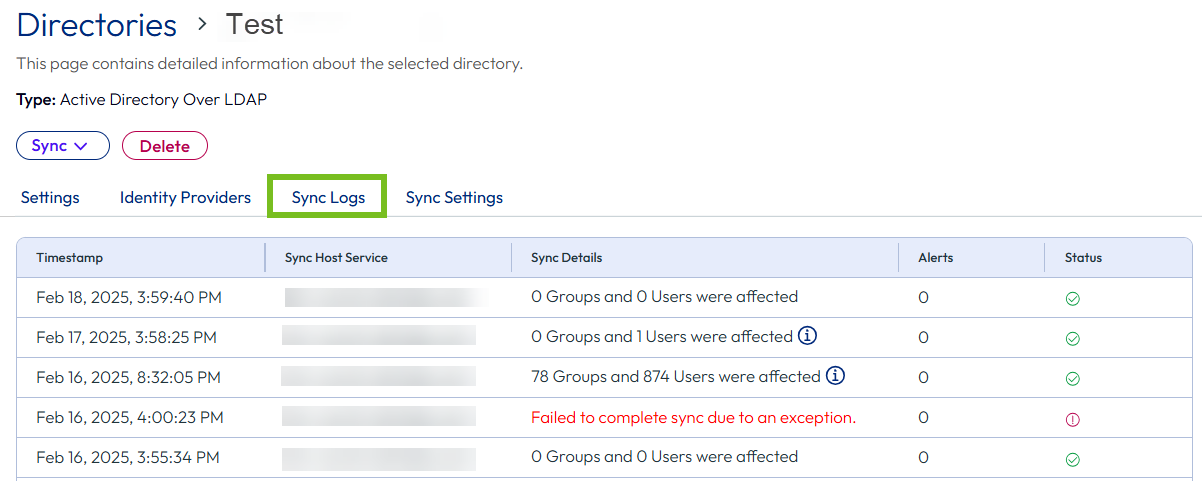
-
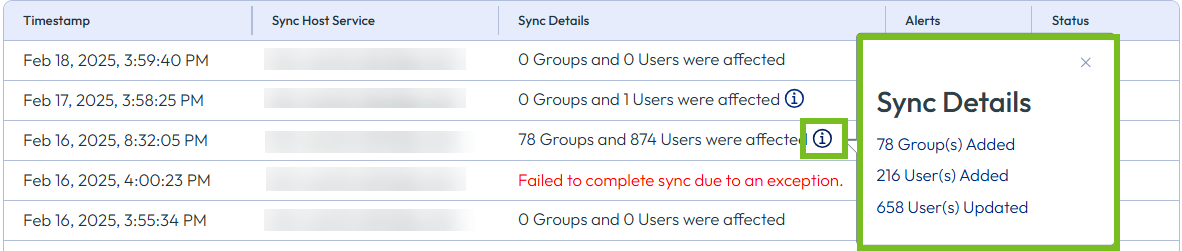
To view details about which users and groups were created, deleted, or updated during a successful sync run, click the information icon in the Sync Details column, then click the link in the popup window.
For example:
Note:
- Only actions performed during the sync run appear in the Sync Details popup window.
- If a previously deleted user is added back to the directory, three events appear for the action, a User CREATE event that is counted in the Users Added list and two User UPDATE events that are counted in the Users Updated list.
- (Omnissa Access on premises only) If previously deleted users were added back to the directory in a version of Omnissa Access prior to 23.09, the details of those users are not displayed after upgrade to Omnissa Access 23.09 or later. The users are counted in the Users Added list in the information pop-up window but do not appear in the Sync Details window.
The Sync Details window displays the list of events. You can see the type of object (user or group), the type of action that was performed (create, edit, or delete), and the time the action was performed.
For example:
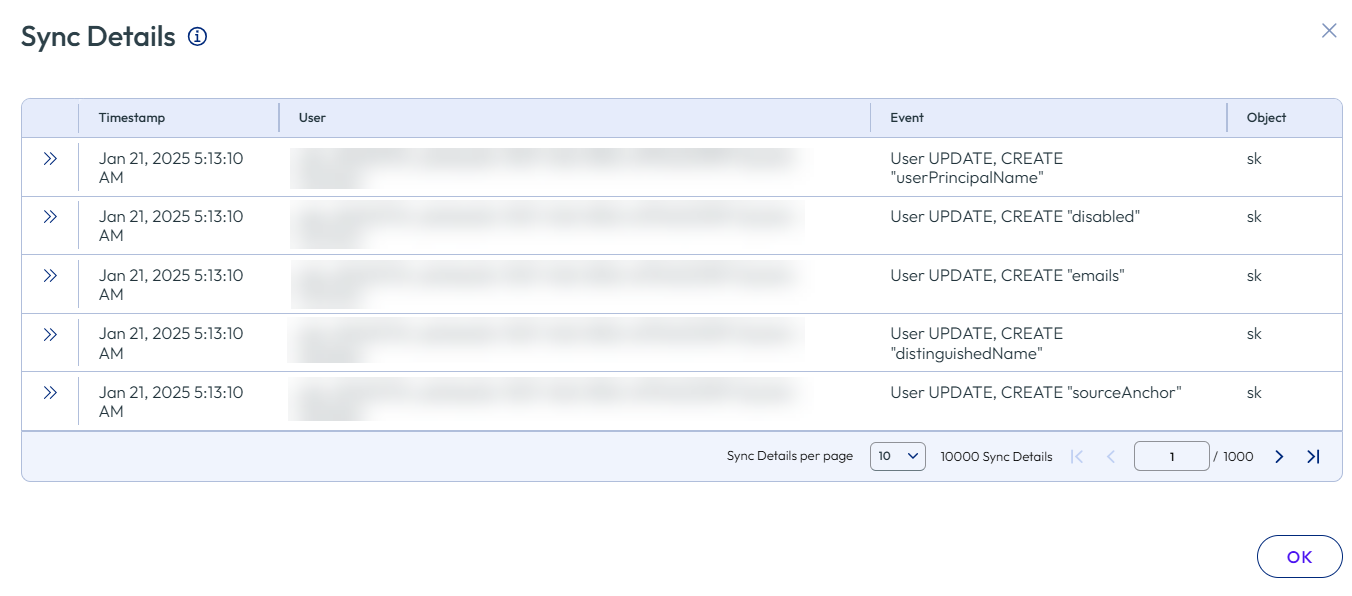
To view details about an event, click the expand icon. For example:
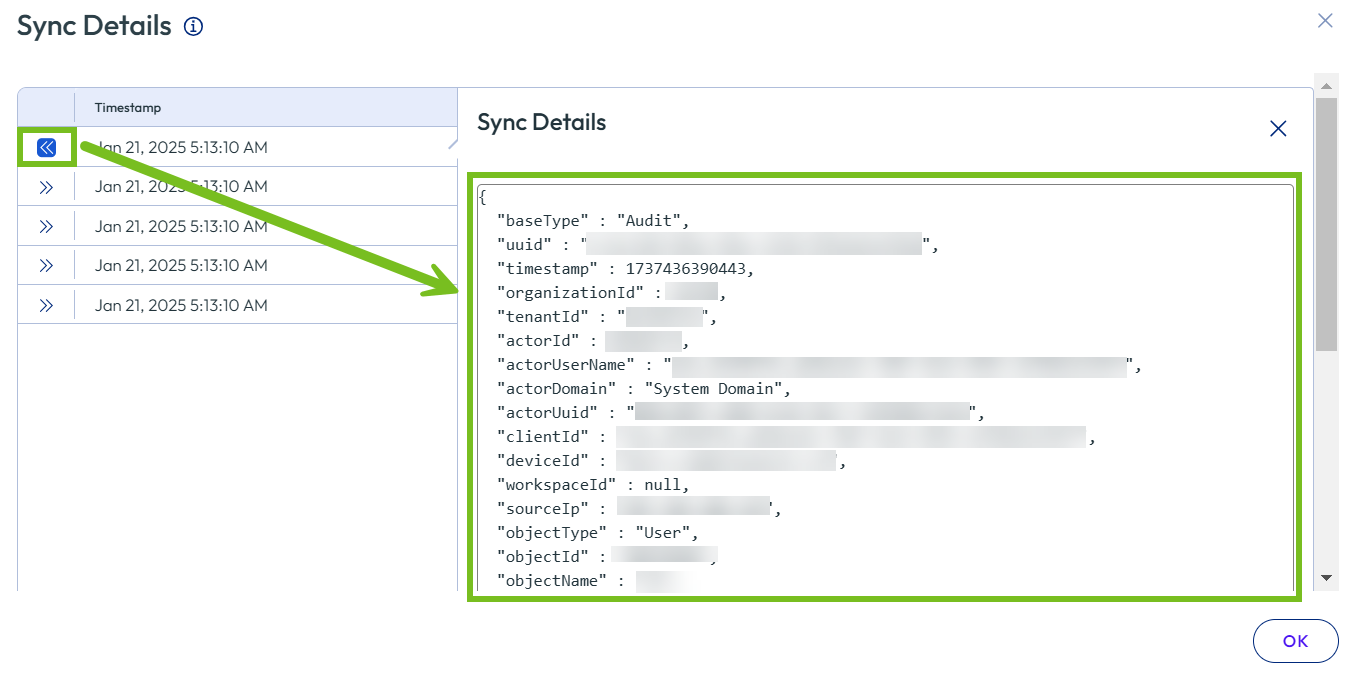
Important: The Sync Details window displays a maximum of 10,000 events. Keep in mind that additional events might exist. You can see all events in the reports available on the Monitor > Reports page. See View all events in Audit Events report for more information.
-
For unsuccessful sync runs, view the error in the Sync Details column.
Sync can fail for many reasons.
-
If sync fails because the number of changes exceeds the safeguard thresholds that you set for the directory, click the error to see more information about the safeguards violation.
For example:

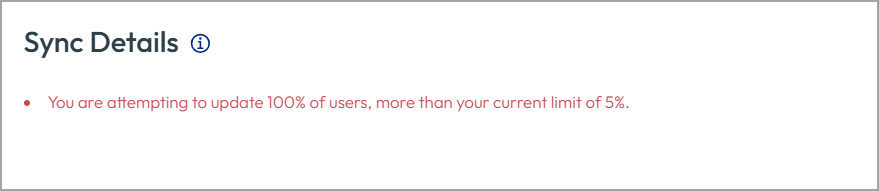
For information about which users and groups are affected by the safeguards violation, check the Directory Sync service logs on the connector server. This information is available in Omnissa Access connector 23.09 and later.
-
If sync fails for any reason other than a safeguard violation, check the Directory Sync service log files on the connector server for more information.
-
-
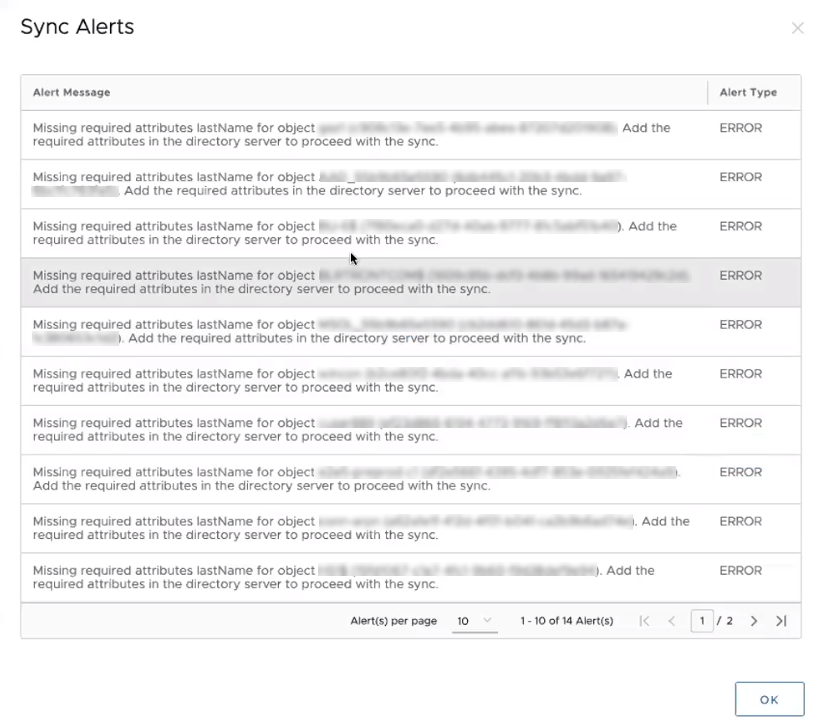
To view alerts, click the number that appears in the Alerts column.
For example:

The Sync Alerts window displays the list of alerts. For example:
View all events in Audit Events report
Sync logs that you access from the Directories pages display a maximum of 10,000 events. To see all events, use the Audit Events report. You can also export the report to a .csv file.
-
Select the Monitor > Reports tab.
-
Select the Audit Events report.
-
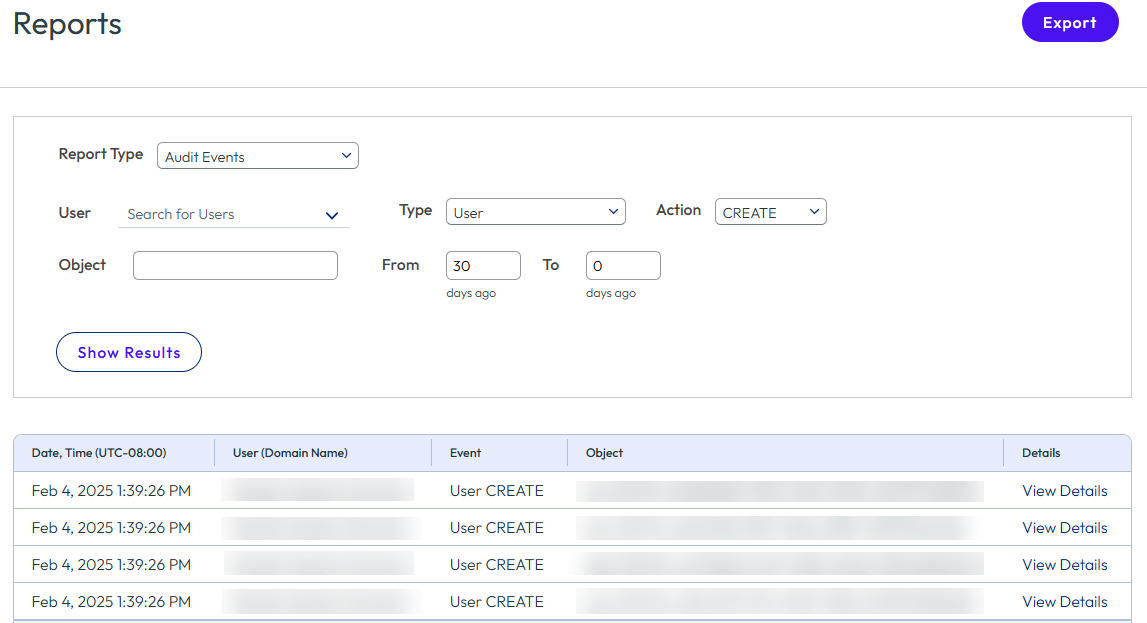
Select the type, action, and time range, then click Show.
For example, you can set Type to User, Action to CREATE, and the time range to the past 30 days.
-
To view details about a specific event, click the View Details link.
Was this page helpful?