You can configure sync safeguard thresholds for your Omnissa Access directory to help prevent unintended changes to users and groups when the directory syncs with your enterprise directory. Some thresholds are set by default.
About Sync Safeguards
Sync safeguards limit the number of changes that can be made to users and groups when the directory syncs. You can set different thresholds for actions such as creating users, updating users, updating groups, or deleting groups. If the changes exceed any of the thresholds, directory sync stops and an error appears on the directory's Sync Logs tab. If you configured SMTP in the Omnissa Access console, you also receive an email message when sync fails because of a safeguard violation.
When sync fails, you can go to the directory's Sync Logs tab to see a description of the type of safeguard violation.
To successfully complete the directory sync, you can either increase the threshold of the safeguard on the Sync Settings > Safeguards tab, or you can sync manually with the Sync > Sync without safeguards option on the directory page. When you sync with the Sync > Sync without safeguards option, the safeguard thresholds are not enforced for the current sync session only.
When you sync a directory for the first time, sync safeguard thresholds are not enforced.
Note: If you do not want to use sync safeguards for your directory, delete the existing threshold values on the directory's Sync Settings > Safeguards tab. When the threshold text boxes are empty, sync safeguards are not activated.
Configure Directory Sync Safeguards in Omnissa Access
Configure sync safeguard thresholds to limit the number of changes that can be made to users and groups when the Omnissa Access directory syncs with your enterprise directory. If the changes exceed any threshold, directory sync stops.
Note: Some thresholds are set by default. If you do not want to use sync safeguards for your directory, delete the existing threshold values on the directory's Sync Settings > Safeguards tab. When the threshold text boxes are empty, sync safeguards are not activated.
Procedure
-
In the Omnissa Access console, select Integrations > Directories.
-
Click the directory for which to set safeguards.
-
Select the Sync Settings > Safeguards tab.
-
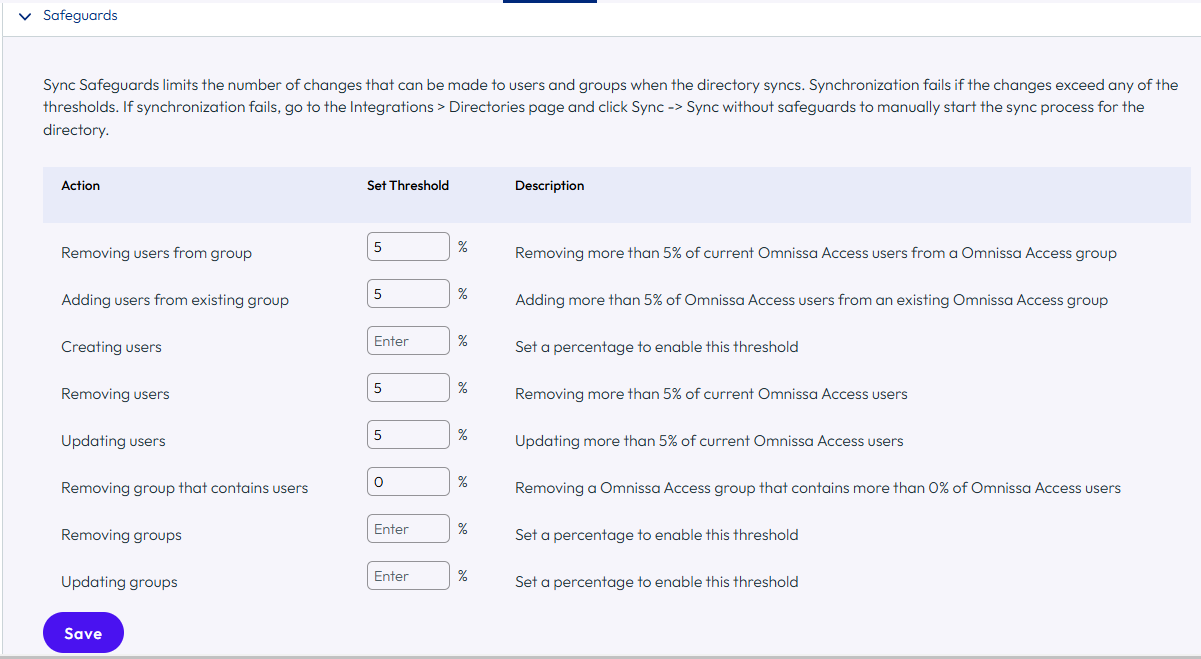
For each safeguard that you want to configure, set the percentage of changes that will trigger the sync to fail.
If you do not want to set a threshold for a safeguard, leave the text box empty.
You can set thresholds for the following actions:
-
Removing users from a group
-
Adding users to an existing group
-
Creating users
-
Removing users
-
Updating users
-
Removing group that contains users (removing a group that contains more than the specified percentage of users)
-
Removing groups
Note: This safeguard is available with Omnissa Access connector 23.09 and later only.
-
Updating groups (updating group attributes such as domain or groupName, which are synced from your enterprise directory, in more than the specified percentage of groups)
Note: This safeguard is available with Omnissa Access connector 23.09 and later only.
For example:
-
-
Click Save.
View Sync Safeguard Violations
When directory sync fails because of a sync safeguard violation, you can view the sync logs to see which safeguard thresholds were exceeded.
Procedure
-
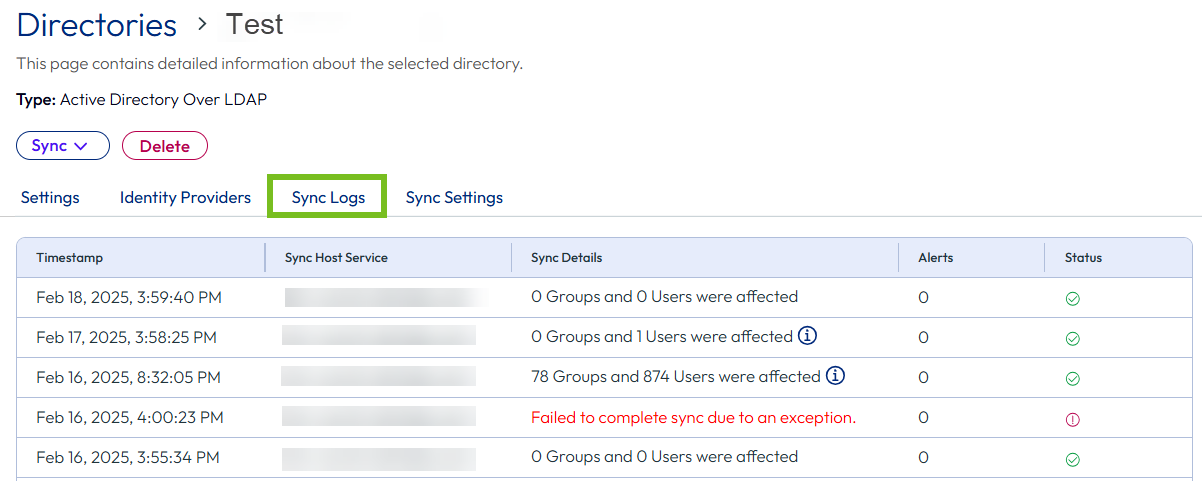
On the directory page, select the Sync Logs tab.
-
Click the Failed to complete sync due to an exception link in the Sync Details column.

Note: The Failed to complete sync due to an exception error is not clickable if sync failed due to any reason other than a safeguard violation. In that case, review the Directory Sync service logs on the connector server to troubleshoot the error.
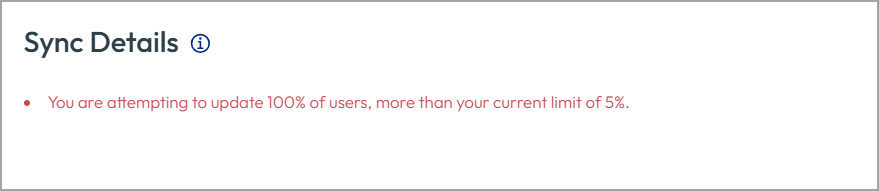
The pop-up window provides information about which sync safeguard thresholds were exceeded. For example:
-
For information about which users and groups are affected by the safeguards violation, check the Directory Sync service logs on the connector server.
This information is available in Omnissa Access connector 23.09 and later.
What to do next
After reviewing the safeguard violations, you can take one of the following actions to complete the sync:
-
Adjust the directory's sync settings to limit the number of changes that will be made during sync, then sync again.
-
Increase the sync safeguard thresholds, then sync again.
-
Complete the sync by ignoring the sync safeguard settings.
Caution: Be very careful about syncing without safeguards in production environments because it can have unintended effects such as deleting users and groups.
How to Ignore Safeguard Settings to Complete Syncing to Omnissa Access Directory
If you receive notification that your Omnissa Access directory sync did not complete because of a safeguard violation, and if you decide after careful consideration to proceed with the sync, you can override the safeguard setting and complete the sync.
Caution: Be very careful about syncing without safeguards in production environments because it can have unintended effects such as deleting users and groups.
Procedure
-
In the Omnissa Access console, select Integrations > Directories.
-
Click the directory that did not complete the sync.
-
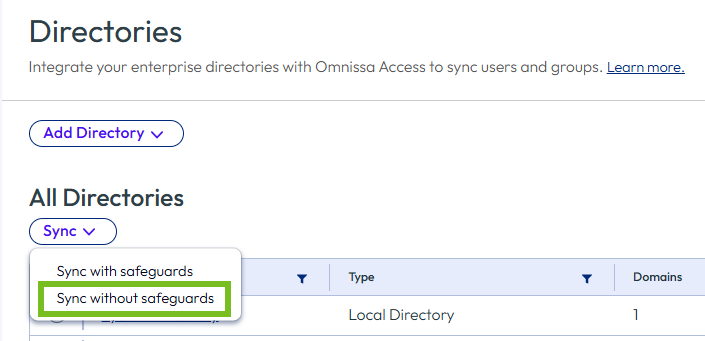
From the Sync drop-down menu, select Sync without safeguards.
Results
The directory sync runs and the safeguard threshold settings are ignored for this sync session only.
Was this page helpful?