To configure the interval and downtime of a background job running in App Volumes Manager, you can use the Jobs page. The ability to configure the interval and downtime helps ease background job queues.
You can also use the Jobs page to activate or deactivate a job depending on your requirements.
-
IntervalInterval is the time duration between successive running of each background job.
-
DowntimeDowntime is the duration for which the job does not run.
When configured, the downtime for a job is activated immediately after the previous job run ends.
Note: Configure the Interval and Downtime of a background job only when there is a requirement in your environment.
How do Interval and Downtime Determine a Job Run
After a job completes, the Downtime is activated. The job does not run during the Downtime even when the job interval is scheduled to be less than the Downtime. After the Downtime ends, the job is triggered automatically as per the next scheduled Interval.
Example
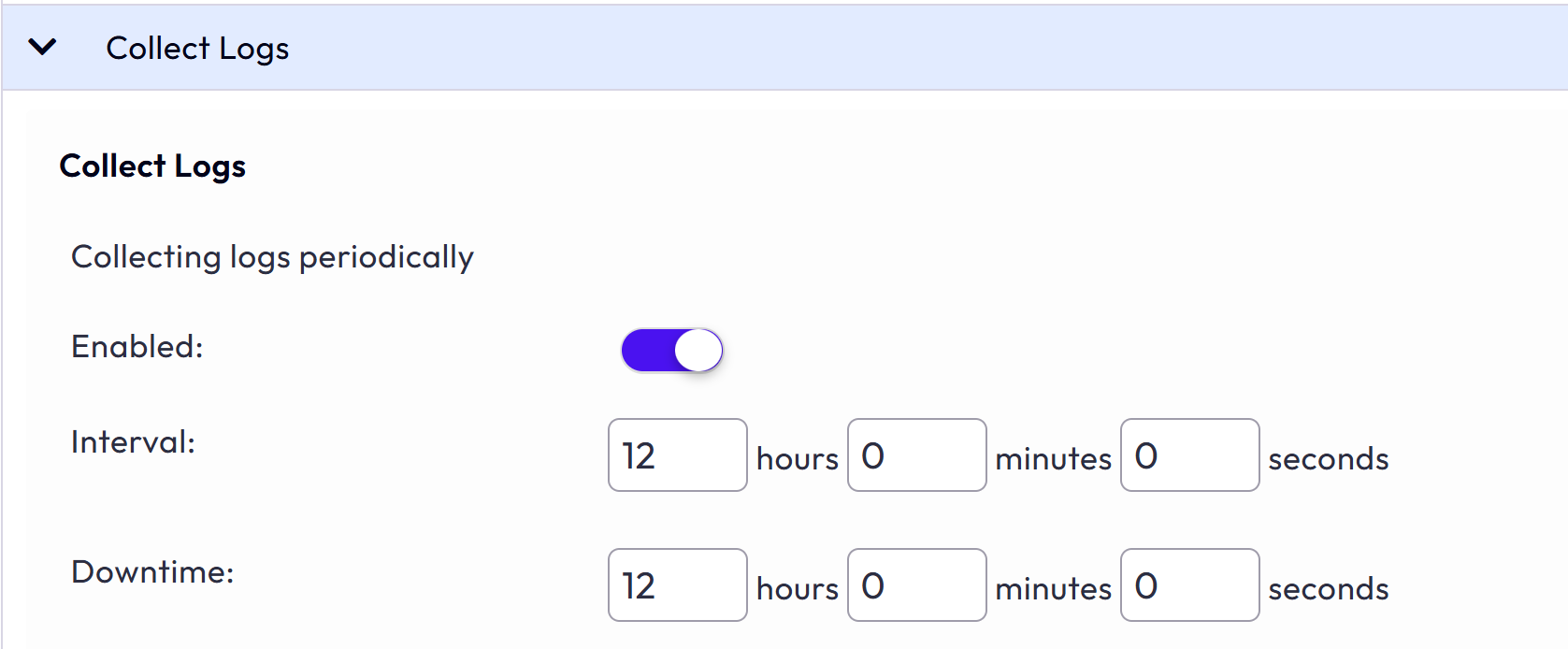
In the following image, Collect Logs is a background job whose Interval is configured as 2 hours and Downtime is configured as 3 hours. Let us consider that the initial job run ends at 1 p.m. As per the configured Interval, the subsequent jobs are triggered to run at 3 p.m., 5 p.m., 7 p.m., 9 p.m., and so on. After the initial job run completes, Downtime is activated for 3 hours; the Downtime ends at 4 p.m. As a result, the job run triggered at 3 p.m. is skipped and the next job is automatically scheduled to run at 5 p.m.
Prerequisites
If you want to configure the Interval and Downtime of a job, ensure that you make a note of the default values.
Procedure
-
From the App Volumes Manager console, go to ACTIVITY > Jobs .
Background jobs running in the App Volumes Manager are displayed.
-
Identify the background job whose values you want to configure and click the + sign.
Background job details are displayed.
-
Depending on your requirements, configure the
IntervalandDowntimevalues.Each job has default
IntervalandDowntimevalues. -
Click Save.
-
To deactivate or activate a job, select the job and click Enable or Disable respectively.
By default, the status of a job is
Enabled.
Result
If a job fails due to issues such as network connectivity, then the job run is retried. If the issue gets resolved within the number of retry attempts, then the job runs successfully, else, the job fails to run at that scheduled interval. For the subsequent interval, the job is scheduled to run again. A similar behaviour is followed at every interval.
Using the same example as mentioned earlier, if the Collect Logs job fails to run at 3 p.m. after all retry attempts, then this job is considered as failed. As per the configured interval time, the next job run is scheduled at 5 p.m.
Was this page helpful?