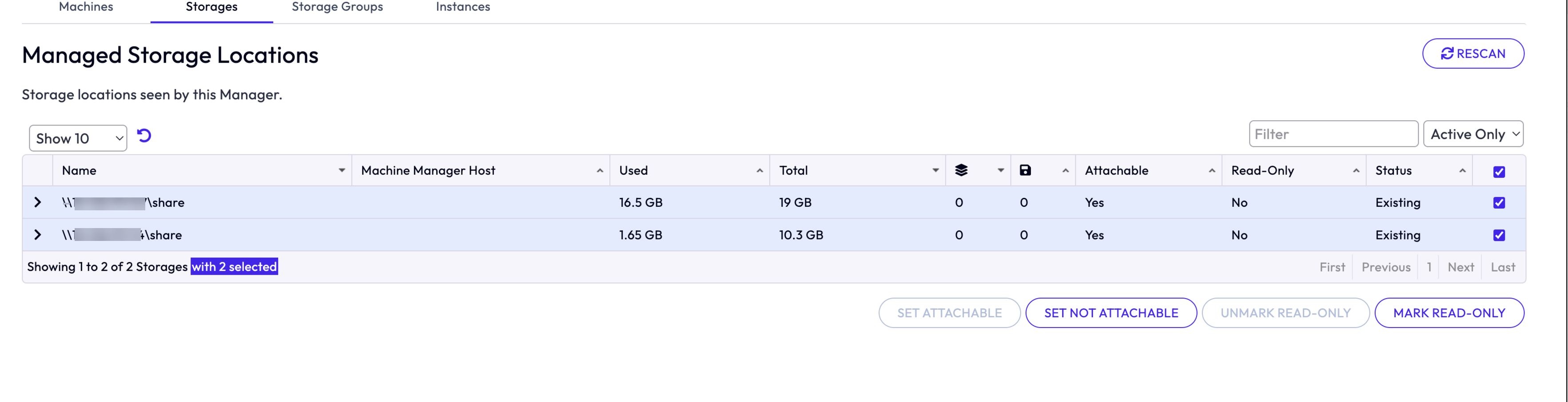
On the Managed Storage Locations page, you can configure storage locations as attachable or non-attachable. You also have the option of marking a storage read-only so that App Volumes Manager can skip writing to that storage when updating a package.
On this page, you can view the list of storage locations including shared datastores, as seen by this instance of App Volumes Manager.
The App Volumes Manager periodically checks for and cleans up machines and storage locations which do not exist on the vCenter Server. These cleaned-up machines and storage locations are marked as deleted in the App Volumes database.
When you configure a storage as not attachable, App Volumes Manager ignores the storage while mounting volumes. For example, if you have set up two vCenter Server instances. Each instance can have a local storage and shared storage capability. You can configure the slower-performing storage as Set Not Attachable. A storage thus configured as not attachable is ignored by App Volumes Manager while mounting volumes and the storage can be used solely for replication of packages.
If a storage is configured as Mark Read-Only and the metadata of a package is updated and this package is replicated from a read-only storage, App Volumes Manager skips writing the updates to the read-only storage, but the package gets replicated. The replicated package does not have the updated metadata. You have the option of removing the read-only marker on the storage.
Procedure
-
To see the list of storage locations that are visible to the App Volumes Manager, click INFRASTRUCTURE > Storages.
-
From the drop-down menu, select the required filter value:
Option Description Active Only Lists active datastores in the App Volumes database. Show All Lists both active and cleaned-up or deleted datastores in the App Volumes database. -
To view the details of a storage location, click the '+' sign next to the storage location.
Information such as whether the storage is attachable or not attachable, marked as read-only, used and total storage available, UUID, number of packages, number of Writable Volumes, and so on, are displayed.
-
(Optional) If you have added or deleted any storage location recently, to view the latest list of locations, click Rescan.
-
Select the storage whose status you want to change.
-
Depending on the current attachable status of the storage, click Set Attachable or Set Not Attachable and confirm the operation.
-
Depending on the current read-only status of the storage, click Mark Read-only or Unmark Read-only and confirm the operation.
Results
The updated status is seen on the Managed Storage Locations page.
Was this page helpful?