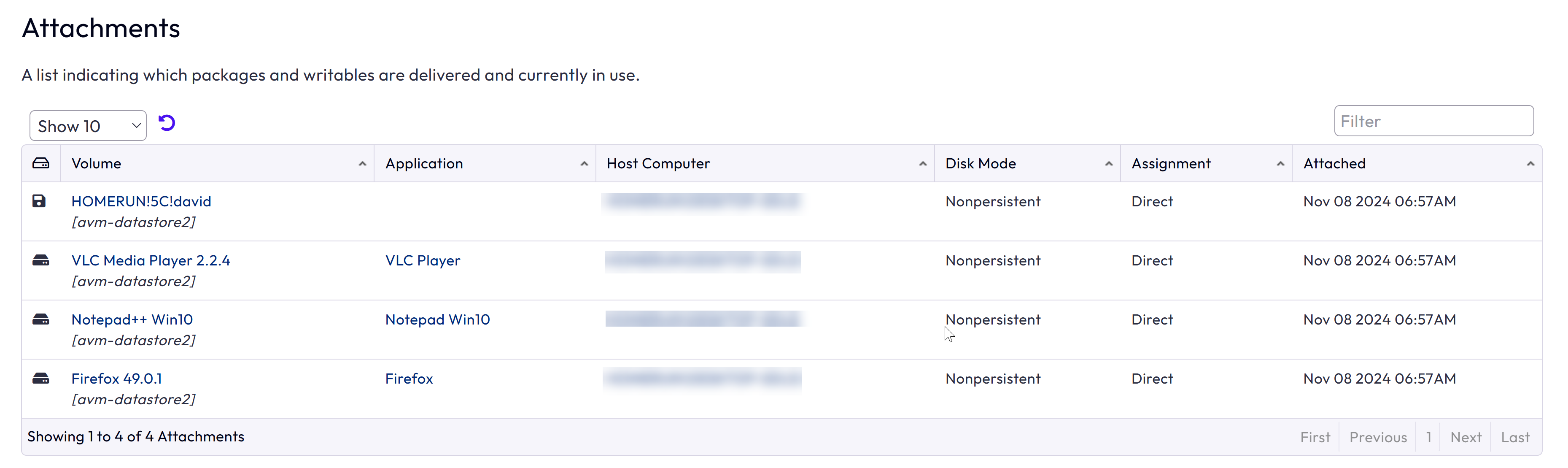
Using the Attachments tab, you can view the list of packages and Writable Volumes that are delivered and currently in use.
You can also view information such as the application for which the package and Writable Volume is created, host computer to which the package or Writable Volume is attached to, disk mode, assignment (type), and so on.
Application delivery scenarios and attachment records
-
For an application package delivered as On-demand, you can observe the change in the attachment count only when the user launches the short cut of an application.
For more information about this behavior, see the characteristics section in Understanding Package Delivery Modes in App Volumes.
-
If the attachment of an application package is triggered by an entitlement in the Horizon Console for a published application on demand, the Assignment column on this page displays
Horizon.For more information about how an App Volumes application is delivered as published applications on demand, see Configure Horizon 8 for Published Applications Delivery section in the Windows Desktops and Applications in Horizon documentation at Omnissa Product Documentation.
-
You cannot see attachment records for applications delivered to a computer in the Local Copy package access mode or to a user who is logged into such a computer in the Attachments tab. Alternately, you can do the following:
-
Navigate to ACTIVITY > Activity Log.
-
In the Activity Log table, search for Offline Device Sync in the Action column and expand the action.
Among other information, the Windows endpoint (Target) which is configured in the Local Copy package access mode and the number of packages delivered to the endpoint (Message) are listed. The number of packages include both computer and user assignments.
For more information about package access modes, see the Application Delivery Modes with App Volumes Manager section in the Omnissa App Volumes Installation Guide, version 2509 and later, at Omnissa Product Documentation.
-
Procedure
-
From App Volumes Manager, click INVENTORY > Attachments.
-
View the details of each attached package and Writable Volume.
Packages and Writable Volumes are listed in the Volume column.
Was this page helpful?