The Windows OS Optimization Tool for Horizon includes the ability to automate and help with some of the common clean-up tasks that are typically run just before using the prepared image. These include system clean-up tasks and clearing information that makes the image cleaner and ready for use with your Horizon deployment.
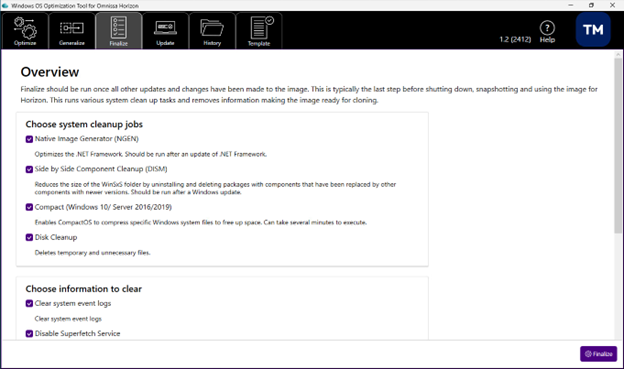
Note: The Finalize tasks can take many minutes to complete.
Finalize includes two tasks: zero empty disk space and create local group policies. Although these tasks are optional, they are recommended. Both tasks require an additional executable to be downloaded and made accessible to the Windows OS Optimization Tool for Horizon. These can be placed either in the same directory as the Windows OS Optimization Tool for Horizon executable (EXE), or in a directory that is part of the search path.
Note: When running the OS Optimization Tool from a network share, on Windows 10, file security might prevent these additional tools from executing properly. To correct this, either copy the executables locally or add the network share to the list of local intranet zones. See the Microsoft page for a workaround at https://docs.microsoft.com/en-us/troubleshoot/windows-client/networking/intranet-site-identified-as-an-internet-site.
Zero empty disk space task
This task overwrites empty disk space with zeros using the Microsoft SysInternal tool SDelete. This is done so the VMDK (virtual disk) size can be reduced when cloning.
SDelete can be downloaded from Microsoft SysInternals: https://docs.microsoft.com/en-us/sysinternals/downloads/sdelete.
- Extract
SDelete64.exeand place in either the same directory as the Windows OS Optimization Tool for Horizon executable or in a directory that is part of the search path. - Open the file properties of
SDelete64.exeand check if there is an Unblock option. If there is, select it and apply to make sure that this executable will be allowed to run.
Create local group policies task
This task creates local group policies and user settings for the optimizations applied, using the Microsoft Local Group Policy Object (LGPO) tool. The policies created can be viewed with tools such as RSOP and GPEdit.
LGPO can be downloaded as part of the Microsoft Security Compliance Toolkit https://www.microsoft.com/en-us/download/details.aspx?id=55319. Extract LGPO.exe and place in either the same directory as the Windows OS Optimization Tool for Horizon executable (EXE) or in a directory that is part of the search path.
Prerequisites
If you plan on running the two tasks, zero empty disk space and creating local group policies, during the finalize phase, you must download additional executables as described in the preceding sections.
Procedure
-
In the tool's UI, click the Finalize tab.
-
Select the system cleanup jobs to run and information to be cleared.
-
Click Finalize.
Results
The finalize task can take a few minutes to complete.
What to read or do next
Finalize is the final phase in the overall process using the Windows OS Optimization Tool for Horizon.
If you later need to update the optimized VM, you can use the tool's Update feature. Read Update Image.

Was this page helpful?