The Windows OS Optimization Tool for Horizon includes the Generalize feature to help in running the Microsoft system preparation tool (Sysprep) with a supplied unattend answer file.
This operation generalizes the Windows image and removes computer-specific information so that the image can be safely cloned and deployed throughout the enterprise.
The OS Optimization Tool's UI allows you to customize the provided information. The tool uses that information to generate the unattend answer file, which is used by the Sysprep tool.
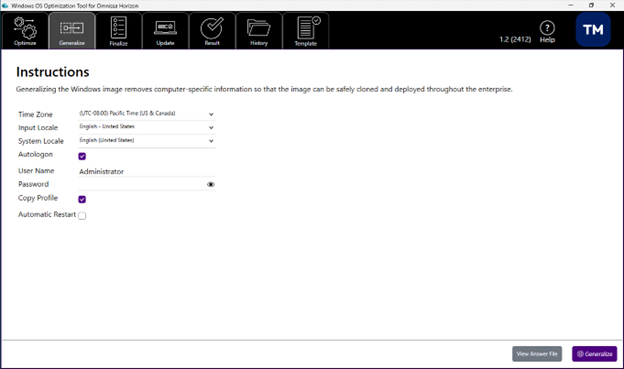
Before running the Generalize task, it is recommended that you install any required language packs.
- Time Zone - Select the appropriate time zone.
- Input Locale - Sets the Input language locale used by Sysprep.
- System Locale - Sets the system Locale, the UI locale, and the user locale to the selection. The drop-down list will only display installed language packs as valid selections.
- Autologon - Select if you want the local administrator account to automatically log on when Windows boots.
- Password - Set the password for the local administrator.
- Copy Profile - Copies the built-in administrator profile to the default user profile, which is then used as a template for new user profiles.
- Automatic Restart - Automatically restarts Windows once the Generalize task has completed.
Use the View Answer File button to view the generated unattend answer file and see the changes your selections have made.
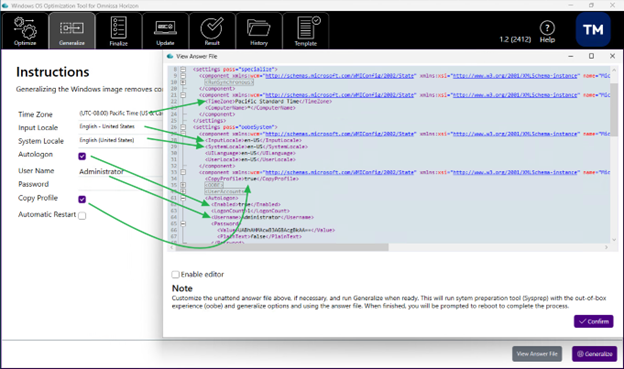
If required, you can also enable the editor using the tick box and manually edit the unattend answer file.
When you are ready, Generalize will run Sysprep with the out-of-box experience (OOBE),generalize options and using the unattend answer file. When finished, you will be prompted to reboot to complete the process.
The Windows OS Optimization Tool for Horizon will detect if Windows is in audit mode. If it does not detect audit mode, Sysprep does not need to be run. In that case, the Windows OS Optimization Tool for Horizon will display a warning and disable Generalize at the bottom of the screen.
Important notes:
-
Before running a Generalize task on a Windows 11 24H2 and later image, make sure that Windows has been restarted at least once after the OS installation. Not restarting may result in an error during the Generalize step.
-
Running a Generalize task will perform a Sysprep process, which will delete files in the current user folders. If you have saved analysis result reports from Optimize tasks into the user folders, those will be deleted during a Generalize task. You will still be able to view the report from the OS Optimization Tool console.
Prerequisites
Before running the Generalize action, ensure the following conditions have been met in the image VM that you'll be generalizing:
- All required language packs are installed.
- Ensure that the image's Windows is in audit mode. If Windows is not in audit mode, the generalize functionality is disabled.
- Remove user-specific apps from the Windows operating system. Ensure you don't have Windows App packages which are not provisioned for all users in the Windows system. Meeting this condition is a strong requirement for apps Microsoft Copilot and Microsoft Edge, because those apps tend to interfere with the Sysprep process if those apps are provisioned for individual user folders in the system. Sysprep is run during the generalization process.
- It is strongly recommended to disable the VM's access to the Internet during the Sysprep generalization process. For example, Windows 11 might automatically update built-in applications, which can interrupt or conflict with the generalization. Disabing internet access helps ensure a smooth and consistent Sysprep experience.
- Windows 11 24H2 and later:
-
Make sure that the image's Windows has been restarted at least once after the OS installation. Not restarting may result in an error during the generalization process.
-
Disable BitLocker in the image. You can do this using the Turn Off Device Encrytion option in Common Options Security tab, or manually by running the following command in an elevated PowerShell window:
manage-bde -status. Ensure that the BitLocker's lockStatusisUnlockedand itsConversion Statusisfully Decrypted. -
If your organization enforces BitLocker through Group Policy or Microsoft Intune, ensure VDI machines are excluded from those policies before provisioning. BitLocker re-enabled by policy after deployment will block future image updates and pool recompositions.
-
To exclude through GPO
- Place VDI machine computer accounts in a dedicated Active Directory OU, separate from physical workstations.
- Ensure the BitLocker GPO (under Computer Configuration > Administrative Templates > Windows Components > BitLocker Drive Encryption) is not linked to the VDI OU. Use Block Inheritance, a Security Filter, or a WMI Filter to exclude it.
- Verify on a provisioned desktop with
gpresult /H gpresult.htmland confirm BitLocker policies are not applied.
-
To exclude through Microsoft Intune
- In the Intune admin center, open each BitLocker configuration or endpoint security policy and add the VDI device group to Excluded groups on the Assignments tab.
- Confirm the policy shows Not applicable for VDI devices in the Intune portal.
Note: In co-managed environments, ensure both GPO and Intune exclude VDI machines. Either channel can independently re-enable encryption.
-
Pre-check
With the 2506 release, the OS Optimization Tool includes a pre-check feature that verifies that all of the prerequisites are met before executing the Generalize operation and ensuring VM stability.
The following prerequisites are verified:
- Domain membership: If the VM is joined to a domain, the Generalize operation is disallowed.
- Pending file name operations: If any are detected, the Generalize operation is disallowed.
- Pending restarts for Windows updates: If a restart is required to complete the updates, the Generalize operation is disallowed.
- BitLocker encryption: If Bitlocker is enabled, the Generalize operation is disallowed.
- Previous Sysprep failures: If failures from previous Generalize operations are found, the Generalize operation is disallowed.
If any of these pre-checks fail, the OS Optimization Tool will not allow the Generalize operation. The remedial actions recommended by the tool must be completed to allow the Generalize operation.
Procedure
-
Start the tool and in the UI, click the Generalize tab.
-
Set the time zone and language locale used by sysprep.
-
Select the language pack to be used as the system locale, UI locale, and user locale.
The drop-down displays the installed language packs.
-
Select Autologon for the local administrator account to automatically log on when Windows boots.
-
Enter a password for the local administrator.
-
Select Copy Profile to copy the built-in administrator profile to the default user profile, which is then used as a template for new user profile.
-
Select Automatic Restart to restart Windows after the generalize task is completed.
-
Click View Answer File to generate and view the unattend answer file.
-
Click Enable Editor to edit the answer file and click OK after you complete the edits.
-
Click Generalize.
Results
OS Optimization Tool runs sysprep with out-of-box experience (OOBE) and the unattend answer file. If you did not select Automatic Restart, you will be prompted to reboot the VM.
What to read and do next
After generalizing the image, the next step is to finalize the image.

Was this page helpful?