This guide documents how to use the Windows OS Optimization Tool for Omnissa Horizon and describes the features and usage.
This tool is sometimes referred to as 'OS Optimization Tool' and as 'OSOT'. The full branded name is 'Windows OS Optimization Tool for Omnissa Horizon'. As of this writing, in Omnissa Customer Connect All Downloads - Product A-Z, the downloads category name is listed as 'OS Optimization Tool'.
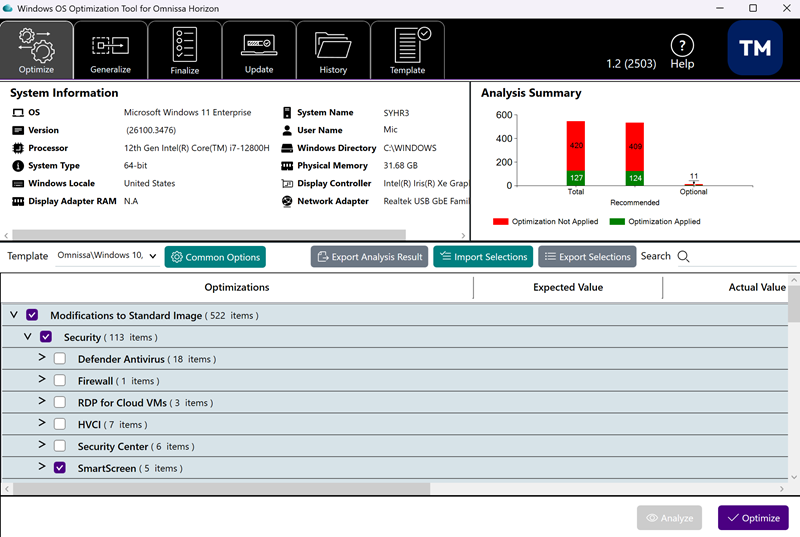
The following screenshot is an illustration of the tool's UI, running the EXE file. This screenshot depicts the UI after running the Analyze action.
Brief introduction
The Windows OS Optimization Tool for Horizon optimizes virtual and physical desktops and servers and is available in the product downloads in Omnissa Customer Connect.
Two additional guides are available in Omnissa Tech Zone portal to complement this guide:
- Manually Creating Optimized Windows Images for Horizon VMs - provides step-by-step procedures for creating optimized images. These procedures include creating a VM, installing and configuring a Windows operating system, optimizing the OS using the Windows OS Optimization Tool for Horizon, and installing the various Horizon agents required for desktop deployment.
- Using Automation to Create Optimized Windows Images for Horizon VMs - learn how to automate the creation of images with Microsoft Deployment Toolkit (MDT), which can optionally be used with System Center Configuration Manager (SCCM). These procedures include creating a virtual machine, installing, and configuring a Windows operating system, optimizing the OS using the Windows OS Optimization Tool for Horizon, and installing the various Horizon agents required for deployment in a Horizon environment
Audience for this guide
This guide is written for data center administrators and IT personnel who want to optimize Windows operating systems. The guide assists you in working with the Windows OS Optimization Tool for Horizon and provides an ongoing reference as you become a more proficient user of the Windows OS Optimization Tool for Horizon. This document is periodically updated to reflect continuing enhancements to the Windows OS Optimization Tool for Horizon and future releases of the Windows operating system.
Horizon
Omnissa Horizon is a desktop virtualization solution that enables organizations to deliver virtualized or remote desktops and applications to end users through a single platform.
Horizon Cloud Service
Omnissa Horizon Cloud Service provides virtual desktops and hosted apps as a cloud service, deploying and managing them in the cloud. Like the user experience in Horizon, users can securely access their desktops and apps from any device or browser.
Why optimize?
Windows was designed for physical hardware, specifically desktops, to be accessed by one user at a time.
However many of its settings are unnecessary or even detrimental in a virtual environment.
You can use the Windows OS Optimization Tool for Horizon to optimize by eliminating unnecessary settings and disabling unnecessary features to provide the best performance.
Keeping unnecessary features such as animations enabled impairs the end-user experience. For example, animating windows as the user opens them takes significant CPU resources, which decreases the number of desktops that you can host per physical server.
Even though this animation feature is nonessential in a virtual machine (VM) environment, keeping this feature in the VM increases the amount of system hardware that you need. Windows animations do not perform well when accessed remotely, especially when connecting over a slow WAN or Internet connection.
Another example of desktop optimization in a VM environment is to disable Windows Update so that control of the service is isolated to administrators. Administrators can run Windows Update in batch mode for the VMs as opposed to users performing this task.
Note: You can optimize physical machines by removing nonessential functions as well. However, the focus of this guide is on the virtual environment, which involves the administration of golden images to be deployed to end users or used as RDSH servers.
What are you optimizing?
You can maximize the efficiency and performance of virtual desktops and RDSH servers by using the recommendations provided in the Windows OS Optimization Tool for Horizon.
Optimizing virtual desktops:
- Increases their performance
- Increases their density, boosting the number of virtual desktops that can be hosted per vSphere server, thereby reducing infrastructure costs
- Improves end-user experience
- Reduces end-user support incidents
Optimizing RDSH servers:
- Increases hosted desktop and application performance
- Reduces the amount of system resources that each RDSH server requires
- Increases the density and the number of RDSH servers that can be hosted
- Increases the number of users that can be supported per RDSH server
- Improves the end-user hosted desktop and application experience
- Reduces system support incidents
Why optimize with the Windows OS Optimization Tool for Horizon?
The Windows OS Optimization Tool for Horizon makes it easy to apply configuration settings to desktops and servers. It includes settings to optimize the following Windows operating systems for both desktops and servers that reside in the data center and in the cloud:
- Windows 11
- Windows 10
- Windows Server 2022
- Windows Server 2019
The Windows OS Optimization Tool for Horizon optimizes virtual desktops and RDSH servers for Horizon 8 and Horizon Cloud Service.
- OSOT Tool (EXE) - The Windows OS Optimization Tool for Horizon executable (EXE) is not currently compatible with Windows 7, Windows 8.1, Windows Server 2012, Windows Server 2012 R2, Windows Server 2016, Windows Server 2025, and Windows Datacenter Server 2025.
- MDT plugin - The Windows OS Optimization Tool for Horizon MDT plugin is not currently compatible with Windows 7, Windows 8.1, Windows 11 24H2 and later, Windows Server 2012, Windows Server 2012 R2, Windows Server 2016, Windows Server 2025, and Windows Datacenter Server 2025.
Advantages over other methods
The Windows OS Optimization Tool for Horizon offers many advantages over traditional scripts, including the ability to selectively edit optimization values, and view detailed audit information before applying optimizations.
The Windows OS Optimization Tool for Horizon includes a built-in template that allows you to select whether to enable or disable Windows features and system services. You can copy the built-in template and customize it. You use the Windows OS Optimization Tool for Horizon to improve Windows performance, as per recommendations and best practices.
The Windows OS Optimization Tool for Horizon also has features to assist with the generalization of a Windows image and also to automate many of the clean-up tasks that are run as a final step before using the image.
As stated at the top of this page, the Windows OS Optimization Tool for Horizon is available in the product downloads in Omnissa Customer Connect.
Flow diagram
You run the OS Optimization Tool on the VM after you install the required apps on it. The OS Optimization Tool analyzes the base image and displays current values for properties based on the selected template. You can select the properties that you want to apply to the image during optimization. You then generalize the image by running the sysprep tool with an answer file (named unattend). The last step is to finalize the image by cleaning it up.

You can either use the tool's UI to optimize the image or you can run the tool from the command line.
Note: For Horizon Cloud Service, you only optimize the image and do not need to generalize or finalize it.
Using MDT Creating an Optimized Base VM
As described in the Microsoft documentation, the Microsoft Deployment Toolkit (MDT) is a collection of tools, processes, and guidance for automating desktop and server deployments.
The MDT enables you to build an operating system image, the base VM, following a task sequence that you define.
Omnissa MDT Plugin
The Omnissa Horizon Windows OS Optimization Tool's MDT Plugin is a module that adds functionality to the MDT from Microsoft. The added functionality allows you to add Horizon and Horizon Windows OS Optimization Tool specific tasks into a MDT task sequence.
You can get an MDT server up and running by following the Microsoft documentation Get started with MDT.
Additional guidance is provided at the Omnissa Tech Zone's location Manual Deployment Server Build and Configuration.
For supported Windows versions for the components
See page Supported Windows versions for the various Omnissa components
For information about resolved and known issues
The Windows OS Optimization Tool for Omnissa Horizon's known and resolved issues are documented each release in the main Horizon 8 Release Notes for that release.
The latest Horizon 8 Release Notes page is version 2503: Omnissa Horizon 8 Release Notes 2503. In that page, look for the headings Resolved Issues and Known Issues and the subheadings to check if there are resolved or known issues related to the Windows OS Optimization Tool for Omnissa Horizon.
For resolved and known issues in versions prior to version 2503, use the Version selector at the top of the Omnissa Horizon 8 Release Notes page to select another version and review the Horizon 8 Release Notes page for that version.
Was this page helpful?