You can review users and their devices in the Mobile Threat Defense enrollment smart group in Workspace ONE UEM.
Navigate to Groups & Settings > Groups > Assignment Groups and locate the smart group you created in step 3 of the integration workflow. In the integration workflow example, the smart group name used is Devices in Customer OG but you must select the smart group you created.
Once you locate the smart group you made, select it and set Device Preview to ENABLED to view all the devices in that smart group.
Workspace ONE Mobile Threat Defense polls Workspace ONE UEM for enrolled devices and displays them on the Devices page of the Workspace ONE Mobile Threat Defense Console. Initially, discovered devices have a Status of Pending. As end users open and activate Lookout for Work, the activated devices move out of Pending status and change to Secured.
End User Device Activation
Mobile Threat Defense is activated on end user devices by the Omnissa Workspace ONE Intelligent Hub app when
- Mobile Threat Defense is configured by following the steps in the integration workflow.
- The device enrolls in Workspace ONE UEM.
Devices then receive a notification that Mobile Threat Defense is activated. If any threats or policy violations are present, the device displays a notification about the threat.
When a device fails to activate Workspace ONE Mobile Threat Defense and is placed in a Pending state, the administrator can take certain actions such as sending a notification to the user to take the necessary steps to activate MTD on the device.
When Workspace ONE Mobile Threat Defense is configured after device enrollment in UEM, the following is the expected behavior.
Android Behavior, Mobile Threat Defense Configured After UEM Enrollment
Managed devices receive the Workspace ONE Mobile Threat Defense configuration and activates MTD without user interaction. Once the device checks in to Workspace ONE UEM, the Workspace ONE Mobile Threat Defense console updates the device status from Pending to Activated.
For Hub registered devices, the user must launch the Intelligent Hub application before MTD is activated on the device. Before you can configure and use Phishing and Content Protection, the user must install the Workspace ONE Tunnel application from the Google Play store.
iOS Behavior, Mobile Threat Defense Configured After UEM Enrollment
Managed devices receive the Workspace ONE Mobile Threat configuration and Mobile Threat Defense becomes active on the device the next time the user launches the Intelligent Hub application. Once the device checks in to Workspace ONE UEM, the Workspace ONE Mobile Threat Defense console updates the device status from Pending to Activated.
Note: If Mobile Threat Defense is not being activated and the device status in the MTD console remains in a Pending state, the likely cause is due to the Intelligent Hub application being in a suspended or terminated state.
Suppress MTD Activation Notifications
Administrators can suppress Mobile Threat Defense (MTD) and Phishing Content Protection (PCP) activation notifications to end users. By default, when MTD or PCP is activated, end users receive Intelligent Hub notifications indicating that the respective service has been enabled on their device.
Suppressing MTD activation notifications applies to both iOS and Android devices. This setting works with both Organization Group-based configurations and smart group-based configurations for Workspace ONE MTD.
Configuration Requirements
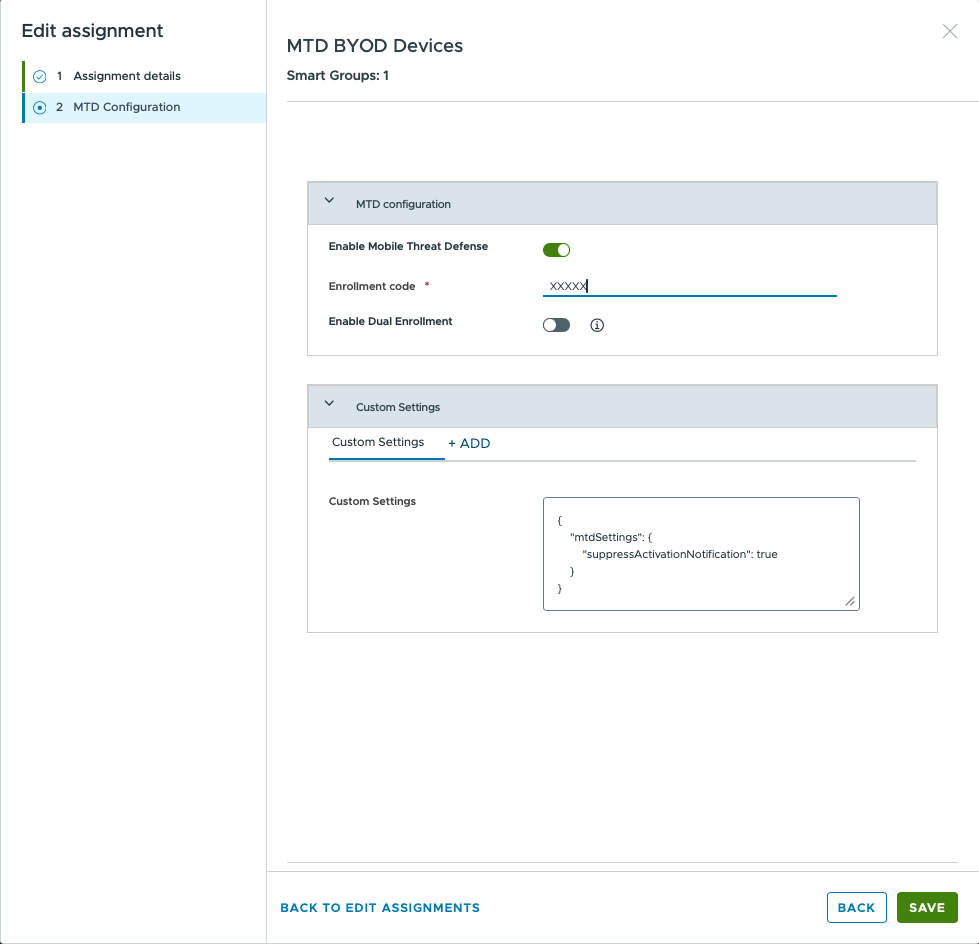
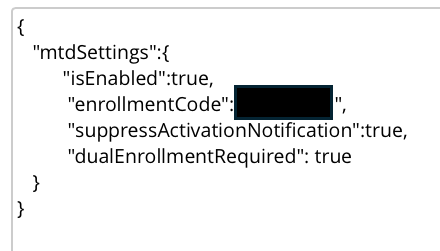
To suppress MTD activation notifications, add the JSON key-value pair (KVP) below to the custom settings configuration where your MTD configuration is defined.
"mtdSettings":
    {
    "suppressActivationNotification":true
    }
The screenshot below displays the JSON configuration for Smart Group-based implementation:
The screenshot below displays the JSON configuration for Organization Group-based implementation:
Suppress MTD Notifications on iOS
Workspace ONE Intelligent Hub displays local notifications to end users about key Mobile Threat Defense (MTD) lifecycle events. These notifications appear during events such as successful MTD activation or when the user force-closes the Hub application from the app switcher.
Administrators can control notification behavior by configuring key-value pair (KVP) settings within the MTD configuration profile in Workspace ONE UEM. Depending on the KVP settings applied, administrators can suppress individual notifications or disable all MTD-related notifications for end users.
Keep-Alive Notification for Hub Termination on iOS
When a user terminates Hub on iOS. for example, by swiping it away in the app switcher, Hub displays the following local notification: Launch Hub to keep your device protected from threats.
This notification prompts the user to allow Hub to continue running in the background, ensuring uninterrupted Mobile Threat Defense (MTD) coverage. Administrators can suppress this notification by adding the notificationSuppression key to the MTD settings payload. This configuration can be delivered through either of the following channels:
- OG/SDK Custom Payload
- Smart Group–based MTD configuration
Add the notificationSuppression key inside the mtdSettings object and provide an array of notification identifiers to suppress.
OG or SDK Custom Payload example:
  {
    "mtdSettings":
      {
        "isEntitled": true,
        "isEnabled": true,
        "enrollmentCode": "YOUR_ENROLLMENT_CODE",
        "notificationSuppression":
        [
        "MTDWakeup.UserTerminationWarning"
        ]
      }
  }
MTD Smart Group Configuration Custom Setting example:
  {
    "mtdSettings":
    {
        "notificationSuppression":
        [
            "MTDWakeup.UserTerminationWarning"
        ]
    }
  }
Disable Files Permission Prompt
Administrators can suppress the files access permission prompt in Workspace ONE Hub using the disableAllFilesAccessPrompt MTD setting. When enabled, Hub will not prompt users to grant files access permission, regardless of whether the permission has been granted.
Note: The disable files permission prompt is applicable only for Android devices and not iOS devices.
| Property | Details |
|---|---|
| Key | disableAllFilesAccessPrompt |
| Type | Boolean |
| Default | false |
Boolean value: true | Hub does not prompt the user for Files Access permission, even if the access permission has not been granted. |
Boolean value: false or not set | Current behavior remains unchanged. Hub prompts the user during fresh activation and again on the first foreground start after an upgrade if the permission has not yet been granted. |
Note: The KVP can be configured through either the OG-based SDK custom settings or the smart group assignment custom settings along with other MTD configurations.
Configuration Requirements
To suppress the file access permission prompt, add the JSON key-value pair (KVP) below to the custom settings configuration where your MTD configuration is defined. This could either be in the OG-based SDK custom setting or in the smart group-based MTD configuration:
"mtdSettings":
  {
  "disableFilesPermissionsPrompt":true
  }
Was this page helpful?