After you configure the certificate authority and certificate template for Kerberos certificate distribution in the Active Directory Certificate Services, you enable Workspace ONE UEM to request the certificate used for authentication and add the certificate authority to the Workspace ONE UEM console. You add the certificate template that associates the certificate authority used to generate the user's certificate.
Prerequisites
Configure the Certificate Authority in Workspace ONE UEM.
Procedure
-
In the Workspace ONE UEM console, navigate to System > Enterprise Integration > Certificate Authorities.
-
Select the Request Template tab and click Add.
-
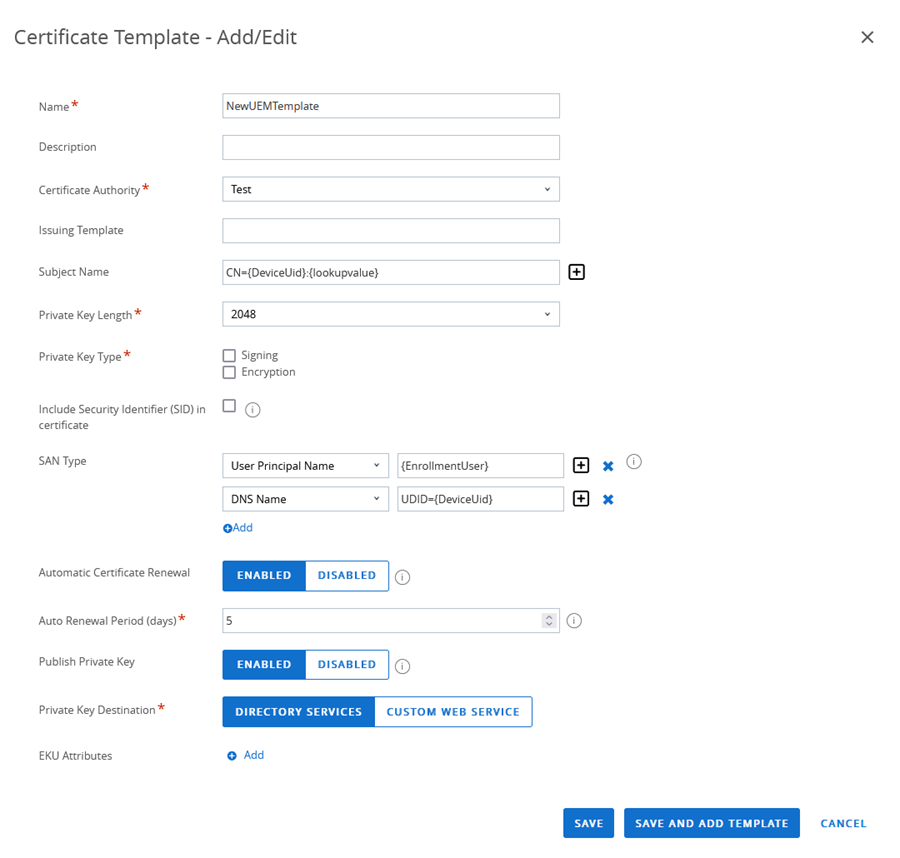
Configure the following in the certificate template page.
Option Description Name Enter the name for the new request template in Workspace ONE UEM. Certificate Authority In the drop-down menu, select the certificate authority that was created. Issuing Template Enter the Microsoft CA certificate template name exactly as you created in AD CS. For example, iOSKerberos.Subject Name Enter the Subject name for the template. You can click + to select a lookup value from the list. Make sure that the value is entered after CN= in the text box. If you select the lookup type DeviceUid, enter a colon (:) after the value and select the lookup value from the list.
For example, CN={DeviceUid}:{lookupvalue}, where the {} text box is the Workspace ONE UEM lookup value. Make sure to include the colon (:). The text entered in this text box is the Subject of the certificate, which can be used to determine who or what device received the certificate.Private Key Length This private key length matches the setting on the certificate template that is being used by AD CS. It is usually 2048. Private Key Type Select the check boxes for Signing and Encryption. SAN Type Click +Add. For the Subject Alternate Name, select User Principal Name. The value must be {EnrollmentUser}.
When device compliance check is configured with Kerberos authentication, if you did not configure the DeviceUid as the Subject Name lookup value, add a second SAN type to include the device unique identifier (UDID). Select the SAN type DNS Name. The value must be UDID={DeviceUid}.Automatic Certificate Renewal Select the Automatic Certificate Renewal check box to renew certificates that use this template automatically prior to their expiration date. Auto Renewal Period (days) If you selected Automatic Certificate Renewal, enter the number of days before expiration that automatically reissues a certificate to the device. Enable Certificate Revocation Select the check box to have certificates automatically revoked when applicable devices are unenrolled or deleted, or if the applicable profile is removed. Publish Private Key Select this check box to publish the private key. Private Key Destination Either Directory Service or Custom Web Service. -
Slick Save.
What to do next
In the Omnissa Access console, configure the built-in identity provider with the Mobile SSO for iOS authentication method.
Was this page helpful?