When you change settings in the Workspace ONE UEM console that are integrated with the Omnissa Access service, you must also update the settings in the Omnissa Access console, Integrations > UEM Integrations page. Otherwise, Omnissa Access and Hub Services cannot communicate with Workspace ONE UEM.
Updating Omnissa Access Service after REST API Certificate Regenerated in Workspace ONE UEM
When the REST API certificate is regenerated in the Workspace ONE UEM console, you must manually upload and save the REST API certificate in the Omnissa Access console.
-
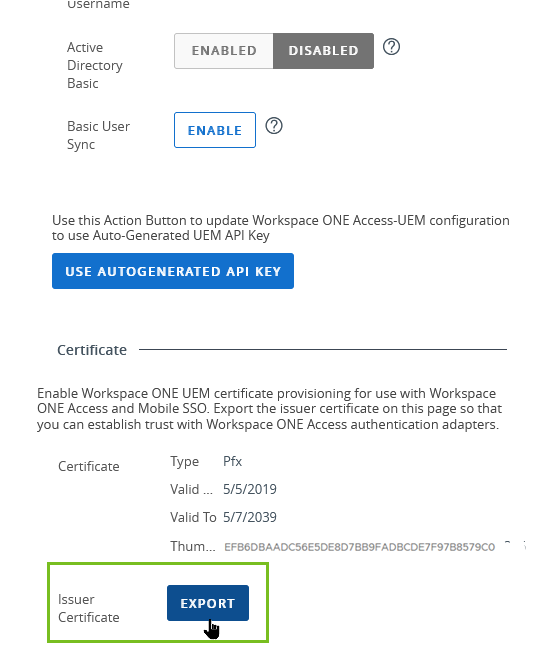
In the Workspace ONE UEM console Settings > Enterprise Integration > Omnissa Access > Configuration page, export the certificate and save the file.
-
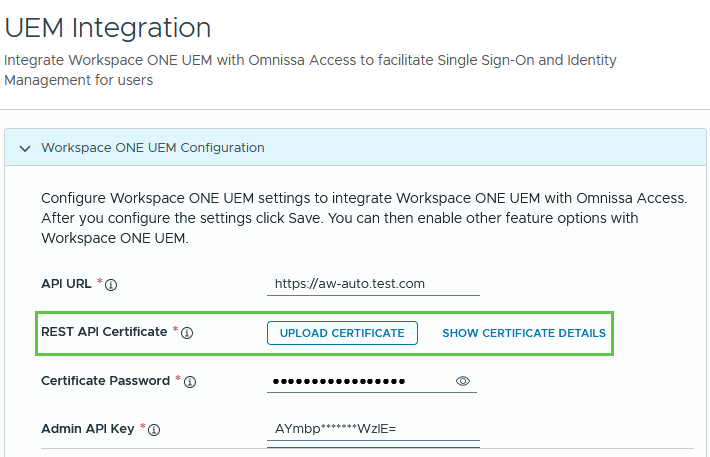
In the Omnissa Access console Integrations > UEM Integration page REST API Certificate setting row, click UPLOAD CERTIFICATE. Navigate to the saved certificate and select the file to upload.
-
Scroll down to the Workspace ONE Catalog section and click SAVE.
-
Verify that the thumbprint identifier is the same in Omnissa Access, Hub Services, and Workspace ONE UEM.
- In the Workspace ONE UEM console, go to the Settings > Enterprise Integration > Omnissa Access > Configuration page and scroll to the Certificate section to view the thumbprint identifier.
- In the Omnissa Access console, go to the Integrations > UEM Integration page, and in the Workspace ONE UEM Configuration section, click SHOW CERTIFICATE DETAILS. Verify that the thumbprint identifier is the same identifier as on the Workspace ONE UEM console.
- In the Hub Services console, go to System Settings > API Certificate and click Show Details. Verify that the thumbprint identifier is the same identifier as on the Workspace ONE UEM console.
Updating the Connection after AirWatch Cloud Connector is Upgraded in Workspace ONE UEM
When you upgrade the AirWatch Cloud Connector software, make sure that you update the Workspace ONE UEM integration configuration in the Omnissa Access console to update the Password (with Workspace ONE UEM) authentication method configuration.
-
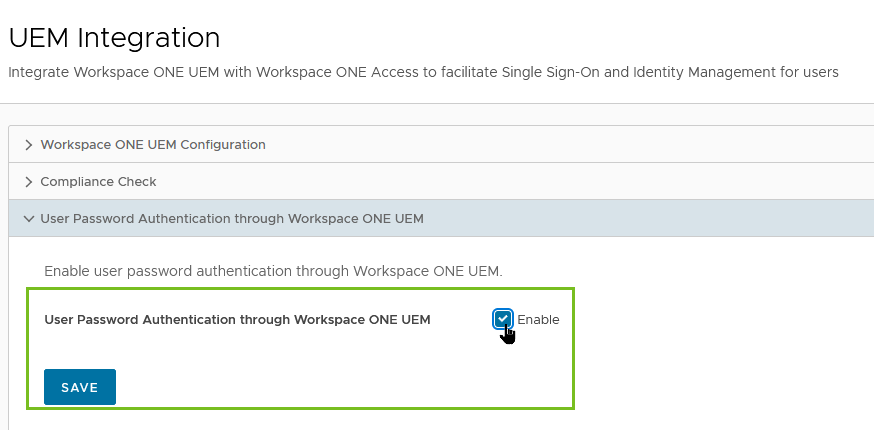
In the Omnissa Access Settings > Enterprise Integration > Omnissa Access > Configuration page, select User Password Authentication through Workspace ONE UEM
-
Deactivate and then reactivate the setting.
-
Click SAVE.
-
Go to the Integrations > Authentication Methods page and select Password (with Workspace ONE UEM) to verify that the settings on the page were updated.
Was this page helpful?