When the Omnissa Access appliance is configured behind a load balancer, you must establish SSL trust between the load balancer and Omnissa Access. You copy the Omnissa Access root certificate to the load balancer.
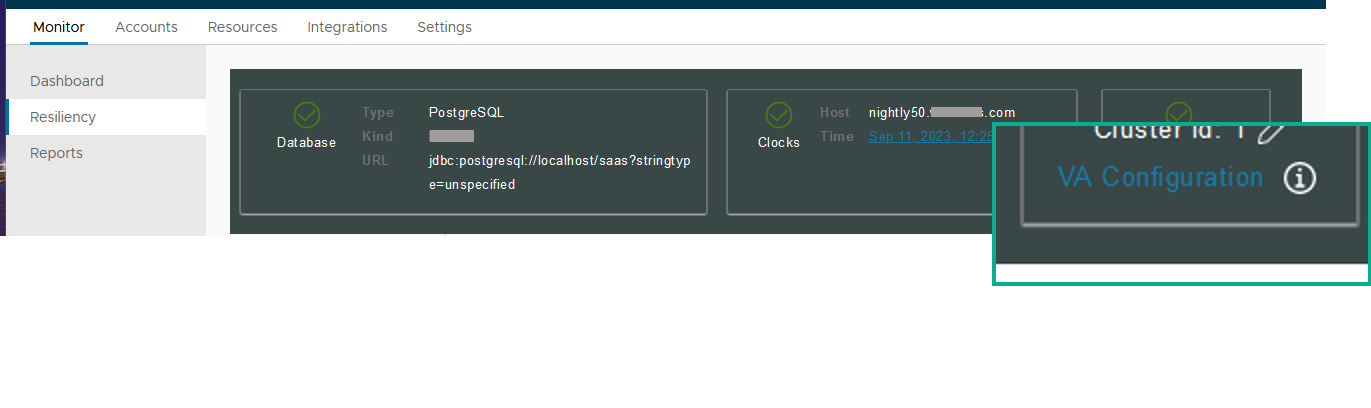
The Omnissa Access root certificate can be downloaded from the Install SSL Certificates > Server Certificate page in the VA Configuration pages accessed from the Monitor > Resiliency page in the console. See Change the Omnissa Access Appliance Configuration Settings for information about accessing appliance configuration settings pages, including the Install SSL Certificates page.
If the Omnissa Access FQDN points to a load balancer, the SSL certificate can only be applied to the load balancer.
Since the load balancer communicates with the Omnissa Access virtual appliance, you must copy the Omnissa Access root CA certificate to the load balancer as a trusted root certificate.
Procedure
-
Log in to the Omnissa Access console.
-
Select Monitor > Resiliency.
-
Click VA Configuration of the service node you want to configure and log in with the admin user password.
-
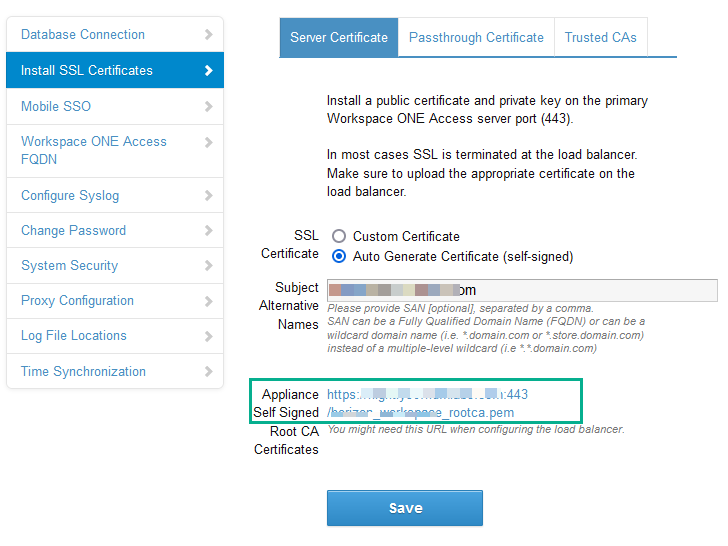
Select Install SSL Certificates > Server Certificate.
-
Select Auto Generate Certificate (self-signed).
-
If applicable, provide the appropriate SAN entries in the Subject Alternative Names text box.
If SSL is not terminated on the load balancer, the SSL certificate used by the service must include Subject Alternative Names (SAN) for each of the fully qualified domain names in the Omnissa Access cluster. Including the SAN enables the nodes within the cluster to make requests to each other. Also include a SAN for the FQDN host name that users use to access the Omnissa Access service, in addition to using it for the Common Name, because some browsers require it.
-
Click the Appliance Self Signed Root CA Certificates link and open the file.
The certificate is displayed.
-
Copy everything between and including the lines -----BEGIN CERTIFICATE----- and -----END CERTIFICATE---- and paste the root certificate into the correct location on each of your load balancers. Refer to the documentation provided by your load balancer vendor.
What to do next
Copy and paste the load balancer root certificate to the Omnissa Access appliance.
Was this page helpful?