Before you clone the Omnissa Access virtual appliance, you must change its Fully Qualified Domain Name (FQDN) to match the load balancer FQDN.
Prerequisites
-
The Omnissa Access instance is added to a load balancer.
-
You applied the load balancer root CA certificate to the Omnissa Access appliance.
Procedure
-
Log in to the Omnissa Access console.
-
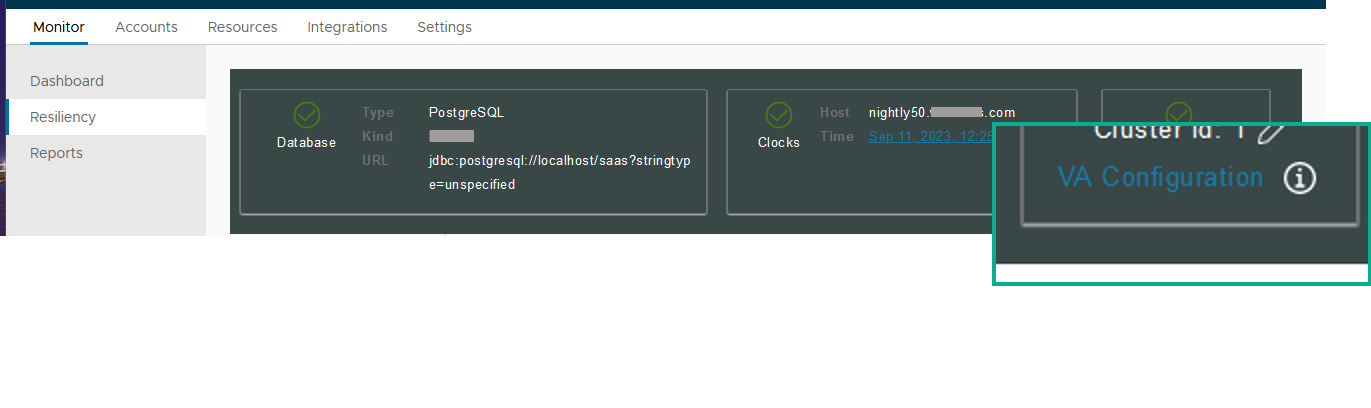
Select Monitor > Resiliency.
-
Click VA Configuration of the service node you want to configure and log in with the admin user password.
-
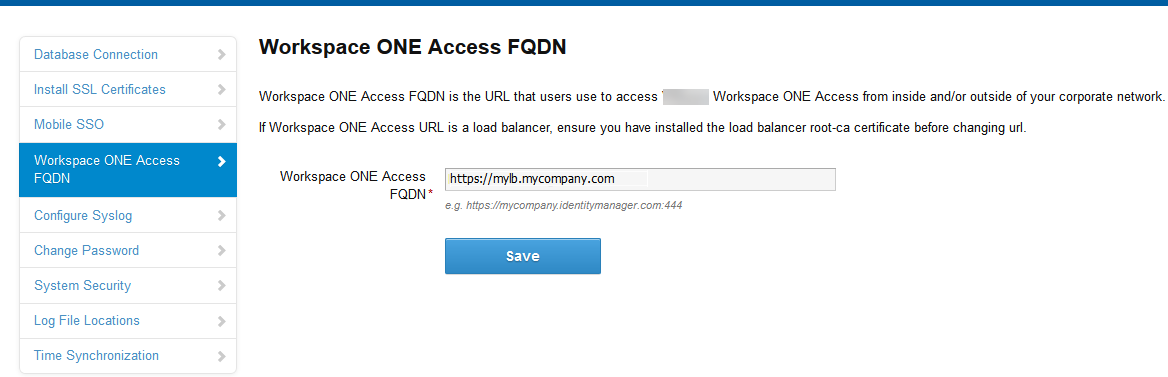
Click Omnissa Access FQDN and in the Omnissa Access FQDN text box change the host name part of the URL from the Omnissa Access host name to the load balancer host name.
For example, if your Omnissa Access host name is *myservice *and your load balancer host name is mylb, you would change the URL
to the following
-
Click Save.
Results
- The service FQDN is changed to the load balancer FQDN.
- The Identity Provider URL is changed to the load balancer URL.
What to do next
Clone the virtual appliance.
Was this page helpful?