You configured the database to use with Omnissa Access in the Setup wizard when you installed Omnissa Access. You manage the database in the Omnissa Access console Monitor > Resiliency page.
Prerequisites
-
The database created in Microsoft SQL server as the external database server. For information about specific versions that Omnissa Access supports, see the Omnissa Product Interoperability Matrix.
-
To enable encryption, the Microsoft SQL server must be configured with a TLS certificate. Make sure that you can access the certificate to upload to the Omnissa Access service.
-
If you are changing the Microsoft SQL database configuration, make sure that the database user is granted the db_owner role. Members of the db_owner database role can perform all configuration and maintenance activities on the database. See Change Database-Level Roles in Omnissa Access Service in the Omnissa Access Installation guide.
Procedure
-
Log in to the Omnissa Access console.
-
Select Monitor > Resiliency.
-
Click VA Configuration of the service node you want to configure and log in with the admin user password.
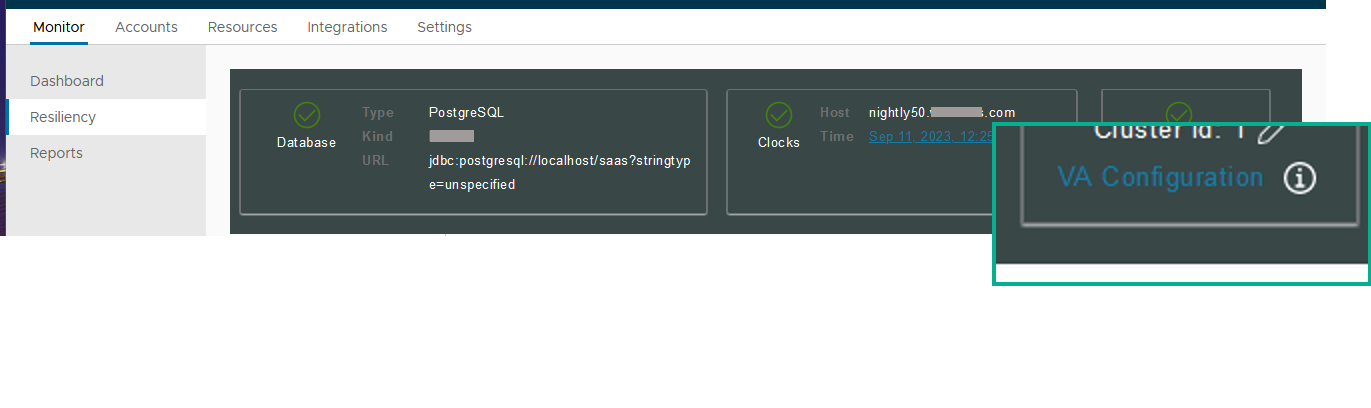
-
Click Database Connection.
When you installed the Omnissa Access appliance, the settings that you configured in the Omnissa Access service Setup Wizard are displayed in the Database Connection page. You can manage your external database configuration for Omnissa Access services from this Database Connection page.
Option Description Database Type Select External Database.
Note: Do not select Internal. An internal Postgres SQL database is embedded in the Omnissa Access appliance, but the internal database is not supported in User Acceptance Test (UAT) or production enviornments.Authentication Type To use a Microsoft SQL database for the Omnissa Access server, you must create a new database in the Microsoft SQL server. During the Omnissa Access configuration setup, you select an authentication type for the database.
- SQL Server Authentication. See Configure Microsoft SQL Database Using Local SQL Server Authentication Mode for Omnissa Access
- Windows Authentication. See Configure the Microsoft SQL Database with Windows Authentication Mode for Omnissa AccessDomain Name When you select Windows Authentication, the domain full name is required. JDBC Server Address Enter the database server IP:Port or FQDN:Port. The default port is 1433. Enter as <hostname_or_IP_address:port#>Database Username This is the CREATE LOGIN user name that you configured when you created the database. See Configure Microsoft SQL Database Using Local SQL Server Authentication Mode for Omnissa Access in the Workspace ONE Installation guide. Database Password Enter the login user name password. Database Name This is the CREATE DATABASE name you entered when you set up the data base. For example, saasdb.Encrypt Connection To set up an encrypted connection between Omnissa Access and the Microsoft SQL Server, select Encrypt Connection.
Microsoft SQL servers must be configured with a TLS certificate to use the Encrypt Connection feature with Omnissa Access. See Microsoft SQL server documentation to configure the TLS certificate.
Note: An encrypted connection to the database increases the security of data transmitted across networks. However, enabling encryption can slow the performance on the SQL Server.SQL Server Always on To enable SQL Server Always On capability, select SQL Server Always On. -
If you have not uploaded the root CA signed certificate, click Upload to upload the certificate now.
-
Click SAVE to save your changes.
When you click SAVE, the connection is tested to verify access to the database.
If the password is not saved, you can manually create the password. See Manually Update External Database Password and Update the JDBC Password Property in Omnissa Access.
What to do next
(Optional) Change the database user role membership privileges.
Was this page helpful?