After you create a custom access policy and assign apps, you can manage the apps from the custom app policy's Assign Policy page without editing the policy. In the Assign Policy page, you can see policy assignment conflicts and search for apps by app name or by type of app, and you can add and delete apps.
To create a custom app policy, see Configure Web or Virtual App Access Policies and Assign Apps to the Policy in Omnissa Access, Assign Apps to Custom Access Policies section.
View Apps by Access Policy Assignment
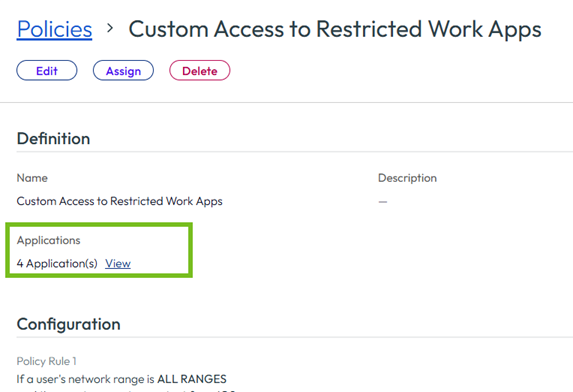
You can see the number of applications associated with a policy on the custom policy page. When you click the Application link, the list of apps is displayed.
-
Navigate to the Omnissa Access console Resources > Policies page.
-
In the Custom App Policies section, click the policy you want to view.
Under Definition section, you can see the number of applications to which the policy applies.
-
Click the Applications link, then select the tab to view the applications to which the policy applies.
Up to 50 applications appear in the list. If a message appears that states that the policy applies to more than 50 applications, you can go to any of the Resources > Apps pages to see the complete list of applications. When you click an app the summary page is displayed. You can see the access policies that are assigned to this policy in the Configuration - Access Policies section.
Add or Remove Resources Assigned to the Custom Policy
You can add or remove apps in the policy.
-
Navigate to the Omnissa Access console Resources > Policies page.
-
In the Custom App Policies section, select the policy you want to update.
-
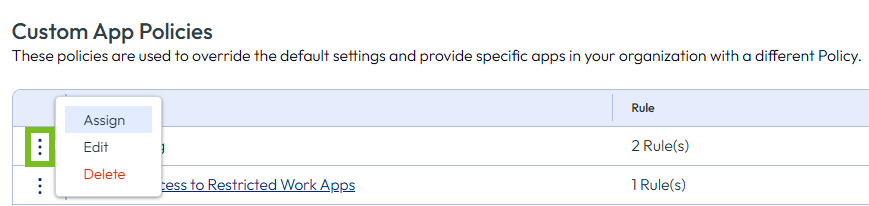
In the three-dot menu, click ASSIGN. The Assign Policy page displays all apps, and a check mark is displayed next to the apps that are assigned to this policy.
-
Deselect the check mark to remove an app or add a check mark to add an app to the rule.
-
Click SAVE.
Was this page helpful?