You can configure authentication chaining in access policy rules to require users to pass credentials through more than one authentication method before they can sign in. Two authentication conditions in one rule are configured and the user must correctly respond to both authentication requests.
When you configure an access policy rule that requires multiple authentication methods to sign in, you can configure the option to let users select their second authentication method. This flexibility enables users to use an alternative method for logging in, when they might not be able to access one of the authentication methods prompted during the process.
When you select a third-party identity provider authentication method as a login option, the authentication method name you configured for the third-party identity provider instance in the Omnissa Access console is displayed on the user’s Select Authentication login page. The description you wrote for the third-party authentication method displays under authentication method option. See Add and Configure a SAML Third-Party Identity Provider Instance in Omnissa Access.
Example of how an authentication policy can be set up to give users a choice of authentication methods is a policy with two rules.
-
Rule 1 is configured for any user coming from the INTERNAL NETWORK to authenticate with Password AND Verify (Intelligent Hub) OR RADIUS OR RSA.
-
Rule 2 is configured for any user coming from an EXTERNAL NETWORK to authenticate with Password AND Certificate (cloud deployment) OR Mobile SSO (for iOS) OR OIDC Login OR fp SAML login (English) / fp SAML login (Spanish) /... OR Password (with Workspace ONE UEM).
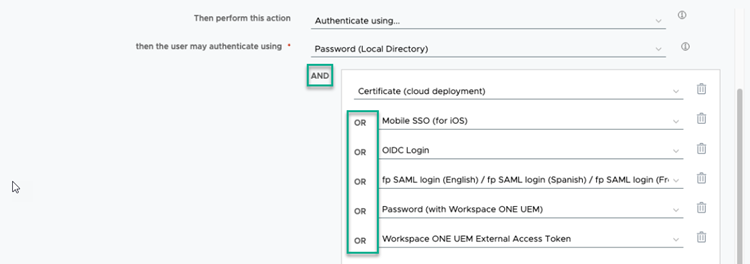
The login page lists the login methods and the user selects the method they want to use.
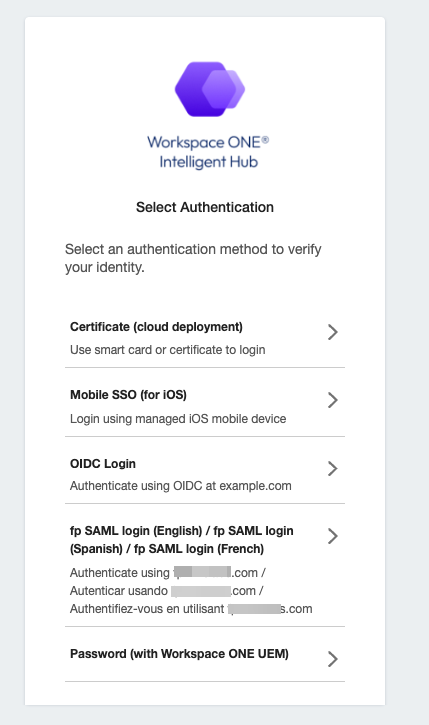
The users' log in experience is as follows.
-
The user successfully enters their credential for the first requested authentication method, The Select Authentication page then displays, prompting the user to choose a second authentication method.
-
The user selects an available authentication method for their device.
-
After selecting the authentication method, the user either enters their credentials or, for certificate-based authentication, is authenticated immediately. If the user selects the wrong method, they can click Back in the browser to return to the Select Authentication page. However, with certificate-based authentication that does not prompt for a credential, users cannot go back to the Select Authentication page.
Whenever users log in using an access policy that offers multiple authentication methods, they need to choose their preferred authentication option. Their selected option is not saved.
Prerequisites
- Authentication methods that your organization supports are configured and enabled in Omnissa Access.
- Network ranges of defined IP addresses created and assigned to the identity providers.
Procedure
-
In the Omnissa Access console Resources > Policies page, click ADD POLICY to add a new policy or select an app from th Custom App Policies section to edit an existing policy.
-
Click Next to open the Configuration page.
-
Click Add Policy Rule.
Option Description If a user's network range is Select the network range. and the user accessing content from Select the device type that this rule manages. and user belongs to groups Select the group that this rule applies to. Then perform this action Select Authenticate using.... then the user may authenticate using Configure the authentication method order. Select the authentication method to apply first.
To require users to select a second authentication method, click ADD AUTHENTICATION and in the drop-down menu and select an authentication method and click ADD.
To give users a choice of authentication methods, in the OR line select another authentication method. The method is added as an OR option to give users the option to select an authentication method. You can add multiple authentication options.If the preceding methods fails or is not applicable, then (Optional) Configure fallback authentication methods. Re-authenticate after Select the length of the session after which users must authenticate again. -
(Optional) In Advanced Properties, create a custom access denied error message that displays when user authentication fails. You can use up to 4000 characters, which are about 650 words. If you want to send users to another page, in the Custom Error Link URL text box, enter the URL link address. In the Custom Error Link text box, enter the text to describe the custom error link. This text is the link. If you leave this text box blank, the word Continue displays as the link.
-
Click Save.
-
Click ADD POLICY RULE and continue to configure the rules to progress to another rule when authentication fails.
-
After you configure the last rule in the policy, deactivate If authentication fails, then progress to the next rule.
After the custom policy is configured, you select the apps to associate with the policy. See Add Web or Virtual App-Specific Policies in Omnissa Access, Assign Apps to Custom Access Policies section.
Was this page helpful?