Add your Okta tenant information and API token in the Omnissa Access console to enable Omnissa Access to connect to the Okta tenant to retrieve Okta apps and user entitlements. This is a one-time, initial configuration task.
Before you configure the tenant information in Omnissa Access, obtain an API token from the Okta Admin console.
Obtain Okta API Token
Obtain an Okta API token from the Okta Admin console. Omnissa Access requires the Okta API token to connect with the Okta tenant and retrieve apps.
The token expires 30 days after it is last used. Each time the token is used, the expiry date is extended by 30 days.
Procedure
-
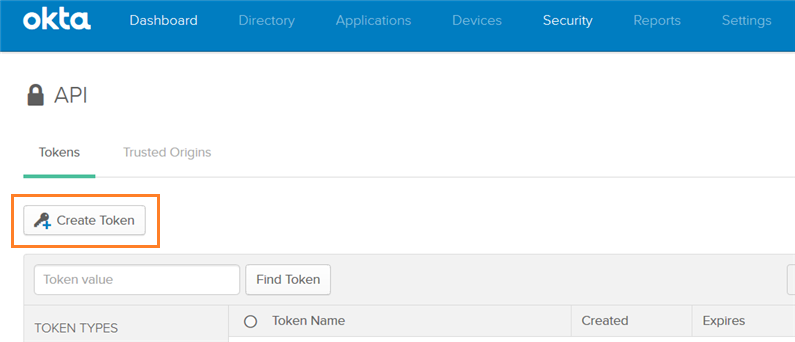
In the Okta Admin console, click Security > API.
-
Click Create Token.
-
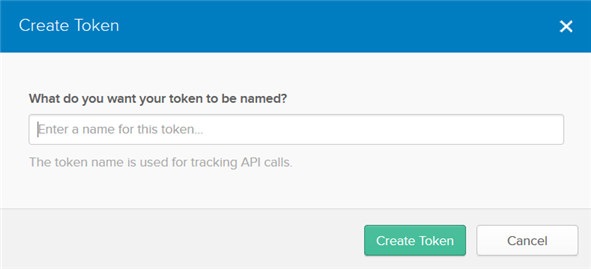
Enter a name for the token, then click Create Token.
-
Copy and save the token for use in the next task.
Note: After you close the window, you cannot view the token again.
What to do next
Configure Okta tenant information in the Omnissa Access console.
Configure Okta Tenant Information in Omnissa Access
In the Omnissa Access console, enter your Okta tenant information, which is required for Omnissa Access to connect to the Okta tenant and retrieve apps. You need to specify the Okta Cloud URL, API token, and user search attribute.
Prerequisites
You have obtained an API token from the Okta Admin console.
Procedure
-
In the Omnissa Access console, select Integrations > Okta Catalog.
-
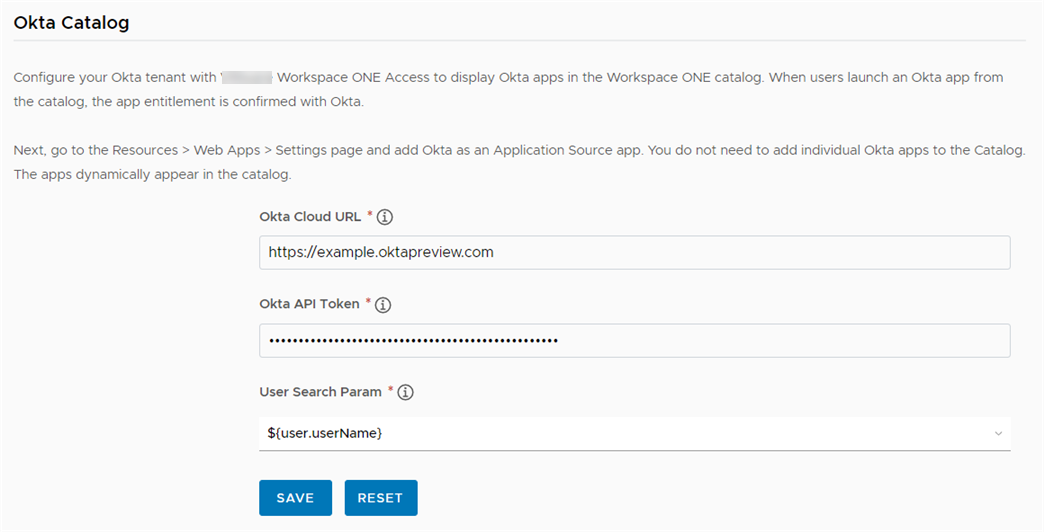
Enter the Okta tenant information.
Option Description Okta Cloud URL Enter your Okta tenant URL. For example, https://mytenant.example.com. Okta API Token Enter the Okta API Token you created in Obtain Okta API Token. User Search Parameter Select the user attribute to be used to search for users in the Okta directory. You can search by userName, email, or userPrincipalName. For example:
-
Click Save.
Was this page helpful?