To configure device trust and access policies for desktop devices, you configure identity provider routing rules in Okta and conditional access policies in Omnissa Access. The new, simplified Okta device trust solution that is available for iOS and Android devices is not yet available for desktop devices. To configure device trust for desktop devices, you can use the Certificate (Cloud Deployment) and Device Compliance authentication methods in Omnissa Access policies.
Important: Do not use the Device Compliance (with AirWatch) authentication method for apps that are configured with Device Trust in Okta. The Device Compliance authentication method is not compatible with apps using Okta Device Trust.
Important: Okta Device Trust is available only with the Okta Classic Engine. It is not supported with the Okta Identity Engine.
Make sure that you follow the preliminary procedures listed for the Device Trust use case in Main Use Cases before proceeding with the tasks in this section.
Configure Identity Provider Routing Rules in Okta for Desktop Devices
Configure Okta Identity Provider routing rules for desktop devices for the Workspace ONE-Okta integration. These routing rules work with application sign on policies to redirect authentication requests from desktop devices to Workspace ONE.
Procedure
-
In the Okta Admin console, navigate to Security > Identity Providers.
-
Click the Routing Rules tab, then click Add Routing Rule.
-
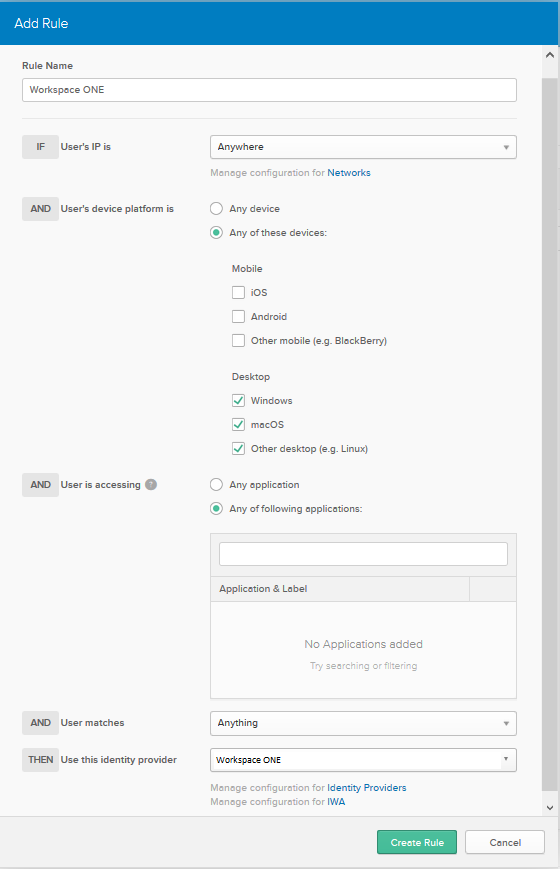
Configure the routing rule.
Option Description Rule Name Enter a name for the rule you are creating. IF User's IP is If appropriate for your implementation, you can specify network zones to which the routing rule applies or does not apply. Network zones must be defined already in Okta. AND User's device platform is Select Any of these devices, then select Windows, macOS, and Other desktop, or some of these options, based on your requirements. AND User is accessing Select Any of the following applications, then enter the applications to which you want to apply the routing rule. AND User matches Select the appropriate option. - Anything
Specifies any user. This is the default option. - Regex on login
Allows you to enter any valid regular expression based on the user login to use for matching. This is useful when specifying the domain, or if a user attribute is not sufficient for matching. For details, see Identity Provider Discovery. - Domain list on login
Specify a list of the domains to match. For example, example.com. Do not add the @symbol to the domain name. You can add multiple domains. Note that it is not necessary to escape any characters. - User attribute
Select an attribute name in the left list, a type of comparison in the Starts with list, and then enter a value that you want to match in the text field on the right.
THEN Use this identity provider Select the Identity Provider you created in Okta for Omnissa Access, as described in "Configure Omnissa Access as an Identity Provider in Okta". For example:
- Anything
-
Click Create Rule.
What to do next
Configure Conditional Access Policies in Omnissa Access for Desktop Devices
Configure Conditional Access Policies in Omnissa Access for Desktop Devices
To provide SSO and device trust for desktop devices, additional access policy rules are required in Omnissa Access.
Create the access policy for MacOS and Windows with Certificate (Cloud Deployment) and Device Compliance as the authentication methods.
Important: Do not use the Device Compliance (with AirWatch) authentication method for apps that are configured with Device Trust in Okta. The Device Compliance authentication method is not compatible with apps using Okta Device Trust.
Procedure
-
In the Omnissa Access console, select Resources > Policies.
-
Click Add Policy.
-
In the Definition page of the wizard, enter the following information.
Option Description Policy Name A name for the policy Description A description for the policy Applies to Select Okta.
This assigns the access policy set to the Okta Application Source. All requests for Okta apps are evaluated with this policy rule set. -
Click Next.
-
In the Configuration page, click Add Policy Rule and configure the policy rule for Windows.
-
Select Windows 10+ as the device type in the and user is accessing content from list.
-
Set the authentication method as follows:
then perform this action: Authenticate using
then the user may authenticate using: Certificate (Cloud Deployment)
and: Device Compliance (with Workspace ONE UEM)Note: If Okta Device Trust is configured, do not use the Device Compliance (with Workspace ONE UEM) authentication method. Instead, use Okta authentication as the fallback authentication method:
then perform this action: Authenticate using
then the user may authenticate using: Certificate (Cloud Deployment)
If the preceding method fails or is not applicable, then: Okta Auth Method -
Click Save.
-
-
Click Add Policy Rule and configure the policy rule for macOS.
-
Select macOS as the device type in the and user is accessing content from list.
-
Set the authentication method as follows:
then perform this action: Authenticate using
then the user may authenticate using: Certificate (Cloud Deployment)
and: Device Compliance (with Workspace ONE UEM)Note: If Okta Device Trust is configured, do not use the Device Compliance (with Workspace ONE UEM) authentication method. Instead, use Okta authentication as the fallback authentication method:
then perform this action: Authenticate using
then the user may authenticate using: Certificate (Cloud Deployment)
If the preceding method fails or is not applicable, then: Okta Auth Method -
Click Save.
-
-
Because this new policy overrides the default access policy for Okta applications, also add policy rules for iOS, Android, Apps on Workspace ONE Intelligent Hub, and Web Browser to the new policy, similar to the ones you previously added to the default access policy.
-
Create a policy rule for iOS devices with Mobile SSO (iOS) as the first authentication method and Okta authentication as the fallback authentication method.
If a user's network range is: ALL RANGES
and the user is accessing content from: iOS
then perform this action: Authenticate using
then the user may authenticate using: Mobile SSO (iOS)
If the preceding method fails or is not applicable, then: Okta Auth Method -
Create a policy rule for Android devices with Mobile SSO (iOS) as the first authentication method and Okta authentication as the fallback authentication method.
If a user's network range is: ALL RANGES
and the user is accessing content from: Android
then perform this action: Authenticate using
then the user may authenticate using: Mobile SSO (Android)
If the preceding method fails or is not applicable, then: Okta Auth Method -
Create a policy rule for Apps on Workspace ONE Intelligent Hub.
If a user's network range is: ALL RANGES
and the user is accessing content from: Apps on Workspace ONE Intelligent Hub
then perform this action: Authenticate using
then the user may authenticate using: Mobile SSO (for iOS)
If the preceding method fails or is not applicable, then: Mobile SSO (for Android)
If the preceding method fails or is not applicable, then: Okta Auth Method -
Create a policy rule for Web browsers with Okta as the authentication method.
If a user's network range is: ALL RANGES
and the user is accessing content from: Web Browser
then perform this action: Authenticate using
then the user may authenticate using: Okta Auth Method
-
-
Arrange the policy rules in the following order, listed from top to bottom.
- Apps on Workspace ONE Intelligent Hub
- Windows 10+ or macOS
- Windows 10+ or macOS
- iOS or Android
- iOS or Android
- Web browser
Was this page helpful?