Onboard to Omnissa Connect with a federated account or a non-federated account.
How to choose federated or non-federated
Non-federated accounts are admin accounts that are not part of a federated domain, who are new to Omnissa Connect, and who have no access to an Omnissa Connect organization yet.
Federated accounts are admin accounts that are part of a federated domain and who use their corporate Omnissa Connect credentials to access Omnissa Connect organizations.
How do I onboard as a non-federated admin
To start using Omnissa Connect as a new admin (user) with no access to any organization with a non-federated account, you must first obtain Organization and Service role access from an Owner.
Procedure
Requesting initial access to Omnissa Connect is an offline process that can be initiated by you or by the Owner. Typically, after the Owner grants you Organization and Service roles in the organization, you receive an email with a link to the organization.
- If you don't already have an Omnissa account, create one. If you do have an Omnissa account, verify the account by logging in to it.
- To create an Omnissa account, go to Omnissa Connect.
- Select Create an account.
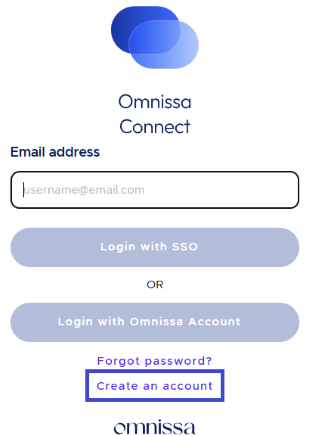
- Follow the Create an account template that includes entering your name, entering information about your company, entering your role in the company, and agreeing to terms and conditions.
- When entering the phone number, do not use special characters or spaces.
- Add only numbers.
- Submit your entries to create the account. You are now ready for when your invitation email arrives.
- In your invitation email, select the View My Roles link to access the organization.
- Log in to the organization and start using the subscriptions according to the Organization and Services roles the Owner granted you.
How do I onboard as a federated admin
As an admin (user) of a federated domain, log in to Omnissa Connect with your corporate account to start an onboarding workflow.
During the onboarding process, you request access by self-selecting organizations, services (also called subscriptions), and Organization and Service roles. Your requests must be approved by the Owners and this may take some time. See the topic Roles for an explanation of Organization and Service roles in Omnissa Connect.
The organizations available for selection in the onboarding workflow are organizations in your enterprise, federated domain which have been activated for Identity Governance and Administration (IGA). If you need to obtain access to an organization that is not IGA-activated, you need to be sent an invitation link from the applicable Owner to onboard.
Procedure
- Go to Omnissa Connect and select Log In.
- In the Omnissa Connect Welcome screen, type your corporate account credentials.
The first step of the onboarding workflow displays the list of IGA-activated organizations associated with your enterprise. - Select the organization that you want to access and select Continue.
- Select your role in the selected organization.
- Your Organization role determines the level of access and permissions you have in the organization.
- When you onboard with a federated account, you can only request the default Organization Member role.
- After onboarding, you can request additional roles.
- Select Continue.
The Select service roles step of the workflow displays the services available in the selected organization. - Select the Omnissa services you want access to as an Organization Member.
- In the Finalize request step of the onboarding workflow, define the time period for the service access request.
- In the Business Justification text box, type a message to the Owner, then select Continue.
Your request displays in the Pending requests list, awaiting approval from an Owner. - To request access to another IGA-activated organization in your federated domain, select Submit a New Request and repeat the procedure.
What to do next
Receiving approval for the Organization and Service roles you requested can take some time. Until then, you can access the Omnissa Connect console to check the status of the requests you submitted, cancel a request you created, or create a new one.
How do you log in to Omnissa Connect
The way you log in to Omnissa Connect depends on whether your account is federated or not.
- Non-federated: Log in to the console with your Omnissa account credentials.
- Federated: Log in using your corporate account credentials or with single sign-on (SSO).
Access and refresh tokens for sessions
After you log in to Omnissa Connect with a successful authentication, the system generates access and refresh tokens for your login session. Both tokens are generated in the background using OAuth 2.0 apps and have default time to live (TTL) values.
- 30 minutes TTL for the access token.
- 24 hours TTL for the refresh token.
After successful login, the access token remains valid for only 30 minutes. After that, it becomes invalid and the refresh token is used to regenerate the access token so that you can continue with the login session. After 24 hours the refresh token expires and you are required to log in again.
Note: You cannot modify the default TTL values for the access and refresh tokens.
Prerequisites
You must have an Organization role in one or more Omnissa Connect organizations.
Procedure
- Open a browser and go to the Omnissa Connect console found at https://connect.omnissa.com.
- Enter your non-federated or federated account email and select Next.
- Complete the process depending on your account type.
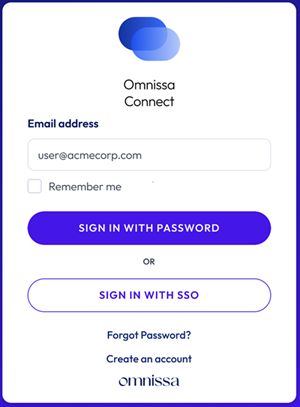
- Non-federated: Select Sign In With Password, type the password, and then select Sign In.
- If you select Sign In With SSO, the authentication fails with an error message.
- Federated: Select between using your corporate account password or your corporation's SSO.
- Password: Select Sign In With Password, type the password, and then select Sign In.
- SSO: Select Sign In With SSO and your identity provider authenticates you so you can access your Omnissa resources.
- Non-federated: Select Sign In With Password, type the password, and then select Sign In.
Results
Upon successful login, the Omnissa Connect Home page displays the services available in the organization.
Was this page helpful?