Review the steps primary admins must complete to onboard an existing Omnissa Workspace ONE UEM service to Omnissa Connect. This procedure also onboards access to Omnissa Intelligence if you use UEM to access your Intelligence instance. This guide does not outline tasks for new Omnissa customers.
Audience
This guide is for customers who currently access their UEM service directly using UEM-based authentication. In 2025, we are onboarding these customers to Omnissa Connect. This guide's purpose is to help you understand the process of onboarding UEM to Omnissa Connect. See Onboarding to Omnissa Connect for details.
Get started with Omnissa Connect demo
For a helpful demo on how to get started with Omnissa Connect, see Get Started with Omnissa – Welcome Email for Onboarding on the Omnissa Tech Zone site.
Onboarding stages
The listed stages outline the process of onboarding a current Omnissa service to Omnissa Connect.
- Stage 1: Initial onboarding
- Omnissa onboards services to an organization in Omnissa Connect.
- Omnissa gives primary admins access to the Omnissa subscription through Omnissa Connect.
- Primary admins log in through Omnissa Connect and familiarize themselves with the system, including tasks for enterprise federation and role-based access controls.
- Stage 2: Primary admins consolidate accounts
- Primary admins consolidate accounts between the Omnissa service and Omnissa Connect, leaving users a single path for authentication into the Omnissa platform.
- Stage 3: Secondary admins gain access and cleanup
- Primary admins add secondary admins to Omnissa Connect, give them the appropriate permissions, and secondary admins consolidate accounts as necessary.
- All admins remove remaining authentication paths and unnecessary admins that are not Omnissa Connect-based.
Admins complete onboarding
During the initial onboarding of a service to Omnissa Connect, Omnissa identifies the top-level primary admins.
Primary admins
Primary admins perform the necessary tasks to complete onboarding and to transfer other admins to Connect.
Secondary admins
Admins who are not identified as primary admins are considered secondary admins and these admins experience no changes to their login experience, initially. After they gain access to Connect, they can consolidate their accounts and help with cleaning up remaining authentication paths that are not through Connect.
Who is a primary admin?
For the Workspace ONE UEM product, Omnissa uses the following characteristics to identify primary admins. These admins are the first to transition to the Omnissa Connect experience.
- Existing UEM admins with the Console Administrator role.
- These admins must have logged into UEM within the past 30 days.
Required UEM version
For successful onboarding, you must use Workspace ONE UEM 2506 or later.
Prerequisite: Check if you are onboarded
Perform two validation checks to ensure your UEM service is onboarded to Connect.
- Check if your service is activated and onboarded in Workspace ONE UEM.
- In UEM, select the bento box in the top right of your console header to access the My Services menu.

- At the bottom of the My Services menu, locate the Omnissa Connect Status area.
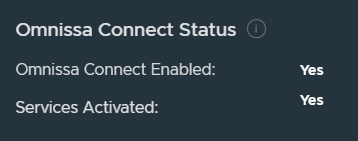
- Omnissa Connect Enabled
- Yes: We have onboarded your service to Omnissa Connect. If you are a primary admin, you can perform the primary admin tasks for onboarding.
- No: We have not yet onboarded your service to Omnissa Connect. If you are a primary admin, you can not perform your admin tasks for onboarding.
- If we have not yet onboarded your service, you must wait for your scheduled onboarding time. See the article Onboarding to Omnissa Connect for the onboarding schedule.
- Services Activated
- Yes: A primary admin has redeemed the onboarding invitation email and launched your service from Omnissa Connect.
- No: A primary admin has not redeemed the onboarding invitation email and has not launched your service from Omnissa Connect.
- NA: Your service is not activated with the Omnissa Connect service.
- Omnissa Connect Enabled
- In UEM, select the bento box in the top right of your console header to access the My Services menu.
- Check that your UEM data is accessible in Omnissa Connect.
- In UEM, select the appropriate organization. If you have an Intelligence subscription, select the organization that manages the Intelligence service.
- Go to Accounts > Administrators > Admins and look at the Source column in the list view.
- Admins can access UEM data in Connect when Cloud Service and UEM display in the Source column in the Admins list view.
- Admins cannot access UEM data in Connect when only UEM displays in the Source column in the Admins list view.
Next steps
Perform the primary admin tasks to initiate the onboarding process.
Was this page helpful?