You can monitor tenant and partner organization error and warning notifications by selecting Monitor > Notifications and then selecting either Tenant Organization or Partner Organization.
Note: The Horizon Partner Admin Console is currently available in Limited Availability (LA) mode only.
Filter on the Notifications view by Error or by Warning to determine levels of severity with respect to the order in which the tenants are listed. Tenants with the highest number of errors or warnings are listed first. With regard to the tenants that appear in the Latest 5 list, you can control sorting by Error Count, Warning Count, or Most Recent Error or Warning.
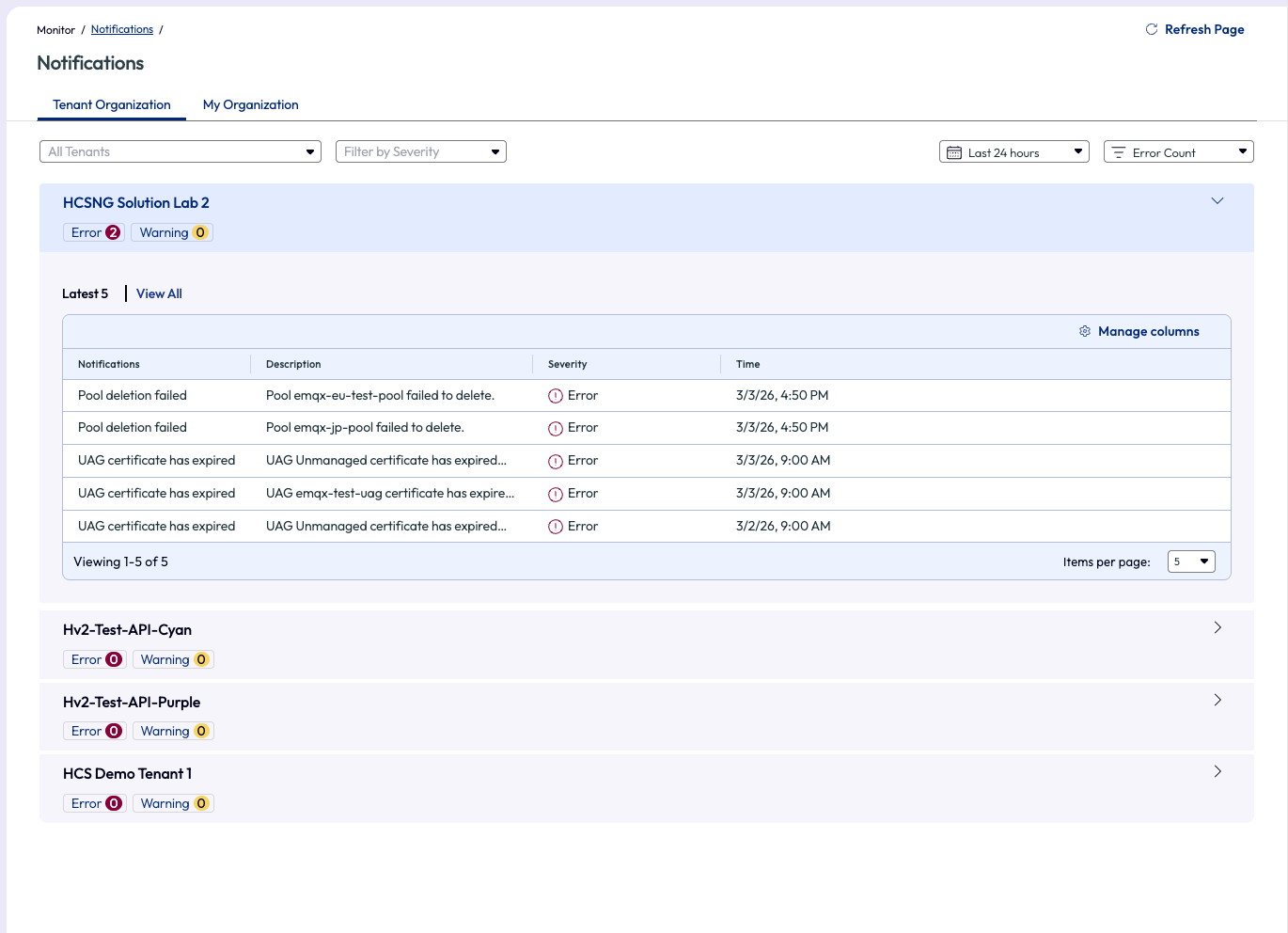
For more information about all current notifications for a given tenant, click on the tenant name and expand the notification to display the Errors and Warnings. You can then open each listed item to view details such as description, severity, status, resource ID, and status.
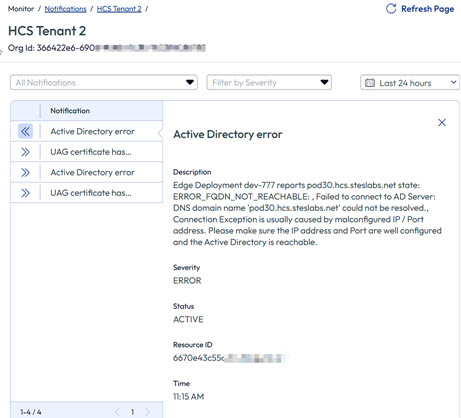
You can expand any given notification to learn more detail. For example, the Latest 5 view for the selected tenant displays the five most recent errors and warnings for that tenant. However, if you select the View All option, you see all the errors and warnings, starting with the most recent or however you've chosen to sort, and can then expand on any error or warning to obtain more detail. This information assists you in deciding what to do to correct the error or warning. An example is shown below.
If you decide to make changes to Horizon Cloud resources within the tenant instance, open the Tenants page and click the Manage option for that specific tenant. This opens Horizon Cloud in the tenant organization and, based on your assigned role-level of access, enables you to make needed changes within the tenant instance of Horizon Cloud.
Was this page helpful?