After you have added partner organization users, you assign tenant management roles to the existing partner organization users.
Note: The Horizon Partner Admin Console is currently available in Limited Availability (LA) mode only.
Depending on what has been allowed by the tenant, some roles may not be visible or otherwise available. For related information, see Use the Horizon Universal Console to Assign Administrative Roles in Horizon Cloud product documentation.
-
From the Partner Admin Console left pane navigation, click Roles & Permissions > My Organization.
-
Select the name of a partner user to whom you want to assign tenant management roles and then click Tenant Roles.
-
From the drop-down menu, select Assign Roles.
Note:You can optionally use the drop down menu to select Edit Roles or Remove Roles.
-
From the Tenant Organizations drop-down menu, select one or more tenants to assign access rights to for this partner user.
-
In the Organizational Roles section, select the organizational role(s) to assign to the specified user(s). Role selections are not mutually exclusive.
- Organization Owner - The Organization Owner role has full administrative access to all resources in the organization.
- Organization Admin - The Organization Administrator role has limited administrative access.
- Organization Member - The Organization Member role has read-only access to the organization resources.
-
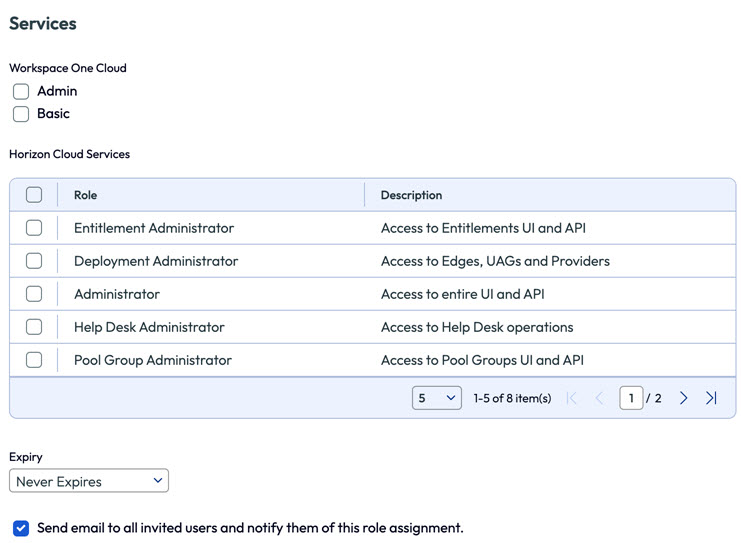
In the Workspace ONE Cloud section, select the role(s) to assign to the specified user(s) for the Workspace ONE Cloud service. Role selections are not mutually exclusive.
- Admin
- Basic
-
In the Horizon Cloud Service section, select the roles to assign to the specified user(s) for the Horizon Cloud services. Role selections are not mutually exclusive.
-
Select when the user role assignments should expire.
- Never expires
- Expires until - specify a time that is specific to your time zone when the user roles must expire
- Expires in - select the number of hours that the user roles will remain in effect before they expire
-
Toggle the Send email to all invited users and notify them of this role assignment. option on or off and then click Save.
Was this page helpful?