Use the Horizon Partner Admin Console to onboard a new or existing Horizon Cloud tenant organizations into your own partner organization.
Note: The Horizon Partner Admin Console is currently available in Limited Availability (LA) mode only.
-
An existing customer tenant is an existing Omnissa Horizon Cloud organization (customer tenant) that you, serving as the partner organization, intend to monitor and manage using the Horizon Partner Admin Console.
-
A new customer tenant is a customer for whom you intend to onboard through the Omnissa Connect portal as a new Horizon Cloud organization (customer tenant) and that you, serving as the partner organization, intend to monitor and manage using the Horizon Partner Admin Console.
To onboard Horizon Cloud tenants to your Horizon Partner Admin Console application, you must first have an existing Omnissa Connect organization in the Horizon Cloud service that has been designated as a partner organization. See Onboarding for Partners.
Onboarding Overview - New Customer Tenant
The high-level flow for onboarding a new Horizon Cloud customer tenant into your partner organization for the purposes of managing the tenant in the Horizon Partner Admin Console is as follows:
-
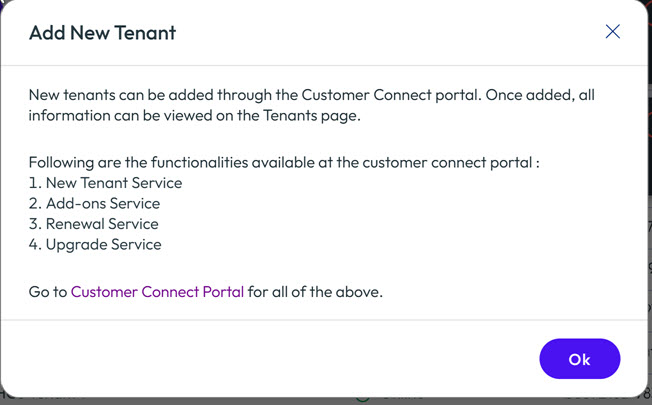
You, as the partner organization administrator, click Tenants > Add > New tenant in the Partner Admin Console and click the Customer Connect Portal link on the resultant page to continue.
-
In the Customer Connect portal, place an order against the customer tenant's commit contact ID to create a new Omnissa Connect organization to which the Horizon Cloud subscription (commit contract ID) is to be onboarded.
For related information about onboarding in Omnissa Connect, see Omnissa Connect product documentation.
-
When onboarding is complete, the new tenant organization is shown on the Tenants page in your Horizon Partner Admin Console. You then assign roles to the users in your organization so that they can manage the tenant organization.
Onboarding Overview - Existing Customer Tenant
The high-level flow for onboarding an existing Horizon Cloud customer tenant into your partner organization for the purposes of managing the tenant in the Horizon Partner Admin Console is as follows:
-
You, as the partner organization administrator, send a tenant management request to your Horizon Cloud customer tenant informing them that they you want to add them as a tenant in the Horizon Partner Admin Console. The tenant management request is shown as pending on the Tenants page until the tenant administrator takes action.
-
An administrator for your Horizon Cloud customer (tenant) accepts or rejects the request in their Horizon Universal Console.
If the Horizon Cloud tenant administrator accepts the request, the customer tenant is shown on the Tenants page in your Horizon Partner Admin Console. You must assign roles to the users in your (partner) organization so that your staff can properly monitor and manage the tenant organization.
If the Horizon Cloud tenant administrator rejects the request, the tenant management request is shown as rejected on the Tenants page.
A more detailed procedure for onboarding an existing Horizon Cloud tenant organization is shown below.
Procedure - Onboarding an Existing Horizon Cloud Customer Tenant
-
Meet the needed prerequisites, as below:
-
You, as the partner organization, must have an Omnissa Connect organization onboarded to the Horizon Cloud service to use as a tenant organization in the service. You can create a trial tenant for this purpose.
-
If you, as the partner organization, want to create a Omnissa Connect organization as a trial tenant or you do not have an Omnissa Connect organization that you have onboarded to the Horizon Cloud service, reach out to your Omnissa coordinator or Omnissa Customer Connect. Follow the onboarding documentation to redeem the subscription invitation to create a new Omnissa Connect organization or use an existing organization. See Onboarding to Horizon Cloud.
For related information about onboarding in Omnissa Connect, see Omnissa Connect product documentation.
-
-
Log in to the Horizon Partner Admin Console with administrator-level access.
-
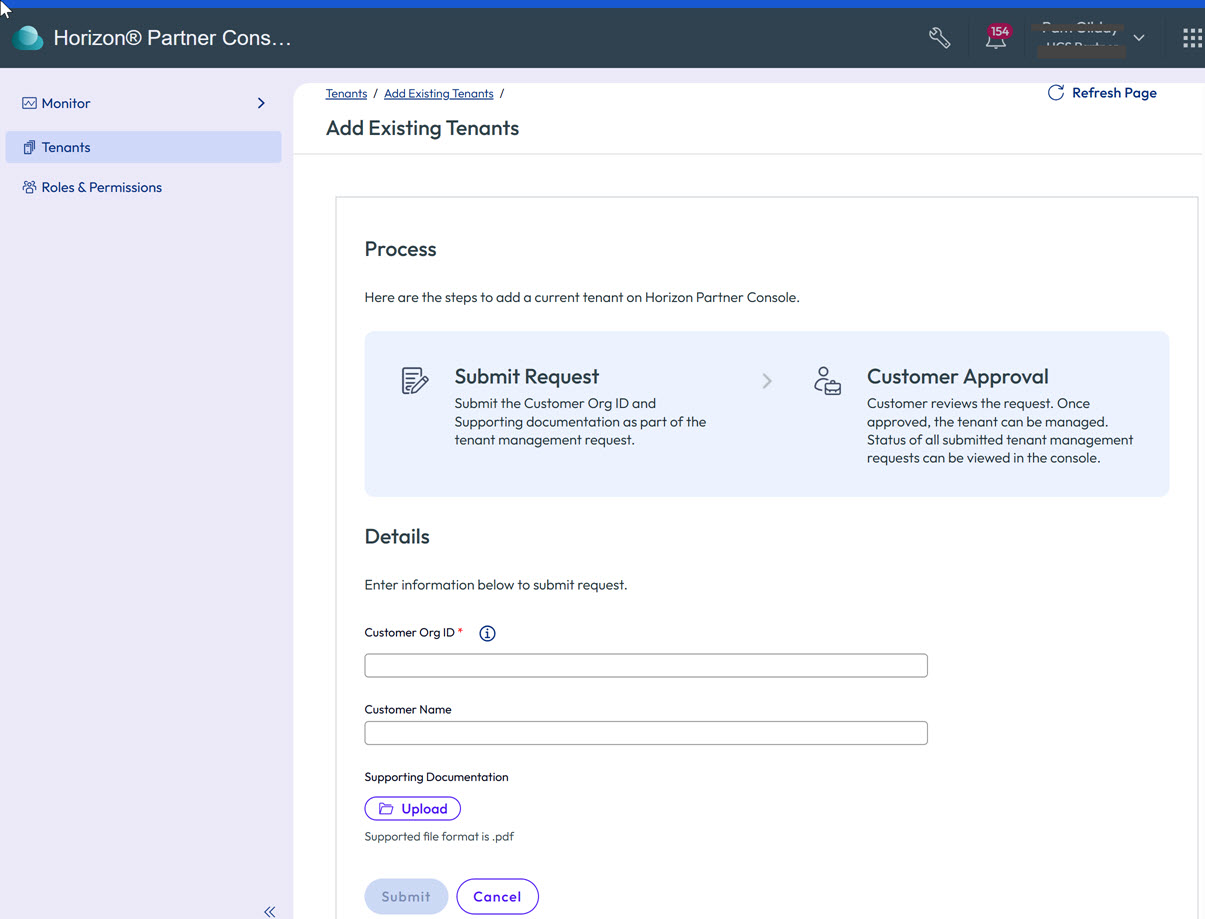
Click Tenants in the left pane navigation and then click Add > Existing Tenant on the Tenants page.
-
Complete the form as prompted:
- Enter the Customer Org ID of the existing Horizon Cloud customer tenant that you want to invite to be managed.
- Enter the Customer name that you want to appear on the Tenants page in your Horizon Partner Admin Console view.
- Upload any supporting documentation in PDF form.
- Click Submit to send the request to the Horizon Cloud customer.
-
Note that the request appears on the Tenants page in the Approval Pending status.
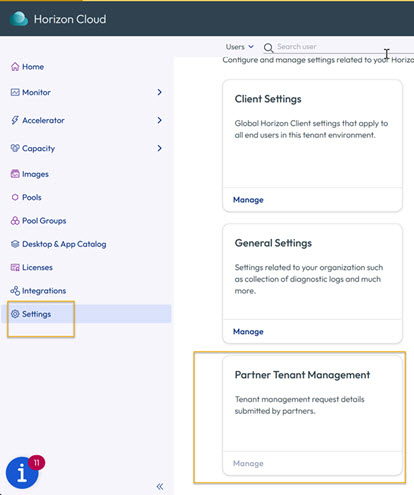
The tenant administrator in the customer organization receives a notification of your request in their Horizon Cloud notifications view. If they want to accept your invitation to manage their organization assets, they are instructed to click the Settings option in the Horizon Universal Console left-pane navigation.
-
From the Settings page in their Horizon Cloud service instance, the tenant administrator clicks Manage on the Partner Tenant Management tile.
-
The tenant administrator reviews the management request and chooses to either Approve or Reject the request. Note that the tenant administrator can use the Partner Tenant Management tile at any point in future to see the current relationship status.
The options that the tenant admin sees are similar to those shown below:
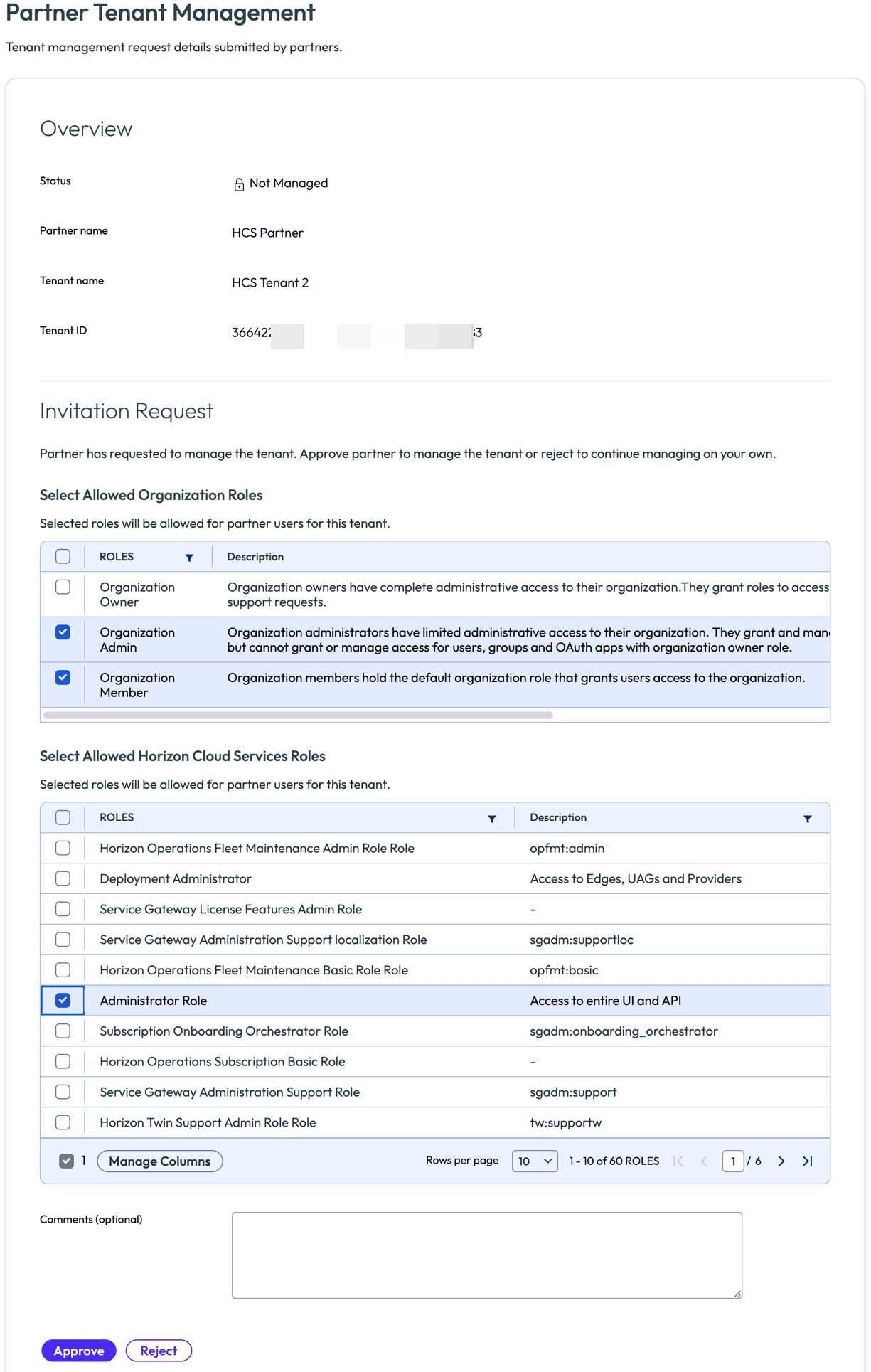
Note: Prior to approving the request, and at any time after approving the request, the tenant administrator can choose which types of information the partner is permitted to view in the Partner Admin Console. These options are presented to the tenant administrator at this stage of the onboarding process. The tenant administrator can change these later by using the Manage option on their Settings > Partner Tenant Management tile in Horizon Cloud.
-
After the tenant accepts the partner's onboarding request, the tenant is listed on the Tenants page in the Partner Admin Console as Online and you are ready to assign management roles to users in your (partner) organization for managing the tenant. See Add Users and Assign Roles.
Note: If the tenant rejects your request, they appear as Rejected on the Tenants page in the Partner Admin Console. You can either resend or delete the rejected request.
-
Once users and roles assignments are complete, one of your partner administrators can click on the Manage link to open the Horizon Universal Console (Horizon Cloud instance) that is already logged into the tenant organization. This allows your partner organization users to do all allowed operations (based on role-based permissions) for the tenant organization, such as creating/updating/deleting edges, images, pools and entitlements, within the tenant's Horizon Cloud instance.
For information about adding users and assigning roles in the Partner Admin Console, see Adding Users and Assigning Roles.
Was this page helpful?