This topic describes how to modify elements on the Activity and Notification pages.
Cancel Task Button
To modify button, edit the stylesForCustomBranding.css file in both tenant appliances in the organization:
$> /usr/local/desktone/release/dt-platform-20_2_0/deploy/dt-tenant-node-20.2.0-bin/horizonadmin/static/css/production/ stylesForCustomBranding.css
Edit the appropriate section of code so that it is similar to the following example, uncommenting the lines containing border-color, background-color, and color, and changing the color values.
#zedd-content .modal-footer .btn {
     border-color: blue !important;
     background-color:  green !important;
     color: black  !important;  }
The following images show an example of the appearance of the page when the code has been edited as shown above.
| BEFORE | AFTER |
|---|---|
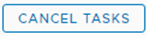 | 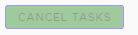 |
Sort Icon
To modify the sort icon, edit the stylesForCustomBranding.css file in both tenant appliances in the organization:
$> /usr/local/desktone/release/dt-platform-20_2_0/deploy/dt-tenant-node-20.2.0-bin/horizonadmin/static/css/production/ stylesForCustomBranding.css
Edit the appropriate section of code so that it is similar to the following example, uncommenting the line containing , color and changing the color value.
  #zedd-content .datagrid-column-title .sort-icon {
     color: orange !important;  }
The following images show an example of the appearance of the page when the code has been edited as shown above.
| BEFORE | AFTER |
|---|---|
 |  |
Active Tab
To modify the appearance of the active tab, edit the stylesForCustomBranding.css file in both tenant appliances in the organization:
$> /usr/local/desktone/release/dt-platform-20_2_0/deploy/dt-tenant-node-20.2.0-bin/horizonadmin/static/css/production/ stylesForCustomBranding.css
Edit the appropriate section of code so that it is similar to the following example, uncommenting the lines containing background, box-shadow, and -webkit-box-shadow, and changing the color values.
  #zedd-content .nav .nav-link {
     background:  pink !important;
     box-shadow: 0 -3px 0 red inset !important;
     -webkit-box-shadow: 0 -3px 0 red inset !important;
The following images show an example of the appearance of the page when the code has been edited as shown above.
| BEFORE | AFTER |
|---|---|
 |  |
Check Boxes
To modify the check boxes, edit the stylesForCustomBranding.css file in both tenant appliances in the organization:
$> /usr/local/desktone/release/dt-platform-20_2_0/deploy/dt-tenant-node-20.2.0-bin/horizonadmin/static/css/production/ stylesForCustomBranding.css
Edit the appropriate section of code so that it is similar to the following example, uncommenting the line containing background and changing the value for the color.
.clr-checkbox-wrapper input[type=checkbox]:checked + label::before {
   background: red !important;
The following images show an example of the appearance of the page when the code has been edited as shown above.
| BEFORE | AFTER |
|---|---|
 |  |
Page Background
To modify the background, edit the stylesForCustomBranding.css file in both tenant appliances in the organization:
$> /usr/local/desktone/release/dt-platform-20_2_0/deploy/dt-tenant-node-20.2.0-bin/horizonadmin/static/css/production/ stylesForCustomBranding.css
Edit the appropriate section of code so that it is similar to the following example, uncommenting the line containing background and changing the value for the color.
#zedd-content {
    /*! Activity and Notification (all clarity pages) Background */
    .main-container {
        background: red !important;
    }
Was this page helpful?