This documentation page describes the key feature areas visible when you run the EXE.
The following screenshot is an illustration of the tool's UI in version 2503, from running the EXE file. This screenshot depicts the UI after running the Analyze action.
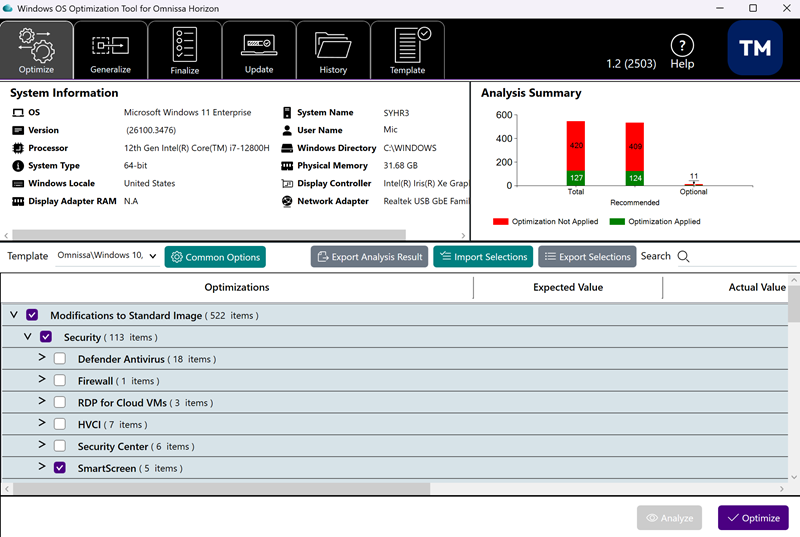
Tabs when running the OSOT EXE
A row of tab buttons provides the main functions and operations of the OS Optimization Tool.
The following screenshot illustrates the tabs when running the OSOT EXE version 2503.

- Optimize - Analyzes the current state of Windows using a template and then applies the selected optimizations. See Optimize.
- Generalize - Runs Windows system preparation (Sysprep tool). See Generalize.
- Finalize - Runs system clean-up tasks and clears information, getting the VM ready for use with Horizon. See Finalize.
- Update - Runs Windows Update on a previously optimized image. See Update Image.
- History - Views optimization history and rolls back virtual machines to a pre-optimized state. See View optimization history.
- Templates - Enables you to edit the tool-provided built-in templates and save the changes to create your own templates. See Working with Templates.
- Help - Displays this Omnissa Horizon OS Optimization Tool User Guide.
Along with the tool itself (the EXE file), the Windows OS Optimization Tool for Horizon offering from Omnissa comes with a Microsoft Deployment Toolkit (MDT) plugin.
This MDT plugin provides for automating the golden image build process from end to end. This golden image build process includes the installation of Windows, Hypervisor Tools, Omnissa Horizon agents, and applications. For more detail about obtaining and using the Omnissa MDT plugin, see the page Using the MDT Plugin with an MDT Server to Create and Optimize a Base VM.
Template choices
The built-in Windows OS Optimization Tool for Horizon template comes with a list of modifications for a standard golden image. Each template is an XML file that contains the coding for the optimizations. The default settings are the recommended values for optimizing your Windows operating system.
With the release of Windows OS Optimization Tool for Horizon version 1.0 (2111) a single template is built in that that includes support for Windows 10, Windows 11, Windows Server 2019, and Windows Server 2022.
You can also create your own templates within the Windows OS Optimization Tool for Horizon, as described in Working with Templates, including copying the built-in template to create your own editable version.
Template area - steps and groups
Each template has a list of modifications, called steps, which are organized into groups.
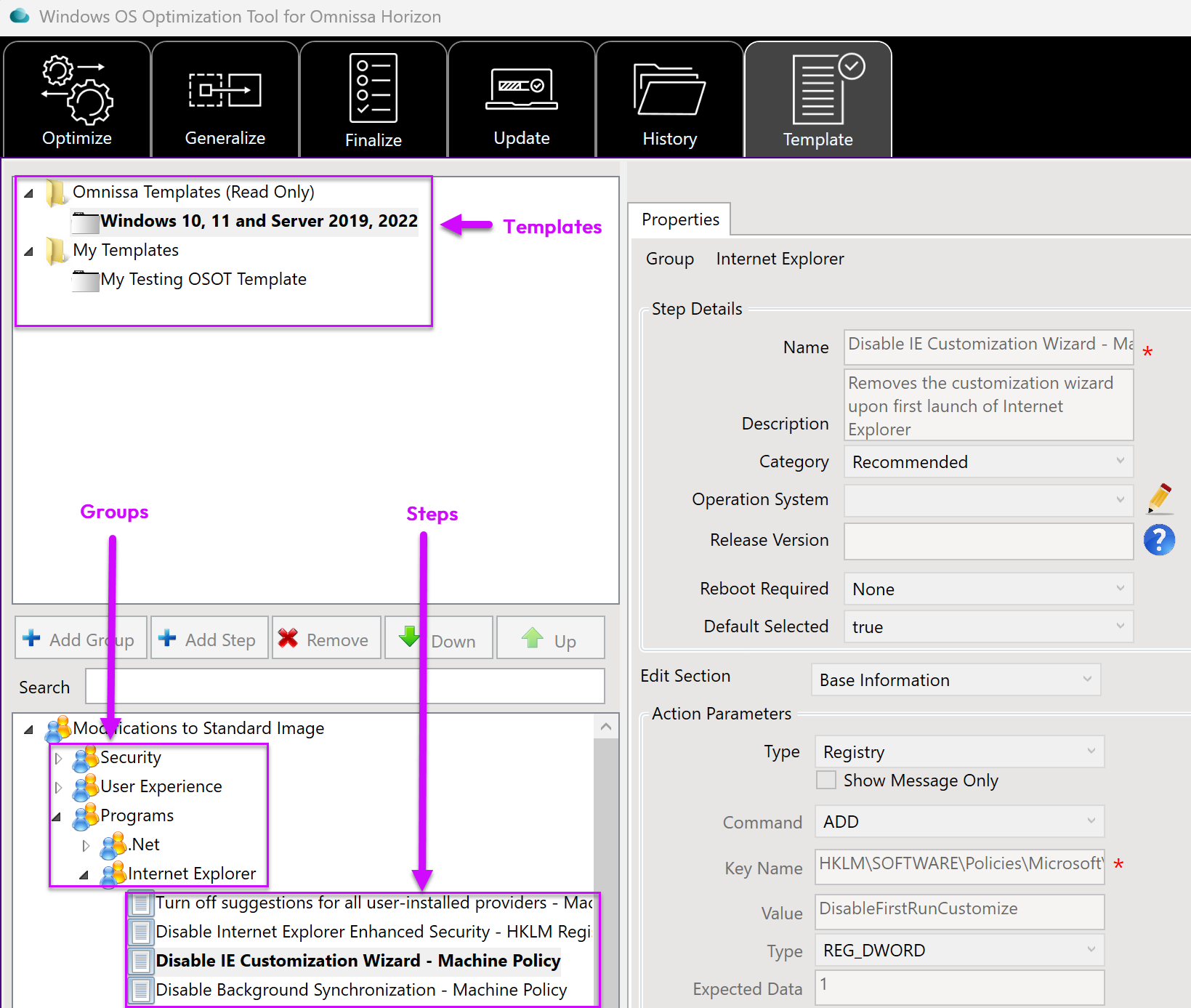
System information pane
The System Information pane, below the five main tabs, has details about the machine (local or remote) that you are targeting.
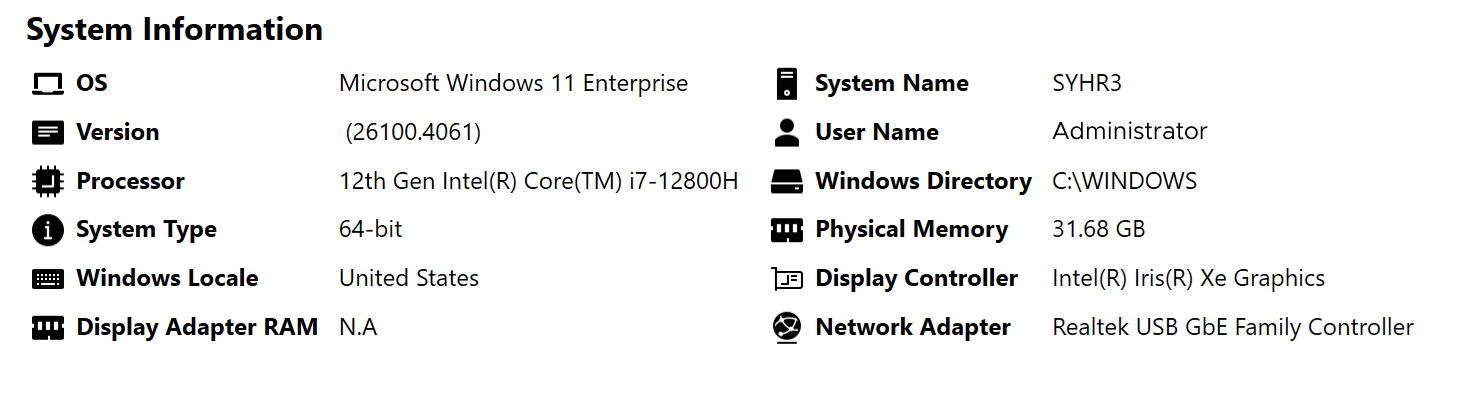
System Information details include:
- OS – Operating system on machine being viewed
- Version – Version and build information for Windows
- User Name – Current logged-in user
- Physical Memory – Installed physical memory
- Windows Locale – OS setting that identifies the language used by the targeted machine by geographical location
What to read next
Building an image with the Windows OS Optimization Tool for Horizon
Was this page helpful?