You can add a Manifest to any staging package in Workspace ONE UEM. The manifest can contain any product provisioning components including applications, profiles, Files/Actions, and Event Actions.
PREREQUISITES
If you plan to add Applications, Profiles, Files/Actions or Event Actions, you must create these components before adding them to the manifest. Create these components by navigating to Devices > Provisioning > Components.
While these components can be pushed through product provisioning immediately after enrollment, there are some use cases for adding these components in the Staging Package Manifest. Consider doing so if they are critical to communication between the devices and Workspace ONE UEM servers.
The manifest can be added by navigating to Devices > Lifecycle > Staging. Either select the edit icon ( ) to the left of an existing staging package in the listing and proceed to step 1 below or create a new staging package by selecting the Add Staging button. Select the platform then proceed to the Manifest tab.
PROCEDURE
-
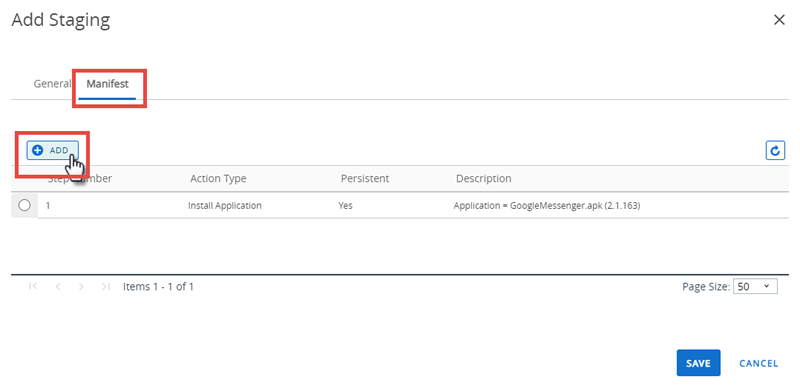
After finishing the General tab of the Staging window, continue to the Manifest tab.
-
Select the Add button.
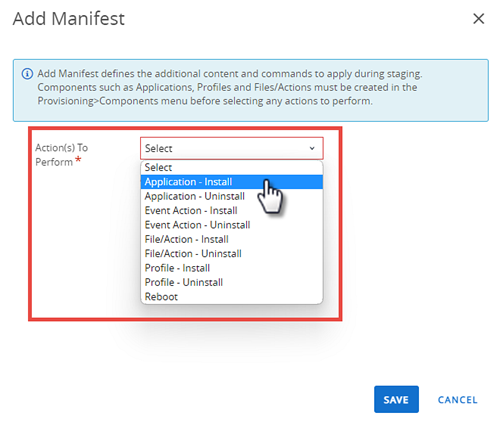
The Add Manifest screen displays.
-
Select the Action(s) To Perform during staging.
Action(s) to Perform Drop-Down Menu Settings Install Profile In the Profile text box, select the profile to install during the staging configuration. This component must be made before adding it to the manifest. Uninstall Profile In the Profile text box, select the profile to remove during the staging configuration. Install Application (Android Only) In the Application text box, select the App to install during the staging configuration. This component must be made before adding it to the manifest. Uninstall Application (Android Only) In the Application text box, select the App to remove during the staging configuration. Install Files/Actions In the Files/Actions text box, select the Files/Actions component to install during the staging configuration. This component must be made before adding it to the manifest. Uninstall Files/Actions In the Files/Actions text box, select the Files/Actions component to remove during the staging configuration. Reboot (Android Only) Reboots the device during the staging configuration. This action works best as the last step of the manifest. Warm Boot/Cold Boot (WinRugg Only) Warm Boot reboots the device during the staging configuration. This action works best as the last step of the manifest.
Cold Boot shuts down the device, forcing a restart by the end user. This action works best as the last step of the manifest.Install Event Action (Android and WinRugg Only) In the Event Action text box, select the Event Action component to install during the staging configuration. This component must be made before adding it to the manifest. Uninstall Event Action (Android and WinRugg Only) In the Event Action text box, select the Event Action component to remove during the staging configuration. -
Android and Windows Rugged only - Enable or deactivate Persistent through enterprise reset. Enable to keep the profile, application, files/actions, or event action on the device after an enterprise reset. For more information, see Product Persistence, Android and WinRugg.
-
When finished with the single Manifest action, select Save.
-
Select Add again to add additional Manifest actions. You can adjust the order of manifest steps using the up and down arrows in the Manifest list view. You can also edit or delete a manifest step.
-
When you are finished adding actions, select Save.
View the newly created staging profile in the List View. Take additional actions on the profile from the menus on the right.
- Edit your configuration.
- Copy your profile.
Was this page helpful?