After selecting Web enrollment in the Rugged Enrollment Configuration wizard, create a staging package to enroll devices by sending end users to a URL to enroll. The enrollment wizard simplifies the staging configuration process.
PROCEDURE
-
Navigate to Devices > Staging > Mobile Staging and select the Configure Enrollment button.
-
Select Windows Rugged as your platform.
-
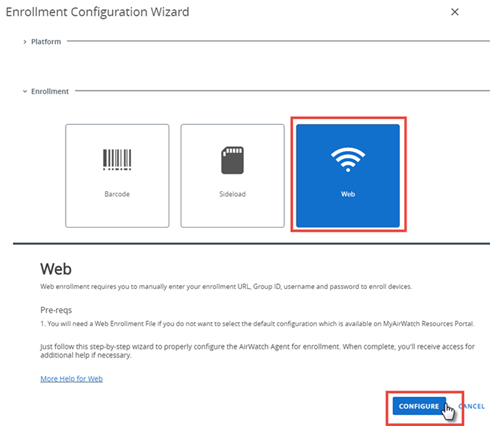
Select Web as the Enrollment type.
-
Select Configure to configure the Omnissa Workspace ONE Intelligent Hub for web enrollment.
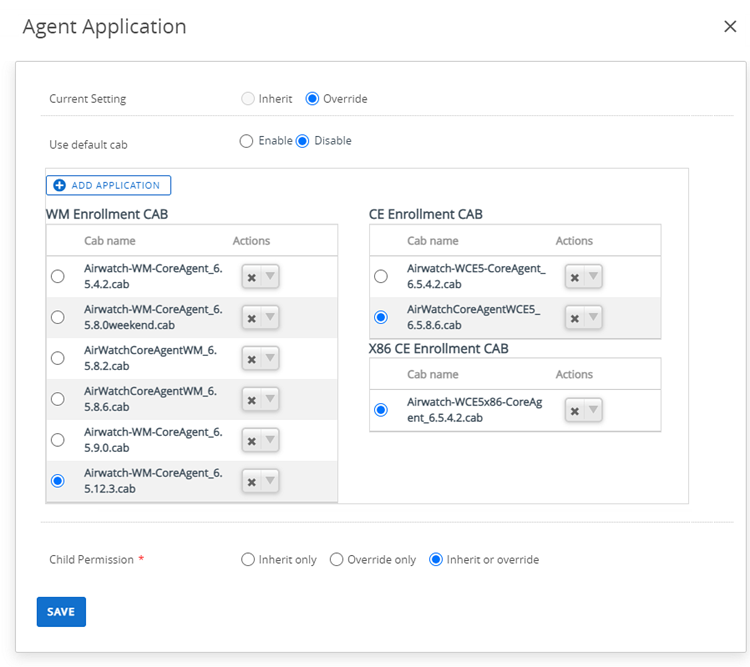
The Agent Application screen displays, showing the CAB file enrollment options, each containing their platform specific flavor of the Workspace ONE Intelligent Hub.
-
If you want to use a different CAB, select Deactivate and then select the CAB file you want to use. Select the CAB file for both Windows Mobile, Windows CE, and Windows x86 CE devices.
-
To upload your own CAB file, select Add Application.
-
-
Select Save. You are returned to the Enrollment Configuration Wizard.
-
Select Next to review a summary of your selected options.
-
Select Close.
-
Navigate to Groups & Settings > All Settings > System > Advanced > Site URLs and note the URL found in the MDM Enrollment URL text box. Send end users to this URL to begin enrollment.
-
If you do not have access to the above nav path, use the following enrollment URL instead, replacing
<DS_Hostname>with the device server hostname of your environment.https://*<DS_Hostname>*/DeviceManagement/Enrollment
-
Was this page helpful?