The Omnissa Workspace ONE Intelligent Hub Package can be uploaded only in Customer and Partner organization group types. Upload the package to the topmost organization group level of either customer or partner types. You can find the file specific to your OEM located in Workspace ONE UEM Resources.
PREREQUISITES
In order to ensure the Workspace ONE Intelligent Hub persists on your Zebra device, you must supply the correct APF file, which you can download from https://customerconnect.omnissa.com/downloads/#all_products Zebra Devices have the following APF files available.
- Workspace ONE Intelligent Hub xx.xx Zebra APF for Android Enterprise Work Managed (DO) – Applies to devices in Android Enterprise Work Managed mode together with Agent Upgrade and StageNow barcode enrollment.
- Workspace ONE Intelligent Hub xx.xx Zebra APF for Android Legacy (DA) – Applies to devices in Android Legacy mode together with Agent Upgrade and StageNow barcode enrollment.
PROCEDURE
-
Move to the topmost OG of type customer or partner.
-
Download the APF files suited to your device.
-
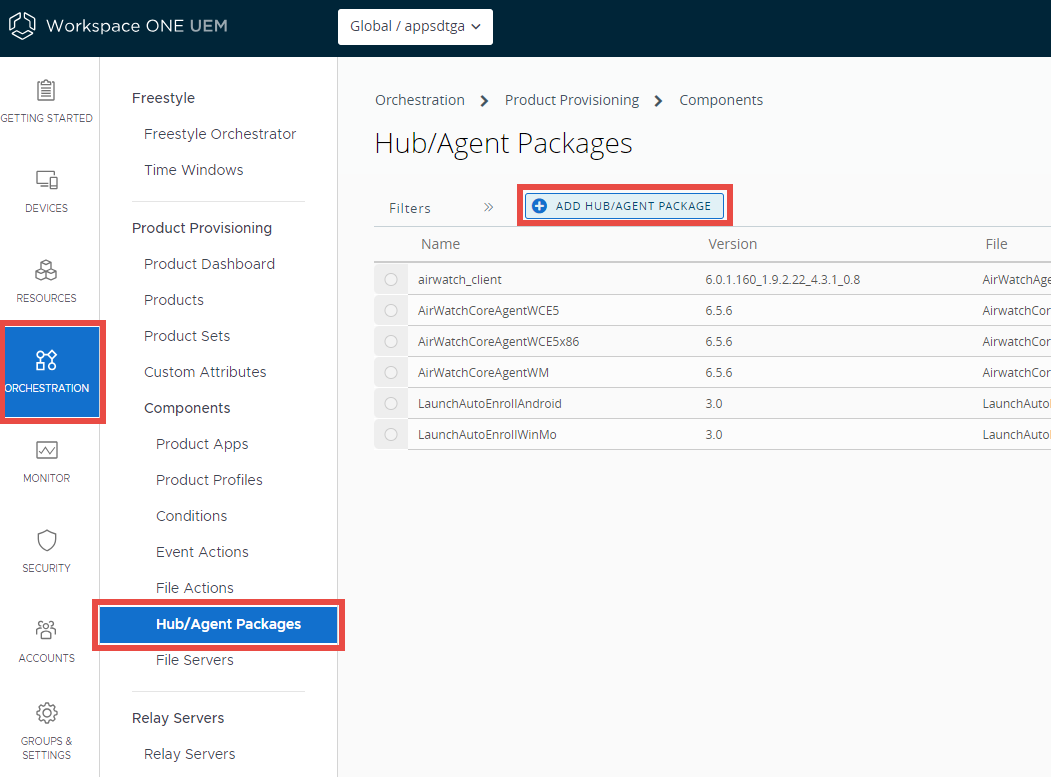
Navigate to Orchestration > Product Provisioning > Components > Hub/Agent Packages and select the Add Hub/Agent Package button. If you skipped step 1, then you might not be able to see the Hub/Agent Packages option.
-
Select the platform for which you are adding the Workspace ONE Intelligent Hub package. The Add Hub/Agent Package screen displays.
-
Select the Upload button next to the Application File setting.
-
Select Choose File and browse for the APF file of the Workspace ONE Intelligent Hub version you want to upload.
-
Select the APF file and select Open to select the file.
-
Select Save and close the upload dialog box. With the uploading of the APF file, the settings are populated with data automatically.
-
Make any desired edits to File Name, Package Name, and Version for the Workspace ONE Intelligent Hub.
-
Select Save and upload the APF file to the UEM console.
Was this page helpful?