You use the steps here when your Horizon Cloud tenant environment is configured to use single-pod brokering and you want to use Omnissa Access with it. By integrating your Horizon Cloud on Microsoft Azure deployment with the cloud-hosted Access environment, you can give your end users the ability to authenticate to their entitled pod-provisioned desktops and applications from a single unified catalog in Access.
Horizon Cloud supports integration with the cloud-hosted Access.
Achieving this integration requires deployment of the Access connector that bridges your Access environment with the pod. This connector gives you the ability to synchronize the end-user entitlements from the pod to Access.
Note: The screenshots in the Access documentation might look different from the user interface elements you see in your specific Access environment.
Background Information and Terminology
-
You configure desktops and remote application assignments for your users and groups in the Horizon Universal Console as usual.
-
After you complete the steps to integrate your pod with your Access environment, you sync the pod's assignment information to Access.
-
Then you can see the desktops and applications in the Access administration console and your end users can authenticate to their assigned resources from Access.
-
You can set up a regular sync schedule to sync the assignment information from Horizon Cloud to your Access environment.
-
The former name of Access was Identity Manager. The former name of the connector was the Identity Manager connector. You might continue to see references to the former name in the product, documentation, and KB articles, especially if you are using older connector versions.
-
The Access documentation uses the term entitlements when it describes the connector's synchronization from the pod to Access.
In Horizon Cloud, an assignment represents the combination of a resource and entitlement.
In the Horizon Universal Console, adding a user to an assignment entitles that user to the assignment's pod-provisioned resource, such when you create a dedicated VDI desktop assignment.
-
The Access console has been updated with a wizard that uses the term Horizon Cloud Collection. You might see both phrases within the Access documentation and the Horizon Cloud documentation: Virtual Apps Collection and Horizon Cloud Collection.
High-Level View of the Key Components
When your Horizon Cloud tenant environment is configured to use single-pod brokering, you integrate each individual pod in Microsoft Azure with Access to use the Access features with the end-user resources provisioned from each pod.
Integration of a pod in Microsoft Azure with Access involves the following key concepts.
- The pod deployed in Microsoft Azure
- Your Access tenant environment
- A valid SSL certificate uploaded onto the pod's manager VMs. This SSL certificate allows the Access connector to trust connecting to the pod when the connector synchronizes the entitlements and pod-provisioned resources for the Horizon Cloud Virtual Apps Collection defined in Access.
- The Access connector is installed and settings put into place to sync to Access the information about these resources:
- The Active Directory users and groups
- The pod's assignments (the pod-provisioned resources and the entitlements to those resources)
- Configuration settings in the Horizon Universal Console to set up the SAML artifact that allows Access to perform the SAML communication with the pod.
Overview of the Integration Process
The following list is a high-level summary of the end-to-end steps to enable your end users to authenticate to their pod-provisioned desktops and applications using Access.
Prior to these steps, you must have the pod already deployed in Microsoft Azure, your Horizon Cloud tenant configured to use single-pod brokering, and have your Access cloud tenant.
-
In your DNS server, map the pod manager's Azure load balancer IP address to a fully qualified domain name (FQDN), such as
mypod1.example.com. You can locate this IP address in the pod's details page. See Overview of Configuring SSL Certificates on the Pod Manager VMs for an illustration of where to locate that IP address within the pod's details page.Note: Prior to the July 2020 quarterly service release, this IP address had the label Tenant appliance IP address on the pod's details page. The current label is Pod Manager Load Balancer IP. Pods of recent manifests include a Microsoft Azure load balancer deployed for the pod manager instance by default, and the current label reflects that pod architecture. Even though pods of manifests lower than 1600 do not have a Microsoft Azure load balancer deployed for their pod manager VM, the IP address you need to use for this pairing task is the IP displayed next to that label in the pod's details page.
-
Obtain a trusted SSL certificate based on that FQDN. For details on what is needed, see the following topics:
- Overview of Configuring SSL Certificates on the Pod Manager VMs
- Prerequisites for Configuring SSL Certificates on the Pod Manager VMs Note: The certificate file formats required for uploading an SSL certificate to the pod are different than the PEM file format used by the pod gateway configurations.
-
Upload that SSL certificate to the pod manager VMs, as described in Configure SSL Certificates Directly on the Pod Manager VMs.
Important: If the pod does not have an SSL certificate on it that is configured as described to present to the Access connector attempting to connect to it, the connector's attempt to connect to the pod to sync the entitlements and resources will fail because the connector will not make an untrusted network connection. The pod's SSL certificate must be trusted by the connector for it to successfully connect with the pod. Until you have uploaded an SSL certificate that meets the criteria onto the pod, you will be unable to successfully integrate Access with the pod.
-
Deploy the Access connector appliance in a network that can communicate with both the Horizon Cloud pod and your Active Directory environment. The connector's purpose is both to sync resources and entitlements from the pod and sync users and groups from your Active Directory environment.
Read all of the connector-related prerequisites starting with the section below titled What You Need Before You Begin the Integration Steps.
Important: You must also ensure that the authoritative time source you configure in that connector matches the NTP server that is configured for the pod. If the time sources do not match, syncing issues can occur. The pod's details page shows the pod's configured NTP server. You can open the pod's details page from the Horizon Universal Console Capacity page.
-
Ensure that you meet the Access prerequisites for integration, as documented in the Access product documentation appropriate for your situation. See the section below titled What You Need Before You Begin the Integration Steps.
Refer to the Access documentation's Setting Up Resources guide's Prerequisites for Integration with Horizon Cloud.
-
Enable the desktops from your Horizon Cloud environment to the Access environment, as documented in the Access product information.
Refer to the Access documentation's page Configure Horizon Cloud Tenant in Access.
-
Keep in mind these important points as you follow the steps in the Access documentation
- Do not sync the collection until after you complete step 8 below of configuring your pod for Access access.
- In the Access screen for entering the Horizon Cloud tenant information, in the Host field in that screen, you specify the FQDN that you mapped in your DNS server to the pod manager's Azure load balancer IP address, to reach the pod manager VMs.
This FQDN must match the SSL certificate that you directly uploaded to the pod, as described in Configure SSL Certificates Directly on the Pod Manager VMs.
-
-
Enter the settings that allow your configured Access environment to be used as an identity management provider for the pod. See Steps for Configuring a Horizon Cloud Pod with the Relevant Access Tenant Information.
-
In your Access cloud tenant, manually sync the collection so that you can verify in the next step. In the Access administration console, locate the collection and click Sync.
-
Verify end-user access to desktops and applications by logging in to Access as an end user and launching a desktop and application from the catalog. See Confirm End-User Access to Desktop Assignments in Access.
After you have verified the integration is working, you can optionally enforce end users to authenticate and access their desktops and applications through Access. See Enforce End Users to Go Through Access.
What You Need Before You Begin the Integration Steps
To fully complete the integration process end to end through to the step of verifying end-user access to the pod-provided desktops or RDS-based remote applications using Access, ensure that you have the following items.
-
As described in Overview of Configuring SSL Certificates on the Pod Manager VMs and Prerequisites for Configuring SSL Certificates on the Pod Manager VMs, you need an entry in your DNS server that maps the pod manager's Azure load balancer IP address to a fully qualified domain name (FQDN).
You want the FQDN that you will be using in the SSL certificate to resolve to the IP address that is displayed on the pod's details page in the Horizon Universal Console next to the Pod Manager Load Balancer IP label.
As an example, let's say you have the pod that is illustrated in the screenshot below and you want to use an FQDN of
mypod-a.example.comas the FQDN of that pod for the purposes of Access connection to the pod.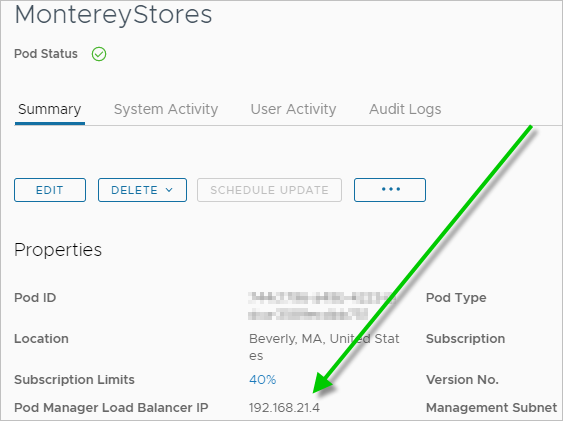
For this example, in your DNS, you would map
mypod-a.example.comto that depicted IP address of 192.168.21.4.mypod-a.example.com 192.168.21.4As you perform the steps in the Access screen for entering the Horizon Cloud tenant information, you specify this FQDN for the Host field in that Access screen.
-
A fully configured pod that has a trusted and valid SSL certificate that you uploaded to the pod managers themselves using the pod details page. For details about uploading the certificate, see Overview of Configuring SSL Certificates on the Pod Manager VMs.
-
Configured VDI desktop assignments, session desktop assignments, or remote application assignments for the pod.
-
Access to your organization's configured Access cloud tenant.
When using the cloud-hosted Access, the Access connector appliance is required for integrating your pod with that tenant. This connector sends the information about user and group entitlements to the virtual desktops and applications to your Access tenant. You must install the connector appliance in your Active Directory network. Follow the steps as documented in the Access Cloud documentation and described in Deployment Scenario for Integrating Horizon Cloud with Access. For the connector version that is required for this release, see the Product Interoperability Matrixes.
Verify that the connector's configured authoritative time source matches the NTP server that is configured for the pod.
Note: If you have an existing integration and Access connector appliance, a best practice is to update the connector before updating the pod to the latest pod software level.
-
Verify your configured Access environment meets all of the prerequisites for integration with Horizon Cloud resources, as described in the Access documentation page Prerequisites for Integration.
Configure a Horizon Cloud Pod in Microsoft Azure with the Relevant Access Tenant Information
To integrate a pod in Microsoft Azure with Access, you must configure the pod with the appropriate Access information. You use the Horizon Universal Console to configure this information.
Prerequisites
Verify that an SSL certificate based on that FQDN is uploaded to the pod manager VMs, as described in Configure SSL Certificates Directly on the Pod Manager VMs. That SSL certificate must be based on the FQDN that you mapped to the pod manager's Azure load balancer IP address in your DNS server.
Verify that your Access environment is configured use that FQDN, for synchronizing the pod-provisioned end-user resources and entitlements to Access.
Verify that you have the following information:
-
The SAML identity provider (IdP) metadata URL from your Access tenant.
You obtain the environment's SAML IdP metadata URL using the Access administration console's SAML Metadata.
Refer to the Access Cloud documentation page Configure SAML Authentication in the Horizon Cloud Tenant.
When you click the Identity Provider (IdP) metadata link on that page, your browser's address bar displays the URL, typically in the form
https://AccessFQDN/SAAS/API/1.0/GET/metadata/idp.xml, where AccessFQDN is the fully qualified domain name (FQDN) of your Access environment. -
The FQDN that you tell your end users to make their connections to, for connecting to Horizon Cloud.
Procedure
-
In the Horizon Universal Console, navigate to Settings > Identity Management and click New.
-
Configure the following options.
Setting Description Access Metadata URL Type the SAML identity provider (IdP) metadata URL from your Access tenant. This metadata URL is typically of the form https://WS1AccessFQDN/SAAS/API/1.0/GET/metadata/idp.xmlwhere WS1AccessFQDN is the FQDN of your Access environment.Timeout SSO Token Type the amount of time, in minutes, after which you want the SSO token to time out. The prefilled, system-default value is zero (0). Location Select one of your locations to filter the Pod drop-down to the set of pods associated with that location. Pod Select the pod for which this configuration applies. Data Center The drop-down displays a numeric related to the Horizon Cloud pod manifest version. Keep the default. Client Access FQDN Type the FQDN that you tell your end users to make their connections to, for connecting to Horizon Cloud. Workspace ONE Redirection When you also have the configuration to force end-user access to go through Access, you can set this toggle to YES to have the end users' clients automatically redirect to their Access environment. You can read about setting the options to force end-user access to go through Access in Enforce End Users to Go Through Access. With the automatic redirection configured to YES, in the end-user clients, when the client attempts to connect to Horizon Cloud and you have configured forced authentication through Access, the client is automatically redirected to the Access environment that is integrated with the pod. When the toggle is set to NO, automatic redirection is not enabled. When automatic redirection is not enabled and forced access is configured, the clients display an informational message to the user instead. For more details, see Enforce End Users to Go Through Access. Note: You can enable Access redirection for only one of the identity management providers that are configured here. If the toggle is already set to YES for another configuration and you try to set the toggle to YES, an error message is displayed. -
Click Save.
Results
A status of green indicates that the configuration is successful.
What to do next
In your Access cloud tenant, manually sync the entitled desktops and applications. In the Access administration console, locate the collection defined for this Horizon Cloud pod and click Sync.
Important:
- Each time resources or entitlements change in Horizon Cloud, a sync is required to propagate the changes to Access.
- You must also ensure that the authoritative time source you configure in that connector matches the NTP server that is configured for the pod. If the time sources do not match, syncing issues can occur. The pod's details page shows the pod's configured NTP server. You can open the pod's details page from the Horizon Universal Console Capacity page.
Confirm End-User Access to Desktop Assignments in Access
After you integrate your Horizon Cloud environment with your Access environment, you can use these steps to confirm that end users have remote access to their pod-provisioned virtual desktops and remote applications.
Prerequisites
Verify that the following items are completed:
- Complete the integration process as described in the preceding configuration steps.
- Complete configuration steps.
- Configure the methods of access you want to provide to end users for accessing their desktops through Access.
- Ensure that the entitled desktops are synced from the integrated Horizon Cloud pod to your Access environment. In the Access administration console, navigate to the Virtual Apps Configuration page and sync the Horizon Cloud collection.
Procedure
-
Use your organization's Access URL to log in to Access.
-
Launch entitled Horizon Cloud desktops and remote applications from the portal.
Was this page helpful?