After you have updated the image used by a dedicated VDI desktop assignment, you can update individual desktops in the assignment.
To update agent software at the broader, assignment level, see Update Agent Software on the Assignments Page for Dedicated VDI Desktop Assignments. The procedure that follows is more granular, allowing you to target the update of the agent software to one or more desktops.
For a conceptual overview of how the agent update capability works in Horizon Cloud for dedicated VDI desktop assignments, see How the Agent Update Feature Works for Dedicated VDI Desktop Assignments.
Important: These steps are for dedicated VDI desktop assignments. These steps do not apply to floating VDI desktop assignments. For information on updating agents in your floating VDI desktop assignments, see Horizon Cloud Pods - Update Agent Software for Images Used by Floating VDI Desktop Assignments.
Caution:
- The recommended practice is to execute agent updates at the assignment level, allowing for higher concurrency and improved performance.
- See the full list of best practices in Update Agent Software for Dedicated VDI Desktop Assignments.
Procedure
-
Navigate to the Assignments page by clicking Assignments.
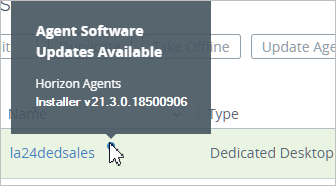
On the Assignments page, a blue dot appears next to the name of any dedicated VDI desktop assignment for which an update applies. If you point at a blue dot, a pop-up box displays indicating the new version of the Horizon Agents Installer available for that assignment.
The following screenshot illustrates that an agent update is available for the assignment named la24dedsales.
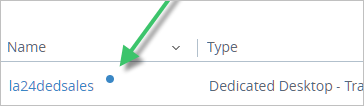
To see the updates available, hold your pointer over that blue dot.
-
Click the assignment that contains the desktop or desktops you choose to target.
-
Click the Desktops tab.
-
For multi-cloud assignments with more than one pod, select the appropriate pod from the Pod drop-down selector.
Note: The pod selector is only applicable for environments with multi-cloud assignments configured.
-
Select the check box next to each desktop you want to update.
If the assignment includes updated desktops, you can choose to filter the list by the previous agent version. The previous agent version refers to the agent version desktops were running with before the update. This filtering narrows the list down to desktops that are eligible for update.
For multi-cloud assignments, the filtering option is available from the Agent Status column of the desktops list.
-
Select Agent > Update Agent.
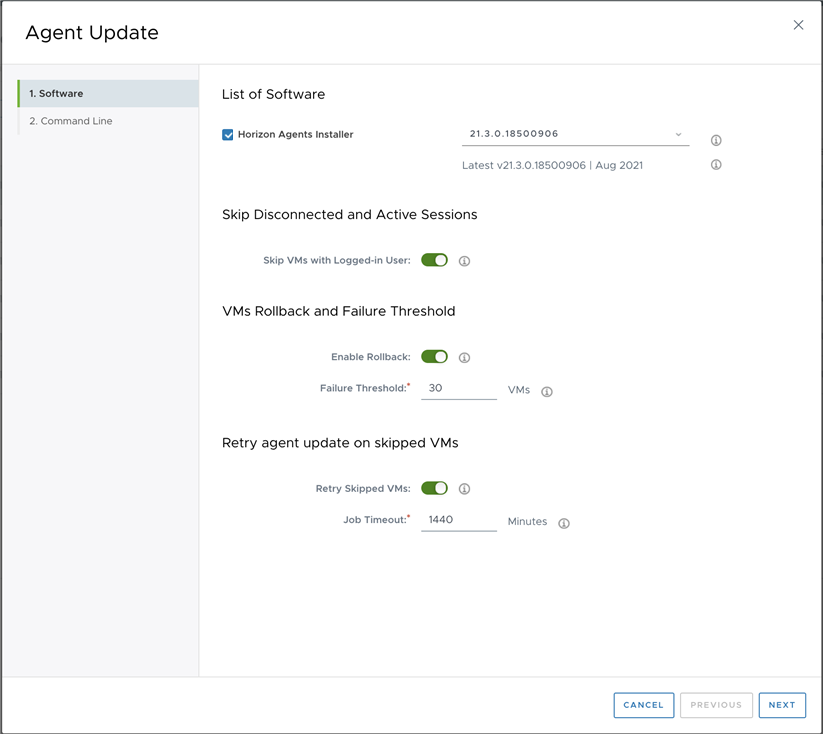
The update wizard appears.
-
In the Software step, select the update version you want to use from the drop-down menu.
Note: For assignments using Microsoft Windows 7 you must select Horizon Agent Installer 20.3.x.
-
To have the system skip those desktops that have logged-in users (active or disconnected session) or conflicting tasks running, activate the Skip VMs with Logged-in User toggle.
-
Activate the Enable Rollback toggle to have the system create a rollback copy before the agent update is performed and keep that copy for seven days. If the agent update fails on a VM, you then have an opportunity to roll back to the previous agent version for that VM during that seven-day window. For more information, see What to do next at the end of these steps.
Note: Although the rollback window is set at seven days by default, you can request that Horizon Cloud Support change this setting for you.
-
For Failure Threshold, enter the number of VMs for which the agent update is allowed to fail before the update process is stopped. This prevents mass failures from occurring.
The default value is the one you configured in Settings > General Settings.
-
To have the system automatically retry any skipped VMs, activate the Retry Skipped VMs toggle.
-
In the Job Timeout field, specify the time period over which you want the system to continue automatically trying to update the skipped VMs.
The Job Timeout field sets the number of minutes that the system retries updating the skipped VMs. Every 30 minutes, the system tries to update the skipped VMs until it reaches the end of this time period or until all of the assignment's desktop VMs have been updated.
You can enter a value that ranges from 120 minutes (2 hours) to 1440 minutes (24 hours). The default value is 720 minutes (12 hours).
-
Click Next.
-
In the Command Line step, add any command-line options that might be relevant for this update on the image.
The wizard displays a message that indicates whether command-line options are available for the specified update.
-
Click Submit.
Note: If your environment is configured for multi-cloud assignments, Submit is not an option. Click Next to review the Summary page and click Finish.
Results
- A message displays at the top of the page indicating that the update has started.
- The system performs a reboot on powered-on desktops and then updates the agent-related components on the desktop VMs.
You can view the progress of the update task by selecting Monitor > Activity.
What to do next
Go to the Assignments - VDI Desktops page to see if updates were successful.
To download details of the listed VMs, select Monitor > Activity, select an agent-update task, and on the Summary page, click DOWNLOAD DETAILS.
The system downloads a CSV file that provides status information about the VMs you can take action on. You can use the upgrade status of each VM to decide what action to take.
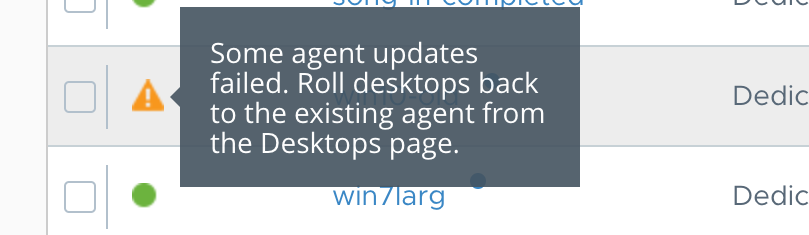
If you have enabled rollback when performing the agent update, a visual indicator appears next to the assignment for failed VMs. You can roll back each failed VM to the previous agent version on the Desktops tab of the assignment detail page. For more information about actions you can perform on the assignment detail page, see Managing Assignments Provisioned By Horizon Cloud Pods in Microsoft Azure.
If an agent upgrade failure leaves the agent in an offline state, desktops become eligible for an agent reinstall operation. See Reinstall Agent Software on Individual Desktops for Dedicated VDI Desktop Assignments.
Was this page helpful?