The administrative console provides a single pane to use for monitoring an end user's use of virtual desktops and applications and troubleshooting issues. After you configure the role-based access to the console for your help desk administrators, they can log in and use the console's Search feature to look up users. For a particular user, the help desk administrator can then look up that user's sessions to troubleshoot problems and perform some specific desktop maintenance operations.
In your organization, you might have people in the role of helping your end users with any issues those end users might have when using their virtual desktops and remote applications provided by your environment. You might also have people who you want monitoring the end users' sessions or monitoring the desktop instances and farm RDSH instances to identify issues that might potentially impact the sessions.
In the console, the following items support performing those help-desk-related tasks:
-
Give your help desk workers' Customer Connect accounts access to the console with the appropriate help-desk-related role. The authentication workflow uses these account credentials. For the Customer Connect accounts, Horizon Cloud provides two predefined help-desk-related roles: Customer Helpdesk and Customer Helpdesk Readonly. You add your help desk workers' Customer Connect accounts using the console's General Settings page or the Getting Started page. For the steps, see Give Administrative Roles to Individuals in Your Organization for Logging In To and Performing Actions in Your Horizon Cloud Tenant Environment Using the Horizon Universal Console.
-
Give your help desk workers' Active Directory accounts the appropriate Horizon Cloud help-desk-related role. The authentication workflow also involves Active Directory account credentials. For the Active Directory accounts, Horizon Cloud provides two predefined help-desk-related roles: Help Desk Administrator and Help Desk Read Only Administrator. For the steps, see Assign Roles to Active Directory Groups that Control Which Areas of the Horizon Universal Console are Activated for Individuals in Those Groups After They Authenticate to Your Horizon Cloud Tenant Environment.
Note: Horizon Cloud roles are assigned at the Active Directory group level. The help desk workers' Active Directory accounts must be in an Active Directory group to be granted the roles.
-
The console's search feature. The help desk workers can use this feature to search for a specific end user or VM (desktop instance or farm RDSH instance).
-
The user card feature. Using a particular user's user card, help desk workers can examine that user's sessions to troubleshoot problems and perform some specific desktop maintenance operations. The operations available to the help desk worker depend on the help-desk-related role assigned that person's Active Directory account.
Using the Console's Search Feature
Use the administrative console's search feature to locate a specific user or virtual machine (VM) by name in your environment.
Note: In this release, the scope of the search feature does not include cloud-brokered RDSH assignments from Horizon pods in a vSphere-based SDDC. In addition, the VM search is applicable only for VMs located in pods in Microsoft Azure.
You can search within either users or VMs. After you select a search of users or VMs, enter your search term into the search text box. When you have entered at least three (3) characters in the search text box, names that begin with those characters are displayed. You can continue entering more characters to narrow down the results.
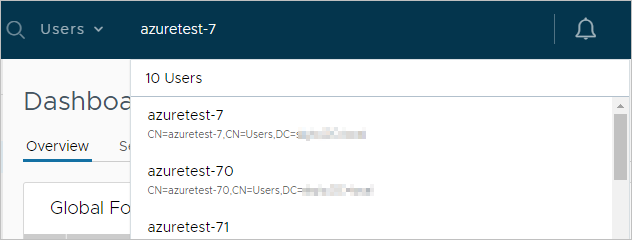
Note: With the VMs search, you can search for RDS server VMs in farms and VDI desktop VMs that are provisioned in your Horizon Cloud tenant environment.
When you see the one you are searching for, you can click it to get more details about the user or VM. The screen that is displayed depends on whether you clicked a user or a VM:
- For a user, the card for that user is displayed. For details, see First-Gen Tenants - About the User Card Feature, Also Known as the Help Desk in Horizon Cloud.
- For a VM, the system displays the screen on which you can locate that VM. For example, if you click a listed VM and that VM is an RDS host in a farm, the system displays the Hosts tab of that farm's details page.
First-Gen Tenants - About the User Card Feature, Also Known as the Help Desk in Horizon Cloud
Use the console's user card feature as a dashboard to work with a specific user's assigned resources, such as that user's desktops. People also refer to this user card feature as the help desk.
Attention: This page is updated to match with the changes to the first-generation console as described in KB article 91183.
As described in the KB article, Intelligence for Horizon is available for first-generation Horizon Cloud tenants that have subscription licenses Horizon Universal, Horizon Apps Universal, and Horizon Apps Standard. With this availability, the KB article states:
- The historical dashboards and reports that the first-gen console provided will now be available through Intelligence.
- As of June 30, 2023, those historical dashboards and reports are no longer available in the first-gen console.
- With these changes, the historical performance data that was previously displayed in the first-gen user card UI for sessions from Horizon Cloud on Microsoft Azure pods is now only available in Intelligence.
For further information, see Horizon Cloud First-Gen Integration and Access Horizon Cloud Data in Intelligence Reports.
Introduction
Important: To use this feature with a Horizon pod, you must configure an event database for the pod's Connection Server after you have installed the Connection Server instance. The event database stores information about Horizon pod-related events as records in a database rather than in a log file. See the Horizon product's Installation guide for information about configuring an event database for events reporting.
You use the console's search feature to display the card for a specific user. See Using the Console's Search Feature for how to search for a user. When you click on a user in the search results, that user's card is displayed.
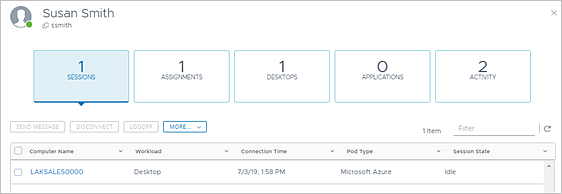
See informational data in context of this specific user, about that user's virtual desktop and applications, by navigating through the user card and following the on-screen prompts. You might have to click through from one information area to another to see different types of information and data.
Note: In this release, some of the user card's areas are applicable only for items provisioned by pods deployed in Microsoft Azure. When you do not have a pod in Microsoft Azure, those areas display a graphic and message that describes that page is availably only when you have deployed a pod in Microsoft Azure. For an example of the displayed graphic, see First-Gen Tenants - Tour of the First-Gen Horizon Universal Console.
-
Sessions
Navigate the user card to obtain real-time information about the user's current sessions, aggregated from all of your cloud-connected pods. Provides actions you can perform on the listed sessions. For details about these actions, see Actions You Can Take on Sessions.
Note: The Sessions tab will show a value of
0at the top when there is no current session.Click on a session to open its dashboard. From a session's dashboard, you can monitor the user session for troubleshooting. See Working with the Session Dashboard.
-
Assignments
Navigate the user card to obtain information about the assignments in which this user participates. In Horizon Cloud, an assignment is the entity by which a user gets entitled to a virtual desktop or application.
Note: URL redirection customization assignments are not listed in the user card.
-
Desktops
Navigate the user card to obtain information about the user's assigned virtual desktops, such as:
-
Active sessions to VDI floating desktops
-
Active sessions to RDSH session desktops
-
VDI dedicated desktops that have been assigned to this user, even when the user does not have an active session to that desktop. The system assigns a VDI dedicated desktop to a user in one of two ways:
-
You explicitly assign that specific dedicated desktop to this particular user, using the Assign action in the VDI dedicated desktop assignment's page
-
The user claims the desktop from the set that is defined by the VDI dedicated desktop assignment to which that user is entitled. You can entitle a user to a VDI dedicated desktop assignment without explicitly assigning a specific dedicated desktop to that user. You entitle users using the assignment's Users/Groups area. Then when an entitled user launches a desktop from the set of desktops in that assignment for the first time, that user has claimed that VDI dedicated desktop, and the system permanently assigns that VDI dedicated desktop to that user. The user card also provides action buttons to perform actions on the desktops' underlying virtual machines (VMs). Whether you can use these buttons depends on the role assigned to you from the console's role-based action control (RBAC).
-
-
Applications
Navigate the user card to obtain information about the user's assigned remote applications.
-
Activity
Navigate the user card to obtain information about the user's activity for selected time periods.
Actions You Can Take on Sessions
The available actions you can take on a listed session vary based on the type of session, the pod type, and the permissions of the administrator. Navigate in the user card and follow the on-screen labels to locate these actions within the user card.
| Action | Description | Horizon | Horizon | Microsoft Azure | Microsoft Azure |
|---|---|---|---|---|---|
| VDI Desktop | Session-based Desktop | VDI Desktop | Session-based Desktop | ||
| Send a notification message | Sending a notification message to a specific session's logged-in user for a specific is one of the actions provided in the user card. When sent, the message appears on the user's screen. | Yes | Yes | Yes | Yes |
| Use Workspace ONE Assist for Horizon | This action provides use of the features of the Workspace ONE Assist for Horizon product with the selected end-user desktop session. With those features, your administrators can assist employees with their virtual desktops using remote view and control capabilities. Access to the action button is available only when your tenant environment is licensed to use the Workspace ONE Assist for Horizon product and when the additional minimum requirements are met in the VM that underlies the selected desktop and on the pod that is provisioning that VM. For those requirements and the information about using this feature, see the guide Workspace ONE Assist for Horizon and Horizon Cloud. | Yes | No | Yes | No |
| Use Microsoft Remote Assistance | In the Help Desk tool, this action is labeled Remote Assistance. This action is available for sessions from a Horizon pod. This action uses the Microsoft Remote Assistance feature in the published desktop. You initiate this action on a specific end-user session. | Yes | Yes | No | No |
| Restart | This action restarts the VM that underlies the end-user session. | Yes | No | Yes | No |
| Disconnect | Disconnects the session. | Yes | Yes | Yes | Yes |
| Logoff | Logs the user off the session. | Yes | Yes | Yes | Yes |
| Reset | Resets the VM that underlies the end-user session. | Yes | No | Yes | No |
Working with the Session Dashboard
Clicking one of the active sessions opens a dashboard in which you can see data about that session. Navigate each area of this dashboard to view the data that the dashboard provides and perform actions that the dashboard makes available to you.
-
Details
Use session-related details to monitor the end user's session for troubleshooting purposes, such as CPU usage, memory usage, network latency, disk performance, and so on. Scroll through the dashboard and use the on-screen controls to adjust for more or less details.
Note: Limited metrics are available for the RDP protocol. If the active session is using the RDP protocol, fewer metrics are available than for the other supported protocols.
The following screenshot shows an example of some of the types of data and actions that are available in the session dashboard.
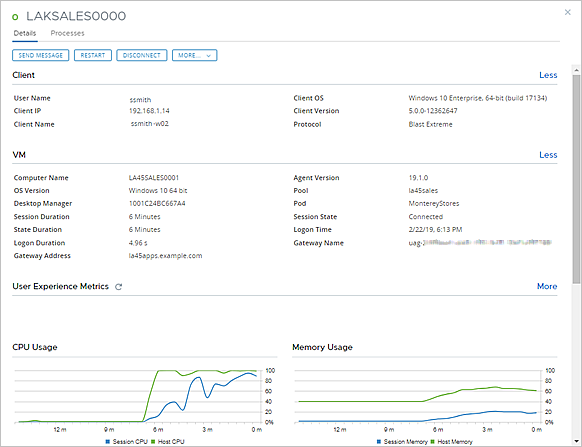
The dashboard provides performance data metrics and actions that super administrators and help desk administrators can use to troubleshoot issues in the session.
-
Processes
The dashboard provides access to information about the processes and applications that are running in the session, and provides a way to end a troublesome process or application.
When the Help Desk Feature Is Not Installed in the Desktop or Farm VM
When a VDI desktop VM or farm's RDSH VM is based on an image that does not have the Help Desk feature installed, an information alert is displayed when you open the dashboard for a session connected to that VM.

In this case, the VM's data is not reported. Because the usual data is not available, some of the dashboard areas appear blank or empty for such sessions, such as:
- Most of the data about the client and VM is unavailable.
- The User Experience metrics and charts are empty.
- The Processes tab is empty.
- Refresh icons are not clickable.
- Some of the action buttons, such as the End task button, are not displayed.
Was this page helpful?