You must integrate Omnissa Access and Workspace ONE UEM services, to set up Workspace ONE UEM mobile management services for devices with Omnissa Access services for single sign-on and identity management for users.
When you integrate Workspace ONE UEM and Omnissa Access, users from Workspace ONE UEM enrolled devices can log in to their Workspace ONE Intelligent Hub app to access their enabled applications securely without entering multiple passwords.
The Workspace ONE Getting Started wizard in the Workspace ONE UEM console can guide you through many of the configuration steps to integrate Workspace ONE UEM and Omnissa Access.
See the Guide to Deploying Workspace ONE UEM with Omnissa Access.
After you configure the settings in the Workspace ONE UEM console, the settings are automatically populated to the Omnissa Access console Integrations > UEM Integration page. A trusted relationship is set up between the services.
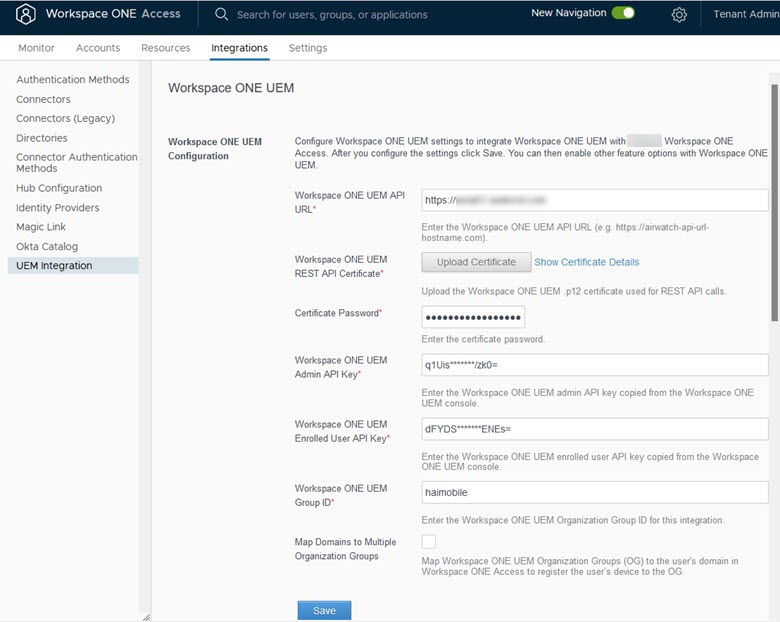
Do not make changes directly to the Workspace ONE UEM Configuration in the Omnissa Access console. Change the configuration to the Workspace ONE UEM service from the Workspace ONE UEM console. When the changes are saved in the UEM console, the Workspace ONE UEM Configuration page is updated.
Integrating Omnissa Access Features with Workspace ONE UEM
When you configure Omnissa Access with your Workspace ONE UEM instance, the following options can be enabled from the UEM Integrations page.
| Option | Description |
|---|---|
| Workspace ONE Catalog | You can enable Workspace ONE Catalog to include the applications from the Workspace ONE UEM catalog and from the Omnissa Access catalog. The catalog displays web and virtual apps configured in the Omnissa Access console and native apps and web links configured in the UEM console. |
| Compliance Check | You enable compliance checking on the UEM Integration page and configure Device Compliance in the Integrations > Authentication Methods page to verify that managed devices adhere to Workspace One UEM compliance policies. When Device Compliance is configured, access policy rules can be configured to check the Workspace ONE UEM server for device compliance status when users sign in from their devices. See Enabling Compliance Checking for Workspace ONE UEM Managed Devices in Omnissa Access. |
| User Password Authentication through Workspace ONE UEM | Password Authentication with Workspace ONE UEM authenticates using AirWatch Cloud Connector through the Workspace ONE UEM service. When AirWatch Cloud Connector is used, you enable User Password Authentication through Workspace ONE UEM in the UEM Integration page and configure Password (with Workspace ONE UEM) in the Integrations > Authentication Methods page. You create access policies to apply to this authentication method. See |
| Use External Access Token Authentication through Workspace ONE UEM | When users receive a new Dell® Windows 10 device with out-of-box (OOBE) provisioning enabled in the Workspace ONE UEM Windows 10 Provisioning Service, you can enable User External Access Token Authentication through Workspace ONE UEM and configure Workspace ONE UEM External Access Token in Omnissa Access to manage Workspace ONE Intelligent Hub app logins. See |
Was this page helpful?