You can configure IP Address-based Session Token Binding in Omnissa Access to help prevent unauthorized access due to session hijacking.
When this feature is enabled, Omnissa Access binds the session or access token that is generated when a user logs in to the user’s device IP address. All subsequent requests during the session are validated by comparing the IP address associated with the token to the IP address of the device making the request. If the session is hijacked and the attacker uses the token to make a request from a different IP address, Omnissa Access rejects the request and redirects the attacker to the login page. The original user can continue to use the session.
Omnissa Access generates an audit event whenever a request fails because of an IP address mismatch.
You can configure the feature in the following ways:
-
Enable IP address-based session token binding
When Omnissa Access detects a request from a different IP address during a session, it rejects the request and redirects the requestor to the login page. It also logs an audit event. -
Enable IP address-based session token binding in monitor-only mode
When Omnissa Access detects a request from a different IP address during a session, it logs an audit event but does not reject the request. You can monitor audit events to determine the action you want to take.
Enable IP Address-based Session Token Binding
-
In the Omnissa Access console, select Settings > Login Preferences.
-
Scroll to the IP Address-based Session Token Binding section.
-
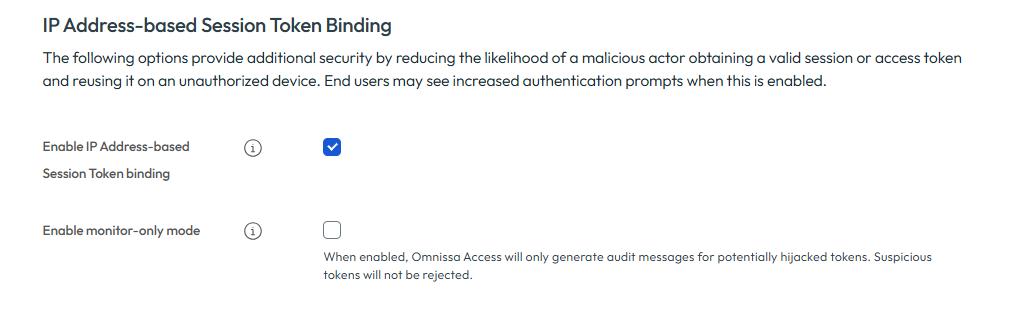
Select the Enable IP Address-based Session Token binding check box.
-
(Optional) If you only want to log potential session hijack attempts, and not deny the requests, select Enable monitor-only mode.
CAUTION: When you select this option, Omnissa Access does not prevent unauthorized access. It only logs events.
NOTE: When you enable or deactivate monitor-only mode, the change does not take effect immediately for all active users. The change applies only after a user’s current refresh token expires and a new one is issued.
The refresh token Time To Live (TTL) is determined by the OAuth 2.0 client configuration in your tenant. Because refresh tokens are issued at different times for different users, the effective time of this change varies per user.
Monitor Audit Events Related to IP Address-based Session Token Binding
You can view the audit events that are generated whenever a session or access token is rejected because the device IP address did not match the original IP address bound to the token. These events are of type FINGERPRINT_VALIDATION.
-
In the Omnissa Access console, select Monitor > Reports.
-
Select the Audit Events report.
-
For User, either select the user whose session was terminated or leave the field blank to view events for all users.
-
For Type, select FINGERPRINT_VALIDATION.
-
Click Show Results to view the events.
For example:

-
Click View Details.
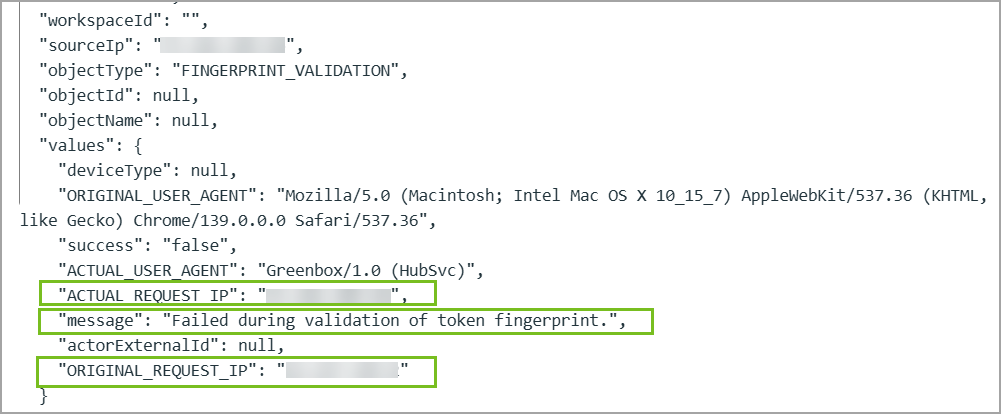
The message
"Failed during validation of token fingerprint."indicates the cause of the failure. You can also see the IP address from which the request was made (ACTUAL_REQUEST_IP) and the original IP address that was bound to the session or access token (ORIGINAL_REQUEST_IP).For example:
Was this page helpful?