You can set up a sync schedule to sync users and groups automatically from your Active Directory or LDAP directory to the Omnissa Access service at regular intervals. When you set up a schedule, updates made to the enterprise directory appear in your Omnissa Access directory without requiring a manual sync.
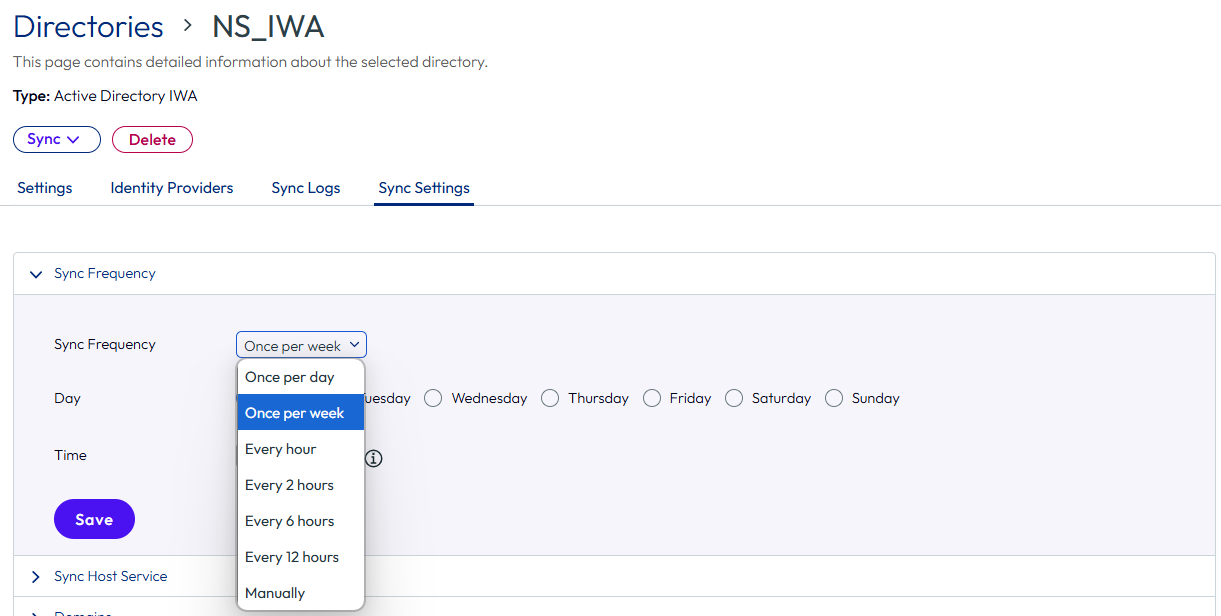
You can set a schedule to sync users and groups weekly, daily, every hour, or every few hours. Or, you can choose to manually sync users and groups. When you set the schedule to Manually, you must select Sync > Sync with safeguards or Sync > Sync without safeguards on the directory page to start the sync process.
As a best practice, schedule the sync intervals to be longer than the time it takes to sync the directory. If users and groups are being synced to the directory when the next sync is scheduled to start, the new sync starts immediately after the end of the previous sync. With this schedule, the sync process is continuous.
If you are using multiple Directory Sync service instances for high availability, see Configuring High Availability for Directory Sync in Omnissa Access for guidelines on scheduling.
Procedure
-
Select Integrations > Directories.
-
Click the directory to edit.
-
Select the Sync Settings > Sync Frequency tab.
-
Set the sync frequency.
Select from the following choices:
- Once per day
- Once per week
- Every hour
- Every 2 hours
- Every 6 hours
- Every 12 hours
- Manually
For the daily or weekly options, set the time and the day to run the sync. For the options to sync every x hours, the first sync starts approximately x hours after you save the Sync Frequency settings.
Important: Set the sync time based on UTC standard time.
-
Click Save.
What to do next
- Review the sync safeguard limits configured in the Safeguards section of the Sync Settings tab. See Set up Directory Sync Safeguards in Omnissa Access.
- See also Sync a Directory Manually in Omnissa Access.
Was this page helpful?