In the Horizon 8 Administration Console's Servers UI, use the Capacity Providers tab to add Amazon WorkSpaces Core as a capacity provider.
Note: The IAM role and permissions must be created before adding a capacity provider. Review the IAM settings in Prerequisites.
-
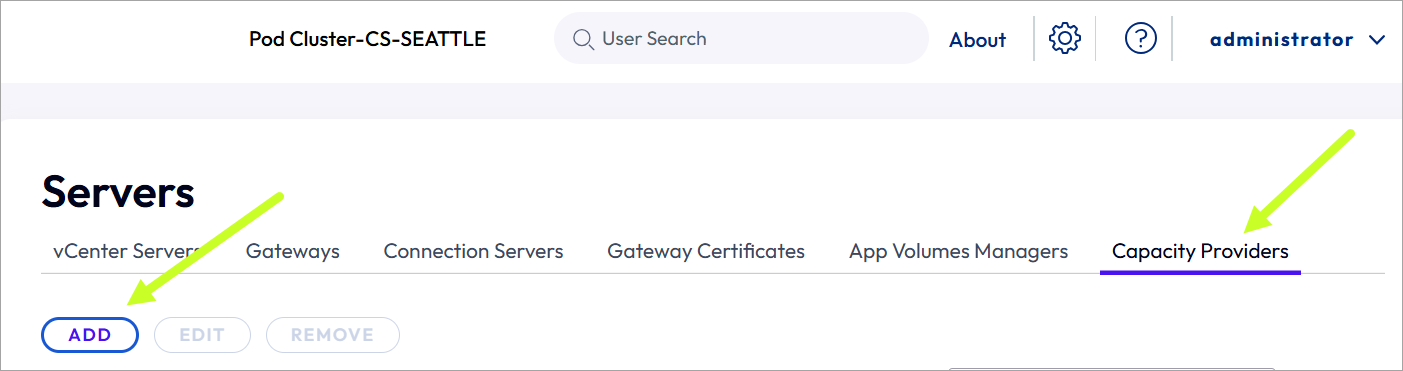
Go to Settings > Server > Capacity Providers.
-
Click Add.
-
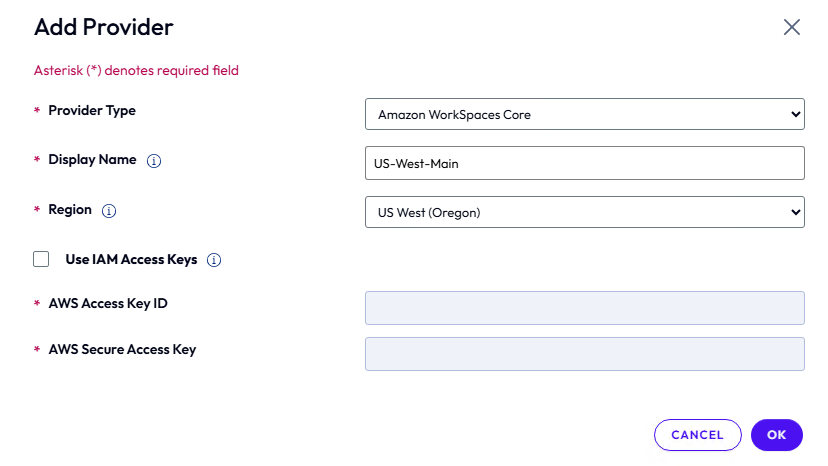
Enter the following:
- Provider Type - The type is Amazon WorkSpaces Core.
- Display Name - The name which the Administration Console shows when listing this provider.
- Region - The Amazon AWS region where this capacity provider resides.
Optional Settings:
- Use IAM Access Keys - Select to see prerequisites for more details on when to use this setting.
- AWS Access Key ID - Displays the Access Key ID.
- AWS Secure Access Key- Displays the Secure Access Key.
Note: When the Connection Server resides outside Amazon EC2, select the Use IAM Access Keys checkbox, and input the AWS Access Key ID and AWS Security Access Key that you set up as specified in the Prerequisites.
-
Click OK.
Once added, the console will display the list of Capacity Providers.
-
Click Add.
-
Select Amazon WorkSpaces Core from the list of providers.
-
Enter a display name for the capacity provider that will be listed in the console.
-
Select the Amazon AWS region where this capacity provider resides.
Note: When the Connection Server resides outside Amazon EC2, check the Use IAM Access Keys checkbox, and input the AWS Access Key ID and AWS Security Access Key that you set up as specified in Prerequisites.
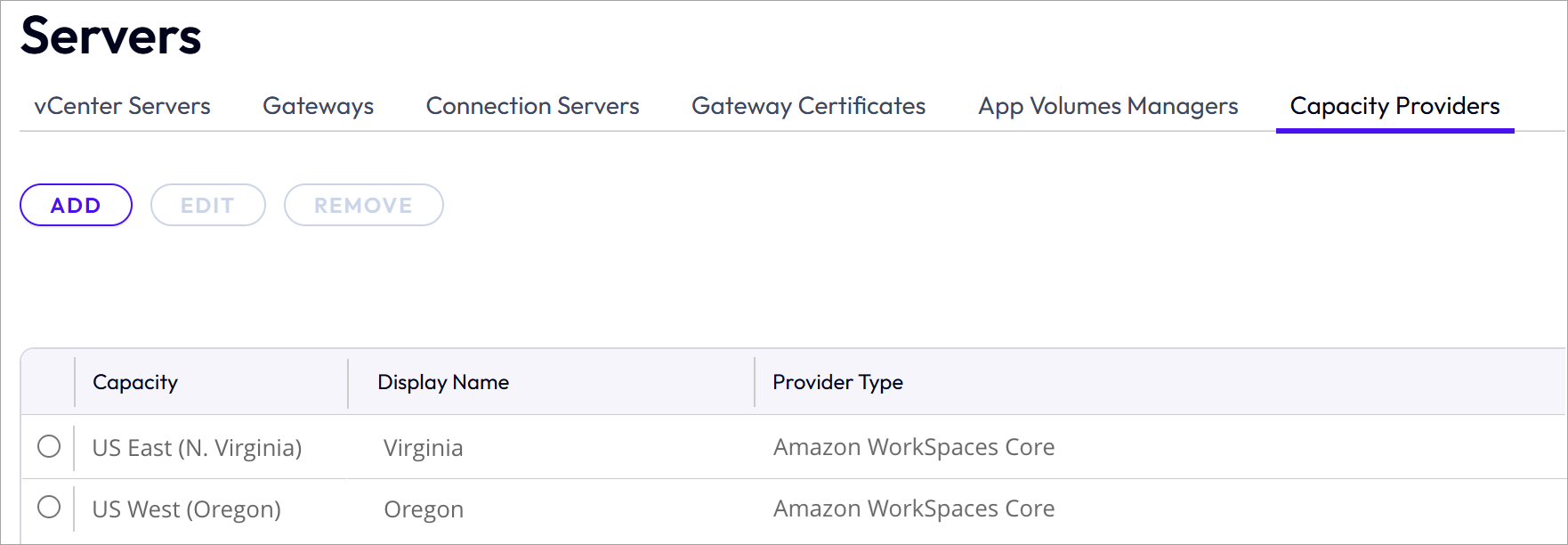
The following image shows two capacity providers that have been added. One provider uses AWS region US East (N. Virginia) and the other uses the region US West (Oregon).
Was this page helpful?