This page describes the phases involved in migrating a Horizon Cloud on Microsoft Azure deployment to your Horizon Cloud environment.
Flow Diagram, Phases
Verify that you and your IT team have met the prerequisites and key items described in Prerequisites for Migrating a First-Gen Horizon Cloud Pod.
The following illustration depicts the overall migration process.
The commit phase is where the scheduled maintenance window takes place and the system builds out the resources that it cannot pre-build ahead of time.
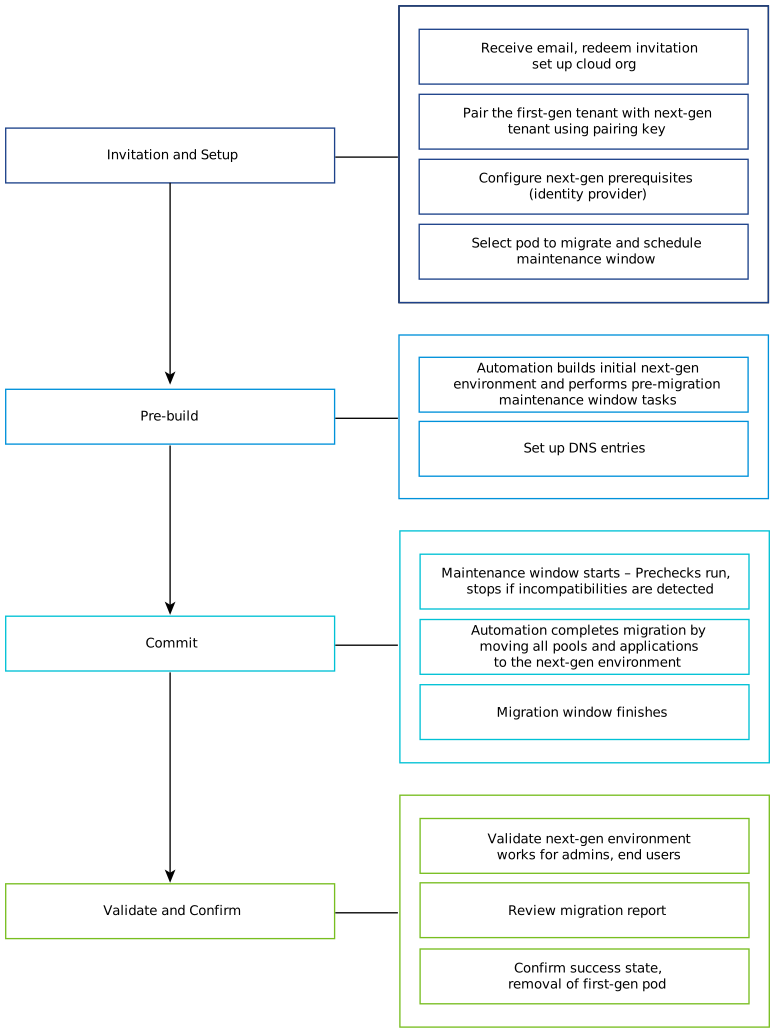
High-Level Overview
At a high-level:
- You redeem your invitation and complete your first onboarding to Horizon Cloud.
- You pair your first-gen Horizon Cloud environment with your configured Horizon Cloud environment.
- You configure the required identity provider settings in your Horizon Cloud environment.
- You schedule a pod's migration maintenance window.
- When the schedule is saved to the system, the system starts its pre-build activities, creating the resources in your Microsoft Azure subscription that are required before the start of the maintenance window. The self-service migration workflow is designed so that in advance of the maintenance window, the system performs all of the activities that can be done without affecting admin and end user activities in the selected pod.
- During the pre-build activities, in advance of the maintenance window, you configure DNS records for mapping FQDNs to the IP addresses of the new Unified Access Gateway instance. The system creates those instances during the pre-build phase. You can have their IP addresses as soon as the instances are created.
- When you see the pre-build activities are completed, you can use the test floating pools to pre-validate floating pool behavior. Each test pool will have a single desktop VM to use to pre-validate the Horizon Cloud experience for that pool.
- When the scheduled maintenance window's start time is reached, the system begins those activities that require a maintenance window. During this maintenance time period, the system prevents admins from accessing the console and end users cannot access the pod's desktops and applications.
- When the activities of the maintenance window are complete, you perform the post-migration validation of the environment. Some post-migration configuration steps might be required.
- Finally, you confirm deletion of first-gen pod. In this step, you finalize the migration.
The main phases depicted in the workflow diagram are further detailed in the corresponding sections below.
Invitation and Setup
The Horizon Migration Team will send you an email that notifies you that your Horizon Cloud on Microsoft Azure deployment is eligible for the self-service migration process.
In addition to an email, if and only if the Horizon Migration Team enables the following banner along with sending the email, you might see the following banner in the first-gen console.

- If you are working directly with the Horizon Migration Team for this migration, the team will guide you through performing the required steps.
- If the banner is enabled in your first-gen console, you can click Let's Go on the banner and follow the on-screen guidance until you see that you are logged in to your Horizon Cloud environment. The on-screen guidance provides an overview of the migration process and a list of steps needed to set up your Horizon Cloud environment to the point where you can schedule the first pod's migration.
Those steps include:
- Logging in and onboarding to your Horizon Cloud environment, if you have not already onboarded there. See the Horizon Cloud onboarding page for details about initial onboarding.
- Registering an external identity provider in your Horizon Cloud environment as described in Identity and Access Management. The Horizon Cloud environment requires you to register an external identity provider. The service uses this identity provider to authenticate the end-user access to desktops and published applications.
Before scheduling a pod's migration, complete the necessary migration prerequisites to complete the console's Schedule Migration UI and also to avoid failures during the system's activities in the pre-build process and in the migration maintenance window.
Note: The automated migration will automatically migrate the AD domain information that is configured in your first-gen environment into your Horizon Cloud environment. The automated migration requires that your Horizon Cloud environment has the AD domain information that matches those domains you have configured for the first-gen pods in your first-gen environment.
Pre-Build
A pre-build shortens the amount of time for the migration to occur during the maintenance window. This pre-build will not impact your existing pod or user sessions.
The following diagrams illustrate what happens during the system’s pre-build process.
Note: These high-level diagrams of the pre-build concepts do not describe specific network topologies or communications over specific NICs or ports or networking specifics. The diagrams do not parse out distinctions between apps, single-session desktops, multi-session desktops, images from IMS, and images from the older style pre-IMS features.
This migration is an in-place migration that uses the first-gen deployment's Azure subscription, VNet, and subnets. Even though these diagrams depict the environments side-by-side, the self-service migration deploys the Horizon Edge using the first-gen deployment's VNet and subnets.
-
The system deploys the Horizon Edge using the input you provide in the Schedule Migration UI.

-
The system takes the first-gen configuration data that is stored at a pod level and in the first-gen control plane, transforms the data to match the Horizon Cloud control plane design, and stores the transformed data appropriately.

-
The system copies the first-gen tenant's registered Active Directory domain configurations and creates equivalent records in the Horizon Cloud environment.
-
The system copies the first-gen deployment's base VMs, published images, and App Volumes related files to the Horizon Edge and configures the copies for use with the Horizon Edge.
Note: The first-gen deployment's base VMs, published images, and App Volumes related files remain in place until you confirm the end-to-end migration is completed.

-
For each first-gen floating desktop pool, the system creates a test pool in the Horizon Edge. Each test pool contains one desktop VM and mirrors the pool's configuration settings from its first-gen counterpart.
You can use these test pools to pre-validate that the floating desktop pool will behave in line with your expectations, before the pool is fully migrated during the maintenance window.
Tip: When you see that the Horizon Edge Unified Access Gateway instances are up and running, then configure the necessary DNS entries for their FQDNs. For more details, see Phase 6 - Configure DNS Records for the Created Infrastructure.
Maintenance Window - Commit and Go
During the scheduled maintenance window, the system performs a set of pre-checks. If issues are identified, the system reverts the actions that it took during the pre-build phase.
Reverting the pre-build actions brings the first-gen pod back to its original pre-migration state. The system also attempts to bring the Horizon Cloud environment back to its state prior to the pre-build actions. However, if you made changes to the Horizon Cloud environment in the time period between when the pre-build finished and this reversion happens, the system might be unable to return the Horizon Cloud environment back to the state it had prior to the pre-build actions. In that case, reach out to the Horizon support team for guidance.
If the pre-checks pass, the window is committed and the system commences the remaining automated activities:
- Transfer resources associated with the pod's desktop pools and app pools from the first-gen pod to the Horizon Edge.
- Rebuild VMs in floating VDI assignments and farms in the Horizon Edge based on the settings configured in the first-gen pod.
- Update VMs in the dedicated VDI assignments to point their Horizon Agent configurations to the Horizon Cloud control plane.

During the Maintenance Window
During the maintenance window, end users and admins must not connect to resources.
If any user sessions are lingering or users did not log out, those activities will interrupt those sessions and user data might be lost because VMs that are part of floating VDI assignments or farms will be deleted as the matching pool in the Horizon Cloud environment expands. VMs that are part of dedicated VDI assignments will be rebooted.
Validate and Confirm After the Maintenance Window
For details about validating the post-migration environment, see Perform Post-Migration Activities to Confirm Migration Success.
Was this page helpful?