Three predefined administrator roles are built into the Omnissa Access service, super administrator, read-only administrator, and directory administrator. If the built-in roles don't meet the specific needs of your organization, you can create custom roles.
When you create a role, you can add one or more services to the role. You name the role, select the type of services and the specific actions within the service that the role can manage. See Managing Administrator Roles in Omnissa Access.
Note:
- When you create a role that includes the Directory Management service, the Identity and Access Management service must also be configured in the role.
- When you create a role that includes the Roles Administration service, the User and Groups service must also be configured with the actions to manager users and to manage groups selected.
Prerequisites
To create a role in the Omnissa Access service, you must be a super admin, also known as the system domain admin. The super admin can access and manage all features and functions in the Omnissa Access services. Admin users that are assigned the role configured with the Roles Administration service can also create roles.
Procedure
-
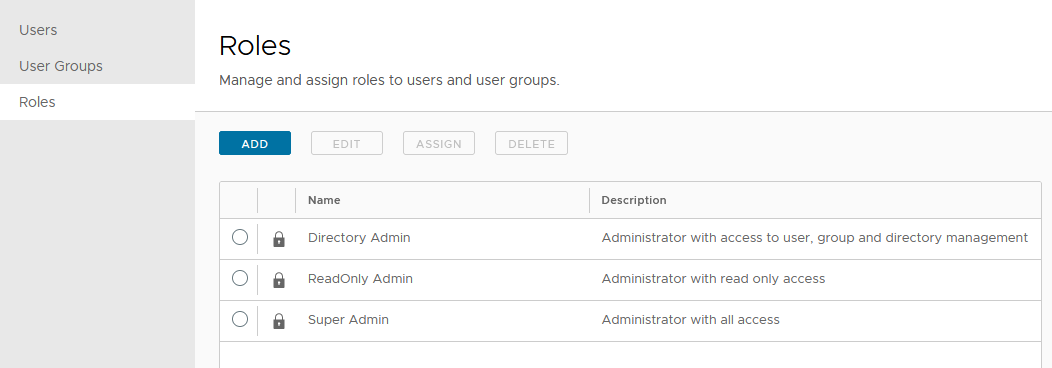
In the Omnissa Access console Accounts > Roles page, click Add.
-
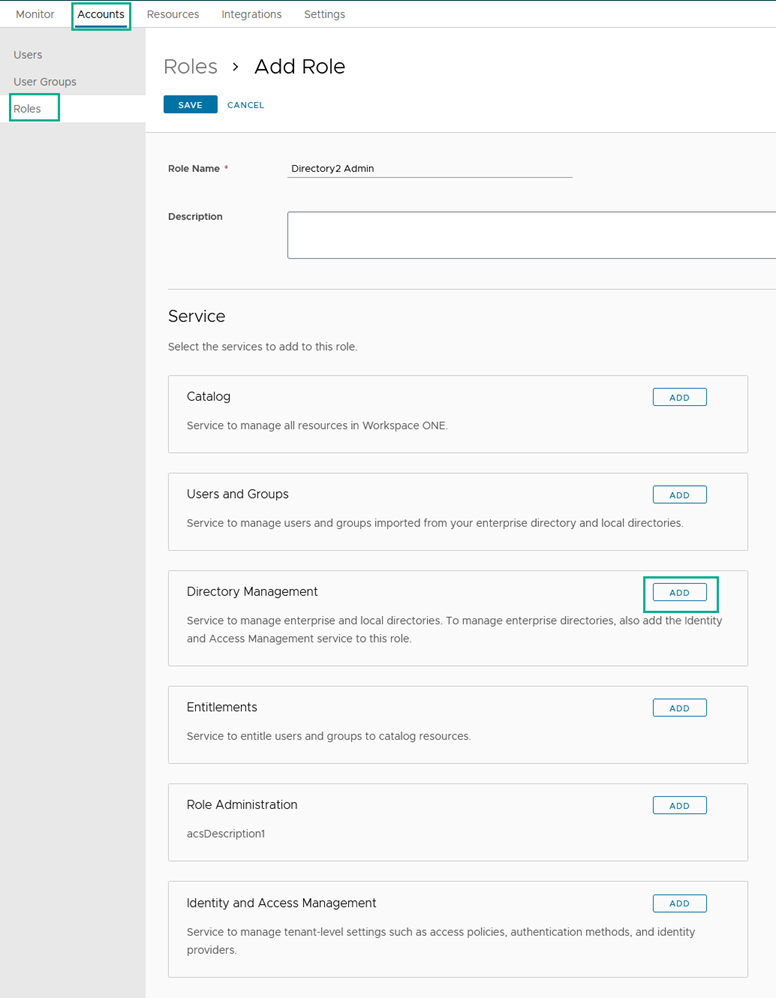
In the Role Name text box in the Definition page, enter a descriptive role name and add a description of the role.
Each role name in your environment must be unique.
-
In the Service section, select the service to be managed by this role and click ADD.
-
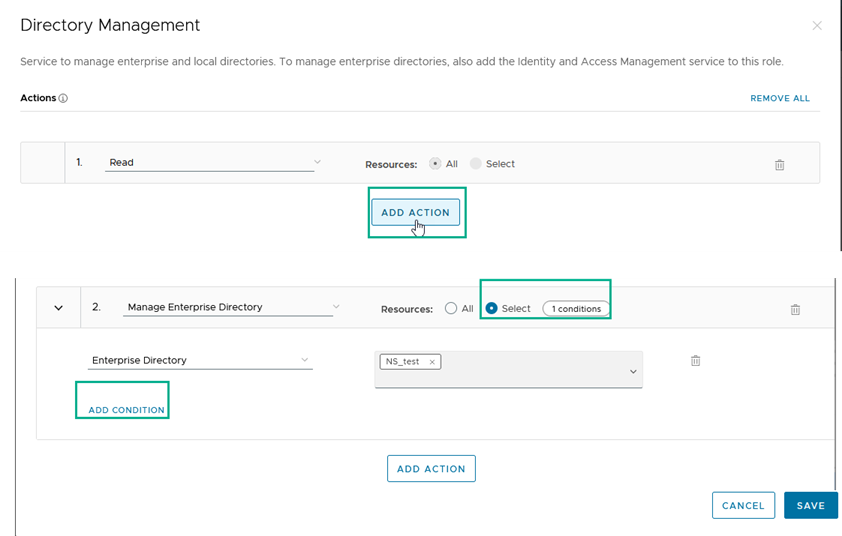
All administrator roles are automatically assigned the read-only role for each service. Click ADD ACTION to define which actions can be performed in that service.
-
In the Actions drop-down menu, select the type of actions that can be managed for the service.
-
After you select the action, in Resources, select All to manage all resources within the action, or select Select and then in the ADD CONDITON section, select the conditions that can be managed.
-
To add another action to be managed by this role, click ADD Action and continue to configure the action, resources, and conditions.
-
Click SAVE.
-
If you want to add another service to this role, select the service and configure the service.
-
When finished, click SAVE on the Roles > Add Role page. The role is added to the Roles page.
What to do next
Assign this role to users to make them administrators of this service.
Was this page helpful?