To use the Hub Services People component in the Workspace ONE Intelligent Hub application, you enable the People feature in the Hub Services Console. You select the directory and select and map the Active Directory attributes that are required to retrieve information about employees, including profile pictures and management hierarchy in the Omnissa Access console People Search page.
Prerequisites
-
Active Directory integrated with Omnissa Access.
-
List of the Active Directory attributes to sync to the directory to create the searchable user profiles and organizational hierarchy.
Attributes that are required to be mapped are title, managerDN, and distinguishedName. The organizational hierarchy and direct reports information in the People Search results is based on the managerDN attribute. See the Directory Integration Omnissa Access guide on the Omnissa Access documentation page.
To sync the user's image to the directory, the Active Directory attribute thumbnailPhoto must be prepopulated with the user's thumbnail photo. To make sure that the photo is viewed correctly in People Search results, make sure that the thumbnail photo image is square and that the minimum image size is 240 px x 240 px.
You can also select additional attributes that are created as custom attributes in the User Attributes page.
-
When you do not want user names to appear in People Search, set attribute
msExchHideFromAddressListsin your Active Directory and map that attribute tomsExchHideFromAddressListsin the Omnissa Access directory.- User accounts with the
msExchHideFromAddressListsvalue set to TRUE do not appear in People Search. - User accounts, with
msExchHideFromAddressListsset to FALSE or if the attribute value is empty, appear in People Search.
- User accounts with the
Procedure
-
In the Omnissa Access console Integrations > People Search page, select the directory to configure for People Search, and click NEXT.
-
In the Select User attributes page, review the attribute lists and select the attributes to map to the Active Directory attributes.
- The attributes title, managerDN, and distinguishedName are required.
- The organizational hierarchy and direct reports information in the People Search results is based on themanagerDN attribute.
- To sync user photos from Active Directory, select the imageURL attribute in the Omnissa Access directory and map to the thumbnailPhoto attribute in Active Directory.
- If you configured msExchHideFromAddressLists in your Active Directory to hide some user names, map that attribute to msExchHideFromAddressLists in the Omnissa Access directory.
Click NEXT.
-
Select the users and sync to the directory. If the Omnissa Access service is not already configured to sync all users, specify the DN to sync users. For example, enter
CN=Users,DC=example,DC=com.To use the People service successfully, sync all users in your organization to the directory.
The directory sync profile you configured is added to the Directory > Sync Settings > Users sync list.
-
Click SAVE & SYNC.
The Active Directory mapped attributes for People are synced to the directory.
What to do next
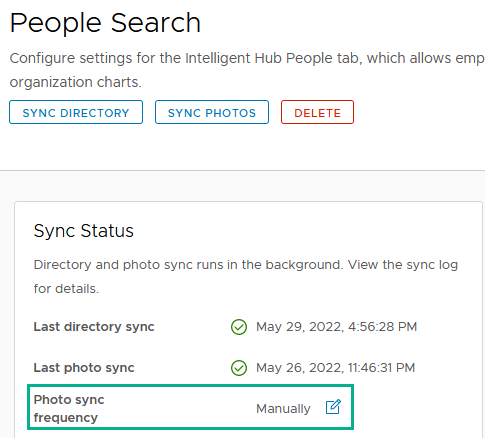
In the People Search Sync Status card, click  to verify that the photo sync frequency is set to your company sync schedule.
Go to the Hub Services console and enable the People service. See Enabling Access to Workspace ONE People Search in the Hub Service documentation guide.
Managing People Search Attributes and Sync
In the Omnissa Access console, you can manually sync the directory and photos to update user information for People Search and change the user attributes that are mapped for People Search. Select Integrations > People Search.
Syncing Directory and Photos and Change Photo Sync Frequency
When you set up People Search in Workspace ONE, you scheduled the photo sync frequency on the Sync Status card. You can set the frequency to Manually and click SYNC PHOTOS to immediately sync any new photos to the directory.
Select User Attributes to Display in the People Tab in Workspace ONE Intelligent Hub
In the Summary card, you can click EDIT and select user attributes that you want to display in the People tab in the Workspace ONE Intelligent Hub app and Hub portal.
View Sync Logs
Each time a sync is completed, a sync log that shows the directory and photo sync status is generated. You can view this sync status from the People Search Sync Status card. To view sync details of users and groups that were added or deleted and access alerts that were generated, go to the directory in the Integrations > Directories page and select the Sync Log tab.
Was this page helpful?