You can use the Omnissa Access console to monitor the service and connectors, manage user accounts, manage resources in the catalog, and configure and manage Omnissa Access components and settings.
When you have administrator privileges, you can log into the Omnissa Access console from your user Workspace ONE Intelligent Hub portal page. To open the console, click your profile on the right and select Omnissa Access Console.
To access the Omnissa Access console directly, enter the Omnissa Access URL as https://<exampleFQDN.com>/SAAS/admin. When the login page displays, select the domain, if requested, and log in with your Active Directory user name and password, or select System Domain and log in as the Omnissa Access admin.
The Omnissa Access console menus provide easy access to monitor activity and perform various functions in the Omnissa Access service.
Navigating in the Omnissa Access Admin Console
This section describes where to navigate in the horizontal tabs to settings in the Omnissa Access console.
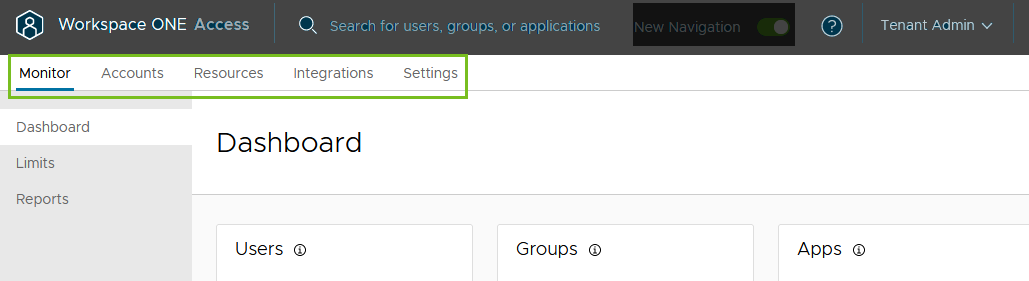
| Menu | Description |
|---|
| Monitor | Provides access to:
- Dashboard to monitor user activity and resources used. This dashboard displays information about who signed in, which applications are being used, and how often they are being used.
- Reports. You can create reports to track users' and groups' activities, resource, and device use, and audit events by user.
- Resiliency. For on premises deployments, Resiliency is a system diagnostics dashboard that displays a detailed overview of the health of the service in your environment. You can also manage the configuration of the appliance, including SSL certificates for the appliance, change the service admin and system passwords.
|
| Accounts | Provides access to:
- Users and User Groups where you manage and monitor users and groups imported from your Active Directory or LDAP directory, create local users and groups, and entitle the users and groups to resources.
- Roles. You manage administrator roles. Users can be assigned as an admin to the three pre-defined administrator roles and you can create custom administrator roles that give limited permissions to specific services in the Omnissa Access console.
|
| Resources | Provides access to:
- Web Apps to add, applications and assign them to user and groups.
- Virtual Apps and Virtual Apps Collections where you manage Horizon, Citrix, Horizon Cloud, and ThinApp desktops and application integrations.
- Policies to add and manage the access policies and network ranges.
- Global Launcher Preferences page lists the help applications that must be installed on users' computers or devices to use Horizon apps and desktops, Citrix published resources, and ThinApp packages configurable in Omnissa Access. Users are prompted to download the helper applications. You can deactivate the prompt from displaying each time the resource is launched. See Deactivating Prompt for Downloading Virtual Apps Helper Applications.
See the Setting Up Resources guide for information about setting up resources in the Omnissa Access service.
See the Managing Authentications Methods in Omnissa Access guide for information about managing policies. |
| Integrations | Provides access to:
- Authentication Methods to configure cloud authentication methods associated to the Omnissa Access service. These authentication methods are then associated with the built-in identity providers.
- The Connectors page that lists the connectors that are deployed inside your enterprise network. The Omnissa Access connector is an on-premises component of Omnissa Access that integrates with your on-premises infrastructure.
- Directories to integrate Active Directory over LDAP or Active Directory over Integrated Windows Authentication directories with the Omnissa Access service.
- Connector Authentication Methods to configure the User Auth services connector-based authentication methods, including Password (cloud deployment, RSA SecurID (cloud deployment), and RADIUS (cloud deployment) and the Kerberos Auth service.
- Hub Configuration page to access the Hub Services console from the Hub Configuration link.
- Identity Providers to configure and manage Omnissa Access identity provider for Kerberos authentication, built-in identity provider for User Auth authentication methods and authentication methods managed by Omnissa Access, and third-party identity providers.
- (Cloud only) Magic Link to set up and enable the magic link that gives a one-time link to pre-hire users to access the Day Zero on boarding experience through the Workspace ONE Intelligent Hub portal.
- Okta Catalog to enter your Okta tenant information to connect Omnissa Access to the Okta tenant and retrieve apps from Okta. See Integrating Workspace ONE with Okta for configuration information.
- People Search to sync users details from the directory. You select the directory and user attributes. The People feature is enabled in the Hub Services console People page.
- UEM Integration to view the Workspace ONE UEM integration with Omnissa Access settings. You can enable the catalog settings with UEM, enable compliance check to verify that managed devices adhere to Workspace ONE UEM compliance policies, and enable user password authentication through the AirWatch Cloud Connector (ACC). See Guide to Deploying Workspace ONE with Omnissa Access guide.
|
| Settings | To provide access to:
- Branding pages to customize the appearance of the Omnissa Access user sign-in screen.
- Login Preferences to manage how the login page displays, select the user sign-in unique identifier option, customize the sign in prompt, enable sync group member when adding groups.
- OAuth 2.0 Management to grant access to client applications with OAuth 2.0 using Omnissa Access as the identity provider.
- Password Policy to manage the password restrictions for local users.
- Password Recovery to configure the password recovery page that displays when users click Forgot password.
- User Attributes page lists the default user attributes that sync in the directory. You can add other attributes that you can map to Active Directory attributes. See the Directory Integration with Omnissa Access guide.
- Appliance page has tabs to configure SMTP for secure communications, add the license and review our customer experience improvement program.
|
Supported Web Browsers to Access the Omnissa Access Console
The Omnissa Access console is a web-based application you use to manage the Omnissa Access service. You can access the console from the latest versions of Mozilla Firefox, Google Chrome, Safari, and Microsoft Edge.
Workspace ONE Intelligent Hub for End Users
End users can access entitled resources from the Workspace ONE Intelligent Hub app on their devices or from the Hub portal in web browsers. The Hub portal is the default interface used when users access and use their entitled resources with a browser.
When the Workspace ONE UEM service is integrated with Omnissa Access, end users can see all applications that they are entitled to. Native applications that are internally developed or publicly available in app stores can be made available to your end users from the Hub portal.