Configuring time synchronization on all instances of the Omnissa Access service and connector is required for a Omnissa Access deployment to function correctly. To configure time synchronization for the Omnissa Access service, you configure the Time Synchronization page in the VA Configuration pages accessed from the Monitor > Resiliency page in the console.
You can synchronize the Omnissa Access service clock either with the ESXi host or with a Network Time Protocol (NTP) server. By default, the Omnissa Access service is set to synchronize with the host.
Follow these guidelines:
-
As a best practice, synchronize time with an NTP server if the Omnissa Access instance can access an NTP server. Otherwise, synchronize time with the ESXi host and configure the ESXi host to synchronize time with an NTP server.
-
If your deployment includes Omnissa Access service or connector instances on different hosts, the best practice is to synchronize time with an NTP server directly instead of synchronizing with the host to ensure that there is no time drift between the instances.
-
Procedure
-
Log in to the Omnissa Access console.
-
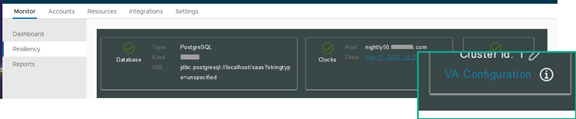
Select Monitor > Resiliency.
-
Click VA Configuration of the service node you want to configure and log in with the admin user password.
-
Click Time Synchronization.
-
Select a time synchronization option.
Option Description NTP Synchronizes the Omnissa Access computer system clock with an NTP server. The default NTP server is time.nist.gov. To use another NTP server, enter its fully qualified domain name (FQDN) in the NTP Server text box. For example: ntpserver.example.comHost Time* Synchronizes the Omnissa Access computer system clock with the ESXi host. This is the default setting. Click Save.
Was this page helpful?