You can change the Omnissa Access service URL, which is the URL that users use to access the service. For example, you might change the URL to a load balancer URL.
-
Log in to the Omnissa Access console.
-
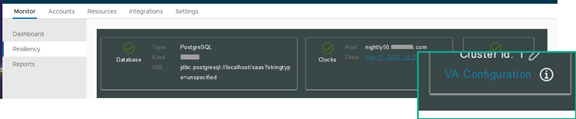
Select Monitor > Resiliency.
-
Click VA Configuration of the service node you want to configure and log in with the admin user password.
-
Click Omnissa Access FQDN and enter the new URL in the Omnissa Access FQDN text box.
Use the format
https://ws1accesshosnamefqdn:port. Specifying a port is optional. The default port is 443.Use lower case characters for the FQDN format. For example,
https://myservice.example.com. -
Click Save.
What to do next
If the new portal user interface is not enabled, enable the new portal user interface.
- Go to https://WS1AccessHostnameFQDN/admin to access the Omnissa Access console.
- Click Settings.
- Select New End User Portal UI in the left pane and click Enable New Portal UI.
- Click SAVE.
Was this page helpful?