To set up Mobile SSO (for Apple) authentication, you configure the Mobile SSO (for Apple) certificate-based authentication settings in the Omnissa Access console and upload the issuer certificate for certificate-based authentication.
The Omnissa Access Mobile SSO (for Apple) authentication method is an implementation of the certificate authentication method for Workspace ONE UEM managed iOS devices (MDM). A certificate is deployed in the UEM device profile and is installed on the device when the device is enrolled in device management. When users access their corporate apps and resources, the certificate is automatically presented, eliminating the need for them to re-enter their credentials to open apps on their device.
You configure the cloud-based authentication methods in the Omnissa Access console Integrations > Authentication Methods page. After the authentication method is configured, you associate the authentication method with an Omnissa Access built-in identity provider in the Integrations > Identity Provider page and create access policy rules to apply to the authentication method in the Resources > Policies page. In the Workspace ONE UEM console, you configure the Apple device profile with the Apple SSO Extension setting and define the type of UEM certificate to deploy in Apple iOS devices.
See the Implementing Omnissa Access Mobile SSO (for Apple) Authentication for Workspace ONE UEM Managed Apple Mobile Devices guide for how to install and configure all the components for Mobile SSO for Apple authentication.
Note: The Mobile SSO (for Apple) authentication method is the recommended Omnissa Access authentication method to use for iOS devices. If you are using Mobile SSO for iOS authentication, you can migrate to Mobile SSO (for Apple). See How to Migrate from Omnissa Access Mobile SSO (iOS) to Mobile SSO (for Apple) Authentication Method for information.
Configure Certificate Authentication for Mobile SSO (for Apple)
Prerequisites
-
Save the issuer certificate that you will upload for Mobile SSO (for Apple) authentication. If you are using the Workspace ONE UEM certificate, export and save the root certificate from the Workspace ONE UEM console System > Enterprise Integration > Omnissa Access > Configuration page.
-
(Optional) List of Object Identifier (OID) of valid certificate policies for certificate authentication.
-
For revocation checking, the file location of the CRL and the URL of the OCSP server.
-
(Optional) OCSP Response Signing certificate file location.
-
(Optional) Select the biometric authentication to configure.
-
If you want to use TLS 1.3 for SSL connections, see KB article 6000726 for the prerequisites that you must complete before enabling the option.
Procedure
-
In the Omnissa Access console, go to the Integrations > Authentication Methods page and select Mobile SSO (for Apple).
-
Click CONFIGURE and configure the certificate authentication settings.
Option Description Enable Certificate Adapter Toggle to Yes to enable certificate authentication. Use TLS 1.3 for SSL connections Toggle to Yes to enable TLS 1.3 for SSL connections. TLS 1.3 provides security enhancements and performance improvements. By default, TLS 1.2 is used.
CAUTION: See [KB article 6000726](https://kb.omnissa.com/s/article/6000726) before enabling this option. The Certificate Authentication Service (CAS) hostnames used for TLS 1.3 are different than those used for TLS 1.2. If you enable the TLS 1.3 option, you might also need to update your network configurations (proxy and firewall configurations) and device profiles to support the new CAS hostnames. See the KB article for more information about using TLS 1.3 and the actions required.Root and intermediate CA certificates
Uploaded CA CertificatesSelect the root certificate that you saved from the Workspace ONE UEM console to upload. The certificate files that are uploaded are listed here. User Identifier Search Order Select the search order to locate the user identifier within the certificate. For Mobile SSO (for Apple) authentication, the value of the identifier attribute must be the same value in both Omnissa Access and Workspace ONE UEM services. Otherwise, Apple SSO fails. - upn: The UserPrincipalName value of the Subject Alternative Name.
- email: The email address from the Subject Alternative Name.
- subject: The UID value from the Subject. If the UID is not found in the subject DN, the UID value in the CN test box is used, if the CN text box is configured.
- If a Workspace ONE UEM CA is used for client certificate generation, the User Identifier Search Order should be Subject | UPN.
- If a third-party enterprise CA is used, the User Identifier Search Order must be UPN | Email | Subject and the certificate template must contain the subject name CN={DeviceUid}:{EnrollmentUser}. Make sure to include the colon (:).
Validate UPN Format Toggle to Yes to validate the format of the UserPrincipalName text box. Request Timeout Enter the time in seconds to wait for a response. If you enter zero (0), the system will wait indefinitely for a response. Certificate Policies Accepted Create a list of object identifiers that are accepted in the Certificate Policies extensions. Enter the objectID numbers (OID) for the Certificate Issuing Policy. Click Add to add additional OIDs. Enable Cert Revocation Toggle to Yes to enable certificate revocation checking. Revocation checking prevents users who have revoked user certificates from authenticating. Use CRL from Certificates Toggle to Yes to use the certificate revocation list (CRL) published by the CA that issued the certificates to validate the status of a certificate, revoked or not revoked. CRL Location Enter the server file path or the local file path from which to retrieve the certificate revocation list. Enable OCSP Revocation Toggle to Yes to use the Online Certificate Status Protocol (OCSP) certificate validation protocol to set the revocation status of a certificate. Use CRL in case of OCSP failure If you set up both CRL and OCSP, you can enable this toggle to fallback to use CRL if the OCSP checking option is not available. Send OCSP Nonce Enable this toggle if you want the unique identifier of the OCSP request to be sent in the response.
Note: Sending a nonce is not supported for a Lightweight OCSP (RFC 5019) responder.OCSP URL If you enabled OCSP revocation, enter the OCSP server address for revocation checking. OCSP URL Source Select the source to use for revocation checking. - Select Configuration Only to perform certificate revocation check using the OCSP URL provided in the OCSP URL text box to validate the entire certificate chain.
- Select Certificate Only (required) to perform certificate revocation check using the OCSP URL that exists in the Authority Information Access (AIA) extension of each certificate in the chain. Every certificate in the chain must have the OCSP URL defined, else the certificate revocation check fails.
- Select Certificate Only (optional) to only perform certificate revocation check using the OCSP URL that exists in the AIA extension of the certificate. Do not check revocation if the OCSP URL does not exist in the certificate AIA extension.
- Select Certificate with fallback to configuration to perform certificate revocation check using the OCSP URL extracted from the AIA extension of each certificate in the chain, when the OCSP URL is available. If the OCSP URL is not in the AIA extension, the fallback is to check revocation using the OCSP URL configured in the OCSP URL text box. The OCSP URL text box must be configured with the OCSP server address.
OCSP Responder's Signing Certificates
Uploaded OCSP Signing CertificatesSelect the OCSP Responder Signing Certificates files to upload. The uploaded OCSP Responder Signing Certificates files are listed here. Issuer CA Certificates You can use this option to limit the number of certificates that are presented to users when they authenticate with the Mobile SSO (for Apple) authentication method, if required.
Click Select File and upload a subset of the certificates uploaded in Root and intermediate CA certificates to use as issuer certificates. Only the identity certificates issued directly by the uploaded Issuer CA Certificates will be available for user authentication. When a user authenticates with the Apple Mobile SSO authentication method for the first time on a device (for example, by launching an app), the user is prompted to select a certificate from the list of installed identity certificates. The list will only contain the certificates issued directly by the Issuer CA Certificates.
If no certificates are uploaded to Issuer CA Certificates, identity certificates issued by all the certificates uploaded to Root and intermediate CA certificates are presented to the user.
Important: The Issuer CA Certificates must be a subset of the Root and intermediate CA certificates.
Device Auth Type Mobile SSO (for Apple) supports requiring that the user authenticate with the device using a biometric mechanism (FaceID or TouchID) or a passcode before the certificate on the device is used to perform the authentication with Omnissa Access. If users must verify with biometric or biometric with passcode as a backup, select the correct option. Otherwise select NONE. -
Click SAVE.
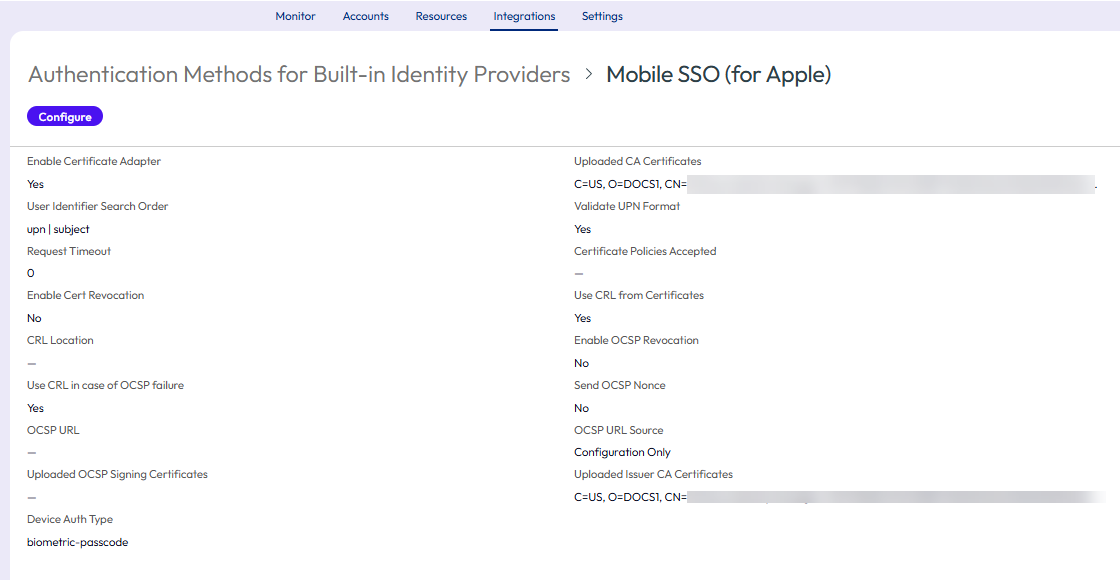
The configuration settings are shown on the Mobile SSO (for Apple) authentication methods page.
What to do next
Associate the Mobile SSO (for Apple) authentication method in the built-in identity provider.
Configure the default access policy rule for Mobile SSO (for Apple).
Was this page helpful?