When Kerberos is enabled in Omnissa Access, you need to configure Web browsers to send your Kerberos credentials to the Omnissa Access service when users sign in. Without this browser-side configuration, Kerberos authentication is enabled on the server side, but browsers will not automatically negotiate and pass the Kerberos ticket, and users will fall back to a standard sign-in prompt instead of getting single sign-on.
The following Web browsers can be configured to send your Kerberos credentials to the Omnissa Access service on Windows machines: Firefox, Microsoft Edge, and Chrome. All the browsers require additional configuration, and the configuration steps differ by browser.
Note: Kerberos authentication works in conjunction with Omnissa Access on Windows operating systems. Do not implement these Kerberos-related steps on other operating systems.
Configure Microsoft Edge to Access the Web Interface from Omnissa Access with Kerberos
You configure the Microsoft Edge browser to support Kerberos authentication when Kerberos is configured for your Omnissa Access deployment and if you want to grant users access to the Web interface using the Microsoft Edge browser.
Procedure
-
Open the Windows Control Panel and go to Network and Internet > Internet Options.
-
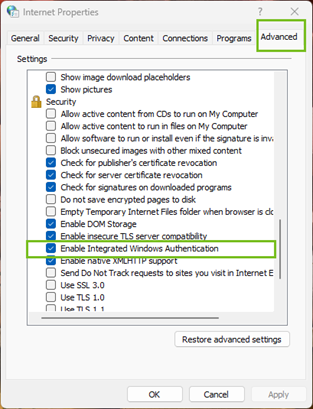
On the Advanced tab, scroll to the Security section and select Enable Integrated Windows Authentication.
-
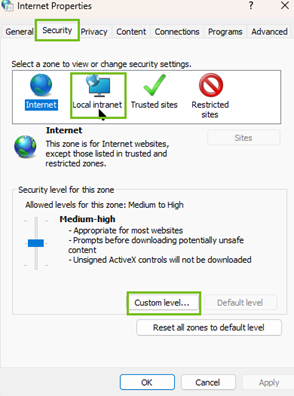
On the Security tab, configure the following.
-
Select Local Intranet and click Custom Level.
-
Scroll to the User Authentication section and select Automatic login only in Intranet zone and click OK.
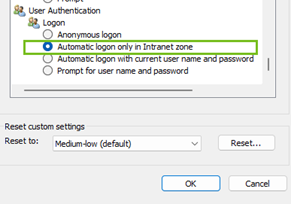
This option takes effect only after you restart Microsoft Edge.
-
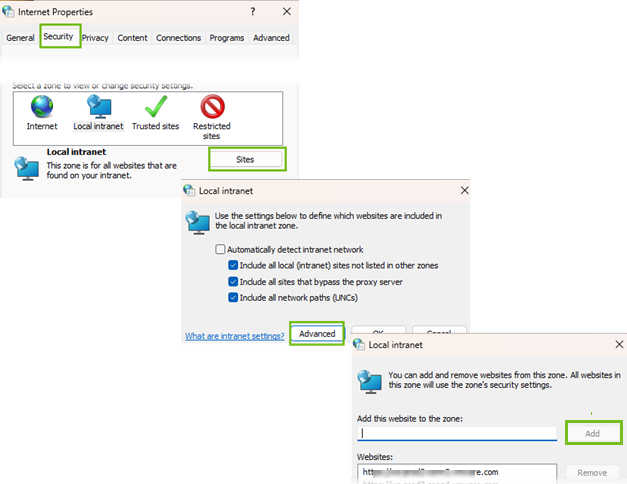
On the Security page, click Local Internet > Sites and select all check boxes.
-
Select Advanced and add the website to the zone.
-
Click Add > Close > OK.
-
-
Log in to the Microsoft Edge browser to check access.
Results
The Kerberos protocol secures all interactions between this Microsoft Edge browser instance and Omnissa Access. Now, users can use single sign-on to access their Hub portal.
Configure Firefox to Access the Web Interface from Omnissa Access with Kerberos
You must configure the Firefox browser if Kerberos is configured for your Omnissa Access deployment and you want to grant users access to the web interface using Firefox.
Prerequisites
Configure the Firefox browser, for each user, or provide users with the instructions, after you configure Kerberos.
Procedure
-
In the URL text box of the Firefox browser, enter
about:configto access the advanced settings. -
Click Accept the Risk and Continue.
-
Double-click network.negotiate-auth.trusted-uris in the Preference Name column.
-
Enter your Omnissa Access connector URL in the text box.
https://myconnectorhost.domain.com
If you are using multiple connectors for Kerberos authentication, add a comma separated list of connectors.
-
Click OK.
-
Test Kerberos functionality by using the Firefox browser to log in to connector login URL. For example, https://myconnectorhost.domain.com.
If the Kerberos authentication is successful, the test URL goes to the Web interface.
Results
The Kerberos protocol secures all interactions between this Firefox browser instance and Omnissa Access. Now, users can use single sign-on to access their Workspace ONE portal.
Configure the Chrome Browser to Access the Web Interface from Omnissa Access with Kerberos
You must configure the Chrome browser if Kerberos is configured for your Omnissa Access deployment and if you want to grant users access to the Web interface using the Chrome browser.
Prerequisites
- Configure Kerberos.
- Since Chrome uses the Microsoft Edge configuration to enable Kerberos authentication, you must configure Internet Explorer to allow Chrome to use the Microsoft Edge configuration. See Google documentation for information about how to configure Chrome for Kerberos authentication.
Procedure
-
Test Kerberos functionality by using the Chrome browser.
-
Log in to Omnissa Access connector at https
://myconnectorhost.domain.com/authenticate/ .If Kerberos authentication is successful, the test URL connects with the Web interface.
Results
If all related Kerberos configurations are correct, the protocol (Kerberos) secures all interactions between this Chrome browser instance and Omnissa Access. Users can use single sign-on to access their Workspace ONE portal.
Related information
Configure and Enable Kerberos Authentication in Omnissa Access
Was this page helpful?