To achieve the single sign-on experience when users access resources from the Workspace ONE Intelligent Hub app, configure the default access policy in Omnissa Access with rules for each type of device that is used in your environment.
In this example of a default access policy configuration, the default access policy is created with rules to cover users who sign in from all network ranges. For managed access, Device Compliance for Workspace ONE UEM is configured for the devices and the Workspace ONE Intelligent Hub app rules. The following rules are created.
- A rule for each type of device that can be used to access the Workspace ONE Intelligent Hub App.
- A rule for user access from the Apps on Workspace ONE Intelligent Hub device type for the Workspace ONE Intelligent Hub app. All authentication methods for all devices that are supported are configured in this rule. The Device Compliance authentication method is applied to support access from managed devices.
- A rule for user access from the Web Browser device type to access Hub portal from any web browser.
- A rule for users on unmanaged devices to access resources.
When users use one of the devices to sign in to the Workspace ONE Intelligent Hub app, they are authenticated according to the authentication method configured for the device type. After the user is successfully authenticated, when they launch other resources from the Workspace ONE Intelligent Hub app, that authentication method is recognized and the user is not prompted to authenticate again.
Example of Access Policy Rule Conditions to Use for Workspace ONE
For the best user experience, list the device type Apps on Workspace ONE Intelligent Hub as the first rule in the default access policy. When the rule is first, users are signed in to the app and can launch resources without reauthenticating until the session expires.
-
Create rules for each device that can access the Workspace ONE Intelligent Hub app. This example is a rule to allow access from the device type iOS.
- Network range is ALL RANGES.
- Users can access the content from iOS.
- No groups are added to the policy rule. All Users are supported.
- Configure all authentication methods that are supported.
- Authenticate using Mobile SSO (for iOS) and Device Compliance (with Workspace ONE UEM).
- Fallback method 1: Password (cloud deployment).
- Authenticate using Mobile SSO (for iOS) and Device Compliance (with Workspace ONE UEM).
- Session reauthentication after 8 hours.
- Network range is ALL RANGES.
-
Create the rule for the device type Apps on Workspace ONE Intelligent Hub and configure the authentication methods to use, starting with Mobile SSO (for iOS). The fallback authentication is Mobile SSO (for Android). When a user using an Android device fails to authenticate with Mobile SSO (for iOS), they can authenticate with the fallback method, Mobile SSO (for Android) and device compliance.
- Network range is ALL RANGES.
- Users can access the content from Apps on Workspace ONE Intelligent Hub.
- No groups are added to the policy rule. All Users are supported.
- Configure all authentication methods that are supported.
- Authenticate using Mobile SSO (for iOS) and Device Compliance (with Workspace ONE UEM).
- Fallback method 1: Mobile SSO (for Android) and Device Compliance (with Workspace ONE UEM).
- Fallback method 2: Password (cloud deployment).
- Authenticate using Mobile SSO (for iOS) and Device Compliance (with Workspace ONE UEM).
- Session re-authentication after 2160 hours. 2160 hours is equal to 90 days.
- Network range is ALL RANGES.
-
Create the rule for the device type Web Browser to access the Hub portal from any web browser. This example includes as a fallback the authentication method Password (Local Directory). To authenticate system administrators who sign in, at least one rule must be configured to authenticate using Password (Local Directory). The session times out after 24 hours.
- Network range is ALL RANGES.
- Users can access the content from Web Browser.
- No groups are added to the policy rule. All Users are supported.
- Configure all authentication methods that are supported.
- Authenticate using Password (cloud deployment).
- Fallback method 2: Password.
- Fallback method 3: Password (Local Directory).
- Authenticate using Password (cloud deployment).
- Session reauthentication after 8 hours.
- Network range is ALL RANGES.
-
Create the rule for all device types to access unmanaged resources.
- Network range is ALL RANGES.
- Users can access the content from All Devices.
- No groups are added to the policy rule. All Users are supported.
- Configure all authentication methods that are supported.
- Authenticate using Password (cloud deployment).
- Authenticate using Password (cloud deployment).
- Session reauthentication after 8 hours.
- Network range is ALL RANGES.
When you create these rules, your default policy set looks like the following:
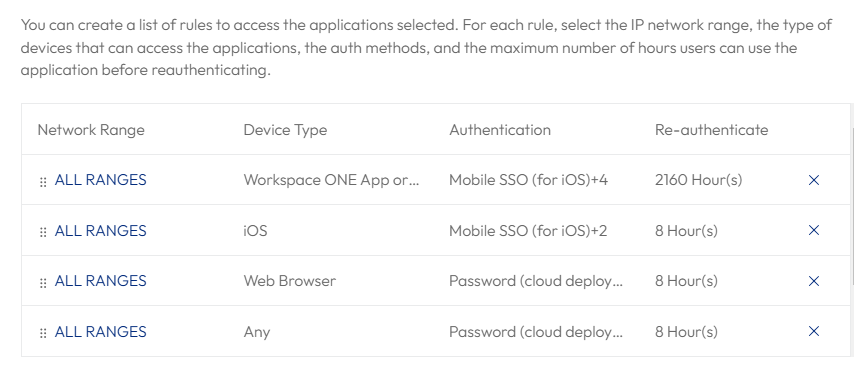
Flow with this default access policy configured.
- UserA signs in to the Workspace ONE Intelligent Hub app from their iOS device and is asked to authenticate with Mobile SSO (for iOS). The second rule is Mobile SSO (for iOS) and the authentication is successful.
- UserA launches a resource listed in the Workspace ONE Intelligent Hub app and because the rule with device type Apps on Workspace ONE Intelligent Hub includes the authentication method Mobile SSO (for iOS) as a fallback authentication method, the resource is launched without requesting authentication again. The user can launch resources without signing in again for 2160 hours.
Also see Configure Compliance Checking Rules in Omnissa Access.
Was this page helpful?