To manage contracts and to process monthly billing orders in Omnissa Commerce Portal, begin by building your organizations.
What is an Aggregator
As an Aggregator, you use Commerce Portal to manage the contracts you have with Cloud Services Providers and to support the automated collection and processing of monthly billing orders. Within Commerce Portal, you can see the status of your contracts and information about them. You receive notifications about tasks pending your action.
How do I manage user access in my organization
You use Commerce Portal from the context of an organization. Your organization has a 1:1 mapping with the PRM ID issued to your entity by Partner Network (VPN). As an Aggregator user assigned with the Administrator role, you can add and delete users from your organization, modify their access rights, lock or unlock their accounts, or request password resets on their behalf.
Commerce Portal provides your organization with an easy-to-use Identity Access Management (IAM) framework that you can use to manage users and their roles. It is your responsibility to ensure that user access to your organization is kept up-to-date.
How do I add new users
You can invite new users to your organization and assign role-based permissions to their user accounts.
Verify that you are logged in with an account that has the Administrator role assigned.
You can assign multiple roles to users.
-
On the Commerce Portal toolbar, click Users.
-
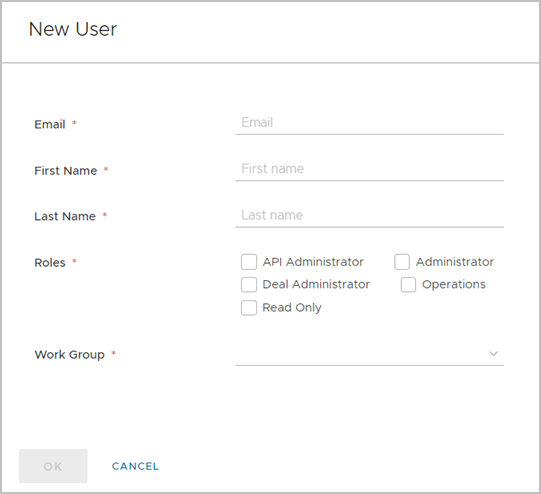
Click New User.
-
Enter the details of the user and select the roles you want to assign to them.
-
If you have enabled the work groups feature for your organization, select a work group for the user from the Work Group drop-down menu.
-
To add the user, click Ok.
The user receives an invitation email to join your organization with instructions about onboarding.
How do I remove users
You can remove existing users from your organization.
Verify that you are logged in with an account that has the Administrator role assigned.
Note: You can deactivate a user account temporarily instead of deleting it.
-
On the Commerce Portal toolbar, click Users.
-
Click the ellipsis-vertical button next to a user's name, and click Delete.
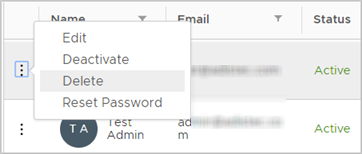
A pop-up window appears, prompting you to confirm the deletion.
-
Click Yes.
The user is deleted from your organization and can no longer access Commerce Portal .
How do I deactivate users
You can deactivate user accounts in your organization without deleting them. Deactivated users remain in the organization but cannot log in to Commerce Portal until reactivated.
Verify that you are logged in with an account that has the Administrator role assigned.
-
On the Commerce Portal toolbar, click Users.
-
Click the ellipsis-vertical button next to a user's name, and click Deactivate.
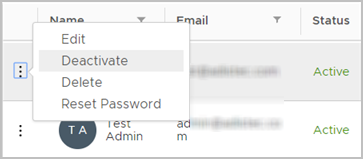
A pop-up window appears, prompting you to confirm the deactivation.
-
Click Yes.
The user's account is temporarily deactivated and they can no longer use their credentials to log in to Commerce Portal.
To reactivate a user, click the options button next to a user's name and select Activate.
How do I request a password reset for a user
You can request password resets for users in your organization. Users for which you trigger a password reset receive an email with instructions on setting a new password.
Verify that you are logged in with an account that has the Administrator role assigned.
-
On the Commerce Portal toolbar, click Users.
-
Click the ellipsis-vertical button next to a user's name and click Reset Password.
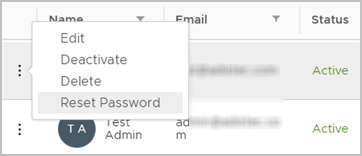
A pop-up window appears, prompting you to confirm the password reset request.
-
Click Yes.
The user receives an email with instructions for resetting their password.
How do I download detailed information about the users in my organization
You can download more detailed information about the users in your organization as a CSV file. Downloaded user information contains additional data about the creator of a user, the time of creation, and the time when a user was last modified.
Verify that you are logged in with an account that has the Administrator role assigned.
-
On the Commerce Portal, click Users.
-
To download the user information of your organization, click Download.
You download a ZIP file which contains two CSV files with detailed information about the active and inactive users in your organization.
Was this page helpful?