To work in the Omnissa Commerce Portal, use your invitation to log in to the portal so you can onboard as a provider or aggregator. Then work in portal components so you can invite users, manage and browse contracts, and submit billing.
Before you begin
To onboard and use Commerce Portal, you must meet certain prerequisites.
| To... | You need... |
|---|---|
| Receive an onboarding invitation and log in to Commerce Portal | To be a Partner Connect Program partner and have at least one Partner Connect contract with Omnissa. To become a partner, visit Omnissa Partner Connect. |
How do I onboard to Commerce Portal
If you are part of the Partner Connect Program as a Cloud Services Provider or an Aggregator, you receive an invitation email with instructions on setting your password and logging in to Commerce Portal for the first time.
Verify that you received your Commerce Portal invitation email. If you have discarded the invitation email or did not receive it, visit the Commerce Portal login screen and request a new one.
- Locate your Commerce Portal invitation email and click the URL.
You are redirected to the Commerce Portal password reset screen. - Enter your password, then enter it again to confirm it, and click Set.
Your password is set and you are redirected to the Commerce Portal login screen. - Enter your email address and password, and click Login.
You have successfully onboarded to Commerce Portal and set a password for your account.
How do I work with Commerce Portal
Commerce Portal offers various functionalities and analytical tools to support your monthly reporting efforts. Depending on whether you use the platform as an Aggregator or a Cloud Services Provider, you have access to different functions in the Dashboard, Contracts, Monthly Reporting, Users, and Support menus. As an Aggregator, you also have access to the Deal Registration menu.
Dashboard
The Dashboard menu provides you with information about your tasks, support tickets, active contracts, and recent activities.
As a Cloud Services Provider, you can find statistics about your usage consumption for the past 12 months.
As an Aggregator, you get information about the status of in-progress and current monthly billing orders (MBOs) of Cloud Services Providers that you manage. You also get ranked statistics about the usage consumption of Cloud Services Providers, and ranked statistics about the consumption of contract SKUs. The Alerts window shows items that require your attention, such as overdue MBOs, MBOs with abnormal usage, or contracts that expire soon.
Contracts
The Contracts menu hosts all functions and information related to your contracts. You can see the contracts that you have signed with information about their status, product families, contract SKUs, and their start and end dates.
As an Aggregator, you use the Contracts menu to create new contracts with Cloud Services Providers.
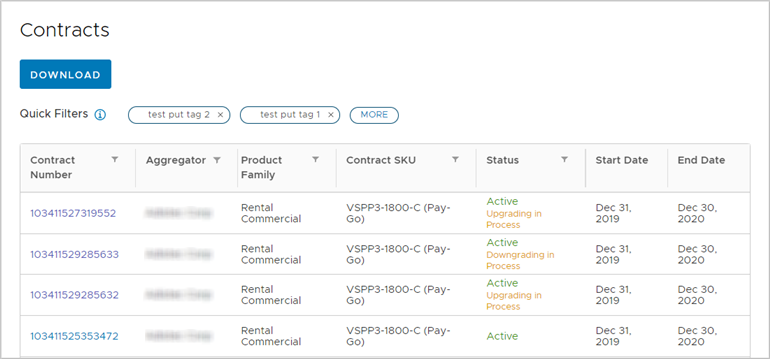
Clicking an individual contract expands its details page, giving you additional information about the contract and options for managing sites, automatic reporting, and one-off order requests.
As an Aggregator, this is where you upgrade, downgrade, or terminate a contract.
To see all monthly billing orders spooled for that contract, click View MBO List.
Monthly Reporting
The Monthly Reporting menu is where MBOs are located.
Clicking an MBO number takes you to the details page of that MBO.
As a Cloud Services Provider, this is where you raise adjustment requests on closed MBOs.
MBOs pending your action have a Go To Inbox button in their details page. To open the MBO in your task inbox and start preparing it for submission, click the Go To Inbox button.
Users
You use Commerce Portal from the context of an organization. To manage user access to your organization, you use the Users menu, inviting users to your organization and assigning role-based permissions to them.
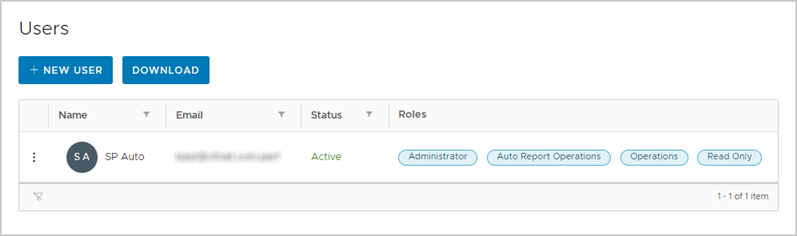
You can temporarily deactivate users or request password resets on their behalf.
You can also download additional user information as a CSV file.
Support
If you experience an issue, the Support menu is where you create support tickets.
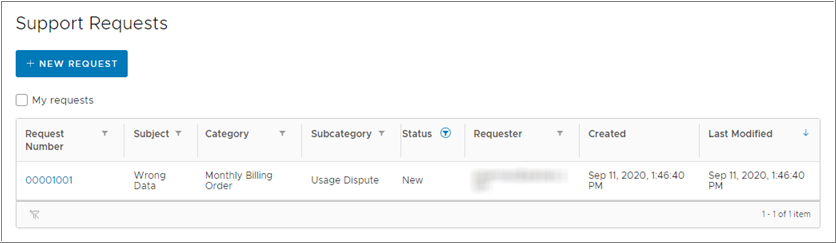
To facilitate the correct processing of your request, the platform provides you with relevant categories and subcategories within which you can request support.
Task Inbox
The task inbox feature provides you with a list of items that require your action, such as MBOs awaiting your submission or approval. To access your task inbox, click the inbox button next to your user name. Clicking it expands the task inbox drop-down menu, where you can get quick access to a set of your most recent tasks.
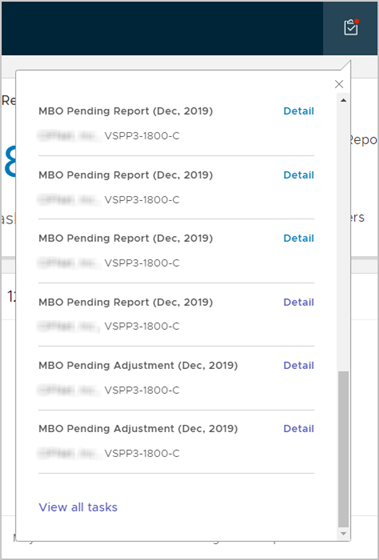
Scroll down and click View all Tasks to get to the Task Inbox menu, where you can find all tasks pending your action.
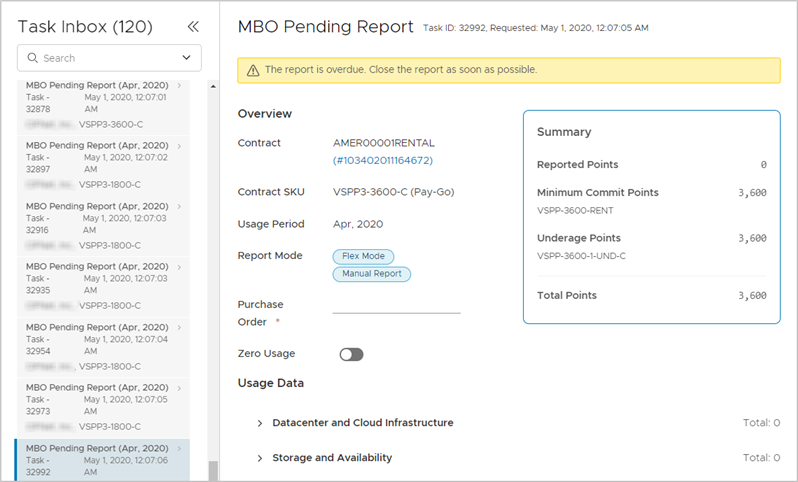
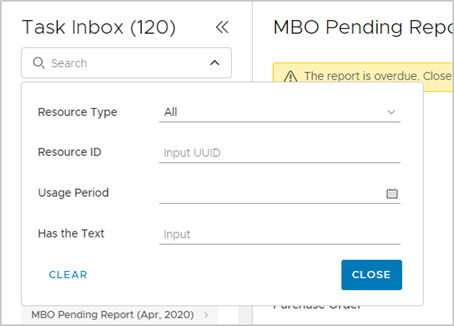
You can types strings in the quick search text box to filter displayed tasks. You can also use the advanced search functionality by clicking the angle button in the search text box.
Working with tables
When working with tables in one of the menus of Commerce Portal, you have various filtering and formatting tools at your disposal.
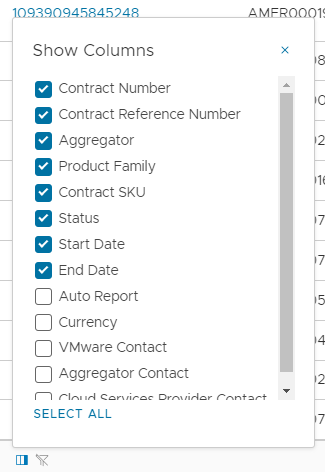
You can show or hide the columns of a table with the view-columns button at the bottom left of a table.
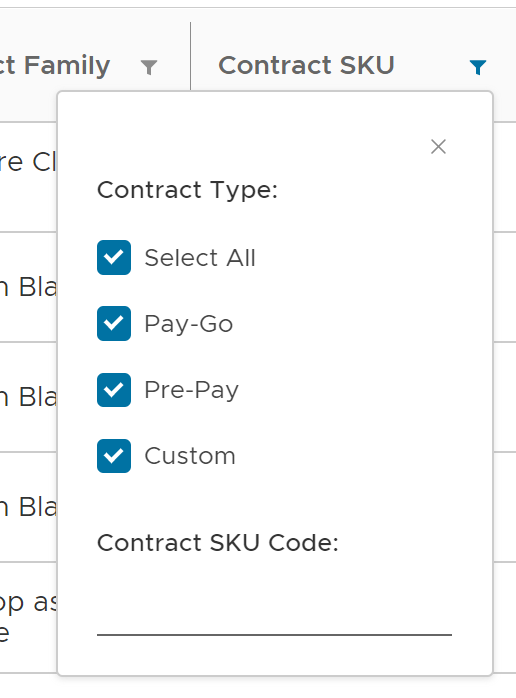
You can use the filter buttons inside a table's column headers to type strings or make a selection of displayed items.
You can sort tables in ascending or descending order by clicking one of the column headers.
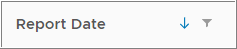
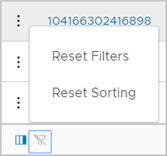
When you apply filtering or sorting to one of the tables your selection is saved and persists if you switch menus or log out of Commerce Portal. To reset the formatting of a table, you can use the filter-off button at the bottom left of a table.
What can I do with Commerce Portal
As a Cloud Services Provider or an Aggregator, you use Commerce Portal to complete your Cloud Provider Program monthly reporting efforts. For information about what you can do with Commerce Portal, refer to the table below that is relevant to your role.
| To learn about... | See... |
|---|---|
| Inviting users to your organization and managing their access and permissions | - Provider: How do I manage user access in my organization - Aggregator: How do I manage user access in my organization |
| Viewing and submitting your monthly billing orders | - Provider: How do I manage monthly reporting - Aggregator: How do I manage Monthly Billing Orders |
| Viewing and managing your contracts | - Provider: How do I Manage My Contracts - Aggregator: How do I Manage My Contracts |
Was this page helpful?