Use the Support menu in the Omnissa Commerce Portal to raise support requests for issues that you experience. You can also change your displayed full name and password in your Commerce Portal Profile.
Note: This feature is in preview and is not yet in production.
Support Requests
You use the Support menu to raise support requests for issues that you experience. To facilitate the correct processing of your request, select the relevant category and subcategory of the issue. You can upload attachments to help the support team better understand your issue.
-
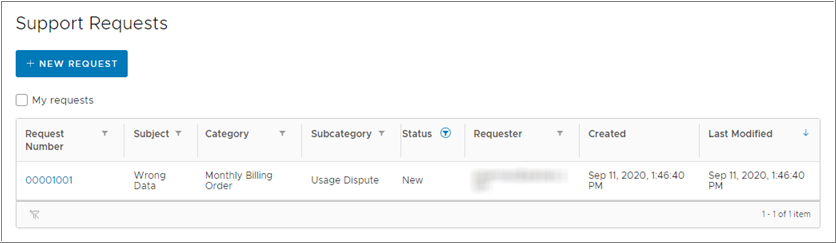
On the Commerce Portal toolbar, click Support.
-
To view only the requests you have created, select the My requests check box.
-
To open a new support request, click New Request.
-
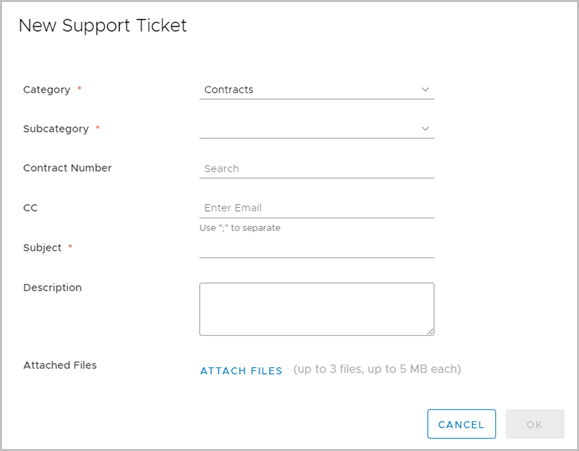
From the Category drop-down menu, select the relevant category of your issue.
If you selected Contracts, you also get the option to enter the contract number of the affected contract.
-
From the Subcategory drop-down menu, select the relevant subcategory of the issue.
-
In the Subject text box, enter the subject of the issue.
-
Enter the email addresses of users you want to CC and enter a description of the issue.
-
Attach files for additional information using the Attach Files button.
-
To raise the support request, click Ok.
The support request is created and appears in the Support Request table with its status.
-
To open the details page of a request, click the request number of a support request.
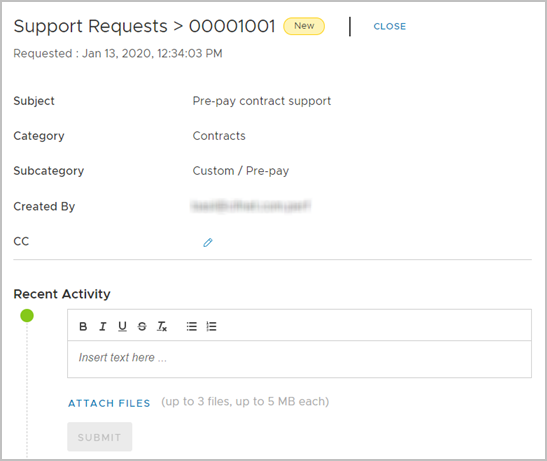
In the Recent Activity section, you can submit additional comments and attachments, and track previous communication on that request.
- When submitting additional comments, you can format your text and create ordered or unordered lists.
- To attach files to the comment, click Attach Files.
-
To close a support request, navigate to the details page of that request and click Close.
Edit account information and password
You can change your displayed full name and password.
- On the Commerce Portal toolbar, expand the drop-down menu next to your user name and click Profile.
- To change your full name, click the edit button next to your name, make the desired change, and click Save.
- To change your password, click Change Password.
- Enter your old password, then your new password twice, and click Change.
You have successfully changed your account information and password.
Was this page helpful?