Use the Omnissa Commerce Portal to view contracts, work with tags for contracts, request one-off orders, and view pricing details.
As a Cloud Services Provider user assigned with the applicable role, you can view the contracts of your organization and create sites for contracts. To aid the categorization and filtering of contracts, you can also add tags to contracts.
How do I view my contracts
You view your organization's contracts and details about them in the Contracts menu.
Verify that you are logged in with an account that has the permission to view your organization's contracts. See Cloud Services Provider roles and permissions in Commerce Portal.
-
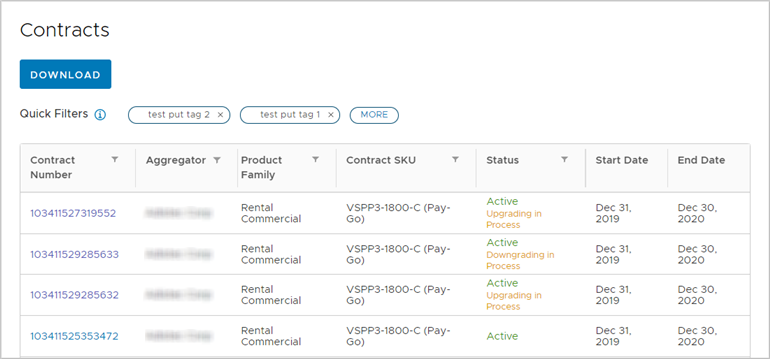
On the Commerce Portal toolbar, click Contracts.
-
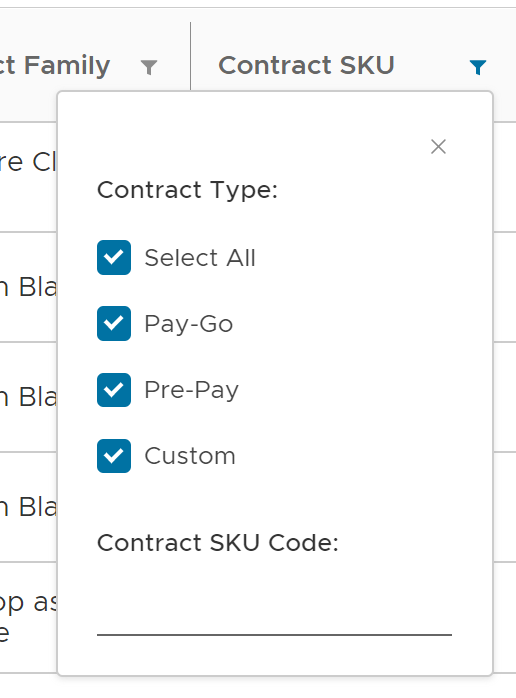
Filter displayed contracts using the filter buttons located inside the Contracts table's column headers.
-
To download your contracts information as a CSV file, click Download above the Contracts table.
If you applied filtering to the table, the CSV file contains only the filtered results.
-
To get more details about a specific contract, click its contract number.
You are redirected to the details page of that contract which contains additional information about the contract and its timeline.
-
Tag your contracts for additional filtering options.
-
Create sites for your contracts.
How do I work with tags
Commerce Portal provides you with a tagging functionality to group your contract items. You can tag your contracts with strings to group contracts together and use tag filters in the Contracts menu to view only the contracts with the selected tag.
Verify that you are logged in with an account that has the Operations role assigned.
-
On the Commerce Portal toolbar, click Contracts.
-
Click the contract number of the contract you want to tag.
You are redirected to the details page of that contract.
-
At the bottom of the page, click New Tag.
-
Enter a tag name and press Enter.
The tag appears in the Associated Tags list and above the Contracts table.

- To filter tagged contracts, select tags above the table in the Contracts menu. You can select multiple tags at once.
- To remove a tag, click the x next to a tag's name.
How do I view pricing details of products in a contract
You can view the pricing details of all product offerings related to a contract. The prices listed in the pricing table are the ones used to automatically calculate your monthly billing order (MBO) expenses.
Verify that you are logged in with an account that has the permission to view your organization's contracts. See Cloud Services Provider roles and permissions.
By default, the prices displayed are for the current time period, starting with the previous month and ending with the current month. You can modify the time period to display the pricing of products at an earlier point in time.
-
On the Commerce Portal toolbar, click Contracts and click a contract number.
-
Click Pricing.
The table lists the prices of all product offerings in the current time period.
-
To view the pricing of products in a different time period, click the filter button inside the Period column header and select a different starting month; or select Custom and select a custom time range.
-
Filter the table further by clicking the filter buttons inside the column headers and entering a string or making a selection.
-
Download the contract's pricing information as a CSV file.
-
Click Download.
-
Select a starting and ending month.
-
Click OK.
Note: The downloaded file contains the pricing details of all product offerings related to the contract for the selected time period and does not take any filtering into account.
-
Was this page helpful?