You use the Omnissa Commerce Portal to manage the monthly billing orders (MBOs) reported by Cloud Services Providers that you have contracts with. In the Monthly Reporting menu, you view MBOs submitted by Cloud Services Providers, submit the MBOs to Omnissa for processing, and act on MBO adjustment requests raised by Cloud Services Providers.
As an Aggregator, you are responsible for acting on adjustment request on closed monthly billing orders (MBOs) raised by Cloud Services Providers. You can either approve the adjustment request and send it to Omnissa with a comment, or reject the adjustment request and send it back to the Cloud Services Provider.
How do I view monthly billing orders
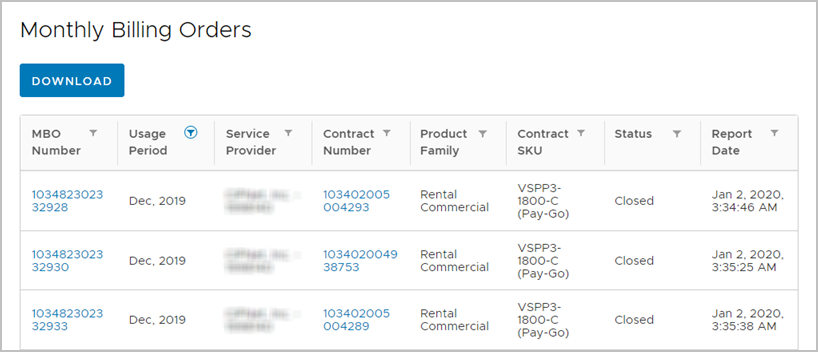
In the Monthly Reporting menu, you view the monthly billing orders (MBOs) reported by the Cloud Services Providers that you manage.
Verify that you are logged in with an account that has the Operations role assigned.
-
On the Commerce Portal toolbar, click Monthly Reporting.
-
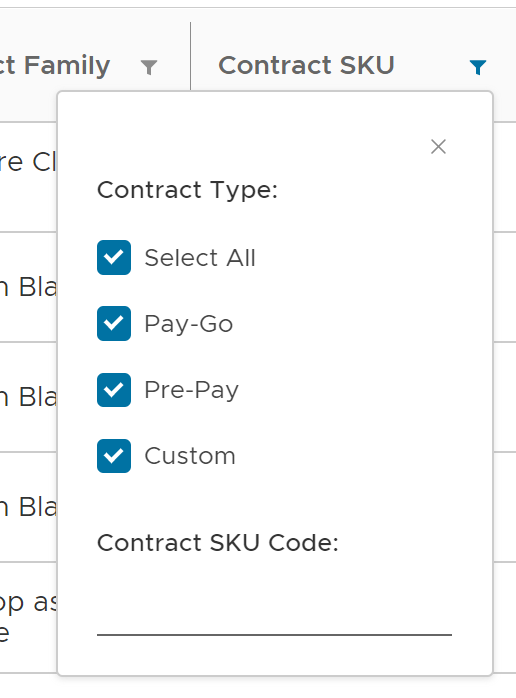
Filter displayed MBOs using the filter buttons located inside the Monthly Billing Orders table's column headers.
-
To download your MBO information as a CSV file, click Download above the Monthly Billing Orders table.
If you applied filtering to the table, the CSV file contains only the filtered results.
-
To get more details about a specific MBO, click its MBO number.
You are redirected to the details page of that MBO where you see a summary of the reported usage.
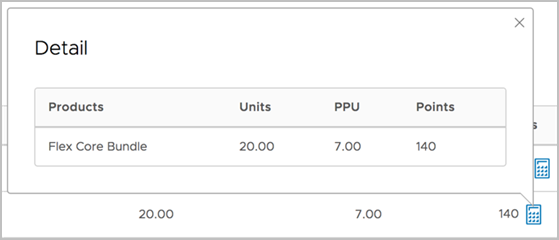
To see details about the point calculation of a product, point to the reported points in the Usage Details section.
If a MBO is pending your action, you can click the Go To Inbox button next to the MBO status to go to your task inbox and act on the report.
The following table lists all MBO status descriptions.
| Status | Description |
|---|---|
| Pending SP | The MBO is awaiting the Cloud Services Provider's submission. |
| Pending Aggregator | The MBO is pending your action. Go to your inbox to submit the report to Omnissa or send it back to the Cloud Services Provider with comments. |
| Pending Vendor | The MBO has been submitted to Omnissa for processing and is currently being processed. |
| Pending Adjustment | The MBO is undergoing an adjustment. |
| Overdue | The MBO has not been reported by the Cloud Services Provider by the first configured due date and is considered overdue. |
| Delinquent | The MBO has not been reported by the Cloud Services Provider by the second configured due date and is considered delinquent. |
| Closed | The MBO is closed. |
Submit pending MBOs to Omnissa for approval or send MBOs back to Cloud Services Providers with comments.
How do I submit monthly billing orders to Omnissa for processing
You submit monthly billing orders (MBOs) of Cloud Services Providers that you manage to Omnissa for processing.
Verify that you are logged in with an account that has the Operations role assigned.
-
In your task inbox, select the report you want to submit.
-
Modify the Purchase Order from a Cloud Services Provider.
-
Enter the Purchase Order with Omnissa and select the Order Preference.
-
In the Comments section, enter a comment.
-
To submit the MBO report to Omnissa for processing, click Approve.
The MBO report is sent to Omnissa for processing. You can see the status of the MBO in the Monthly Reporting menu.
How do I send back monthly billing orders to Cloud Services Providers
You can reject a monthly billing order (MBO) submitted to you by a Cloud Services Provider. When rejecting a report, you provide your comments to the Cloud Services Provider and send the MBO back for revision.
Verify that you are logged in with an account that has the Operations role assigned.
-
In your task inbox, select the report you want to send back to the Cloud Services Provider.
-
Modify the Purchase Order from a Cloud Services Provider.
-
To send back the report, enter your comment in the Comments section and click Send Back.
The report is sent back to the Cloud Services Provider with your comment.
Wait for the Cloud Services Provider to make the required adjustments and resubmit the report.
How do I act on adjustment requests from Cloud Services Providers
As an Aggregator, you are responsible for acting on adjustment request on closed monthly billing orders (MBOs) raised by Cloud Services Providers. You can either approve the adjustment request and send it to Omnissa with a comment, or reject the adjustment request and send it back to the Cloud Services Provider.
Verify that you are logged in with an account that has the Operations role assigned.
Adjustment requests that are pending your action are located in your task inbox.
-
From your task inbox, select the adjustment request you want to act on.
-
Modify the Purchase Order from a Cloud Services Provider.
-
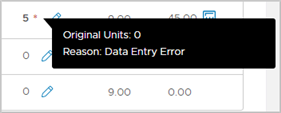
In the Usage Details section, review the adjustments made by the Cloud Services Provider.
Adjusted units are marked out, allowing you to see the original reported units and the reason for adjustment.
-
If the adjustment is plausible, enter a comment and click Approve to send the adjustment request to Omnissa for processing. If the adjustment is implausible, click Reject to deny the adjustment request and send the MBO back to the Cloud Services Provider.
Depending on your action, the MBO adjustment request is either approved and sent to Omnissa, or rejected and sent back to the Cloud Services Provider.
Was this page helpful?